◼
PC CONNECTION
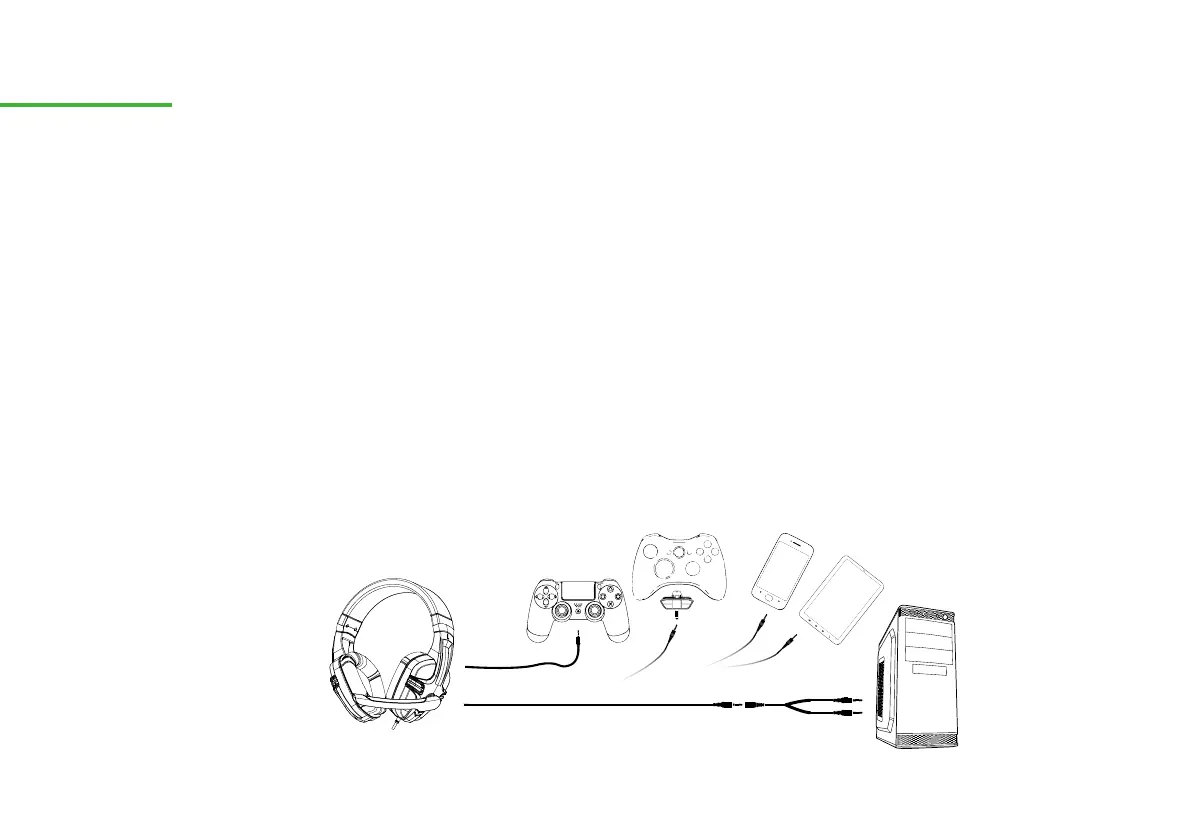
01. Connect the headset to your PC connecting the 3.5 mm jack to the PC adapter included. Then connect the
adapter 3.5 mm microphone and headphones jacks into the correct inputs.
02. A pop up window will ask you to confirm the new devices (depending on your audio driver).
03. Audio input and output will be assigned to the relevant controller.
◼
PS4 CONNECTION
To connect and configure the Typhoon headsets with your PS4™ console, follow the steps below:
· Connect the headset to the DUALSHOCK®4 gamepad.
· Audio input and output will be assigned automatically to the relevant controller.
· From the PS4™ main menu, select “Setting/Sound and Screen/Audio Output Settings/Output to Headphones”.
· Select “All Audio” to output both the game sound as well as chat audio via headset.
· Select “Chat Audio” to output only the voice-chat audio via the headset.
· Adjust the headset master volume level by selecting “Settings/Devices/Audio Devices and Headset and Microphone”.
◼
XBOX ONE CONNECTION
To connect the headset with XBOX ONE® is required Microsoft Stereo Headset Adapter (not included).
01
INSTALLATION
OVERVIEW &
ASSISTANCE
* Not included
*



 To Next Page
 Loading...