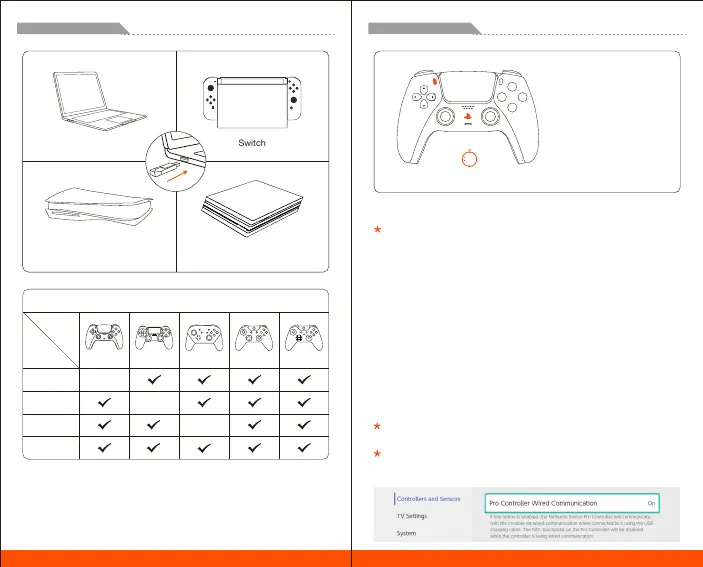
R100 Pro System Compatibility
ENGLISH/イギリス語/英语
SwitchPC
CREATE + PS
05
DualSense
(PS5 controller)
DualSense (PS5 controller)
ENGLISH/イギリス語/英语
When connecting to the Switch console, you need to open "Settings>
Controllers and Sensors>Wired Connection of Pro controller".
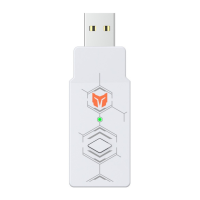
a. Insert the R100 Pro into the console. When the R100 Pro indicator flashes,
indicating that the adapter has entered the pairing mode. And the adapter
can be in pairing mode by pressing its button again.
b. Make sure the controller is turned off (Long press the PS button for 10s to
turn it off)
c. Pairing mode of the controller: Press and hold the CREAT button first and then
press the PS button for 5 seconds. When the controller's indicator double
flashes in bule, it has entered the pairing mode.
d. Wait for automatic pairing: When the indicator of R100 Pro and the controller
is always on, and the controller light bar is in blue, it means that the pairing
has been successful.
e. Press the PS button again and if the controller can work normally on the host,
the connection is successful.
After pairing with the R100 Pro, if you want to reconnect to the PS5 console,
please refer to the official connection method to reconnect the controller to
the console.
It is recommended to repeat the above steps for re-pairing connection every
time you use it to ensure the best user experience.


 To Next Page