English
14
Blackstar Live Logic Midi Control Software
Button Features & Functions
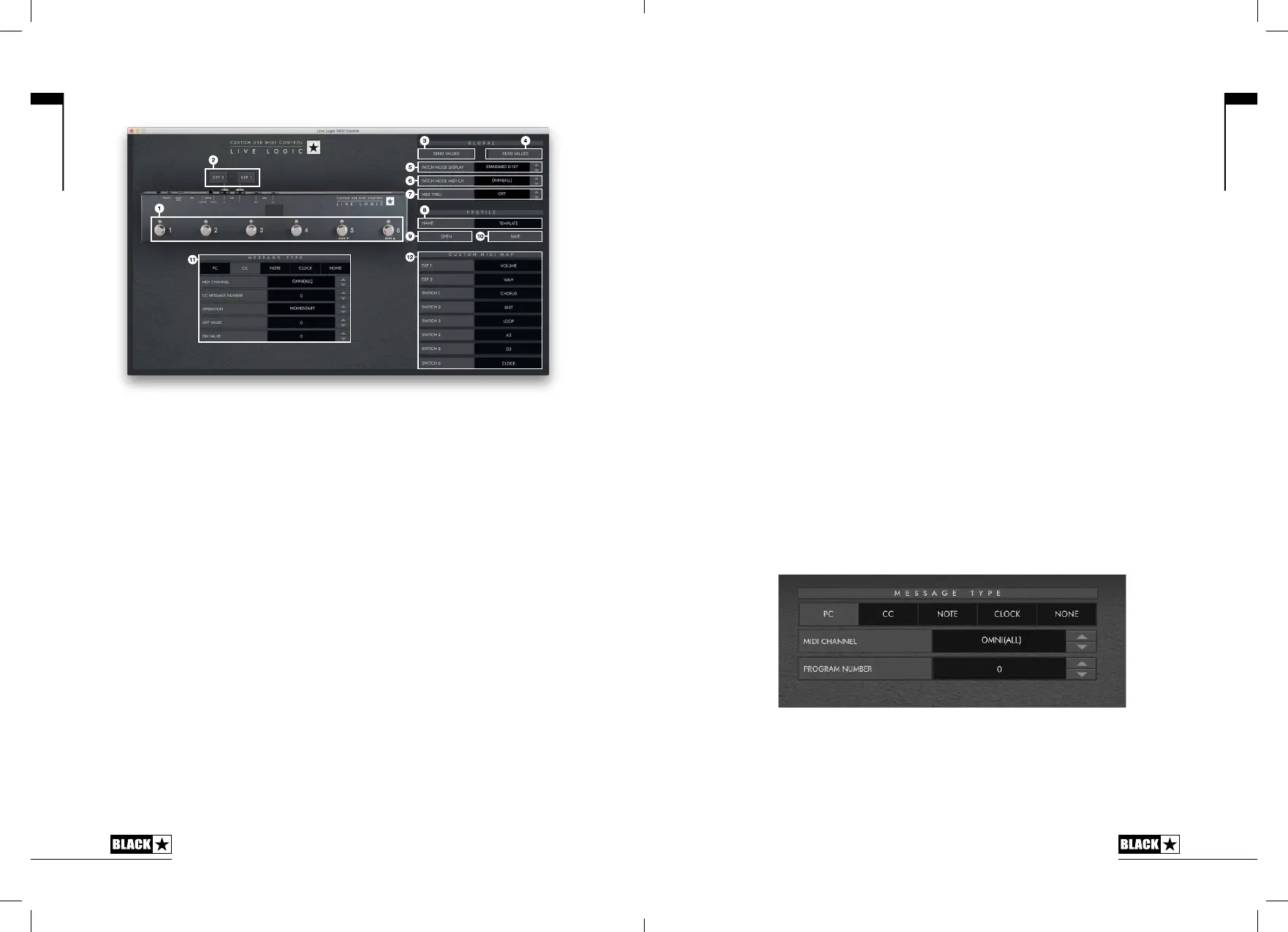
1. FOOTSWITCHES
This displays the footswitch you are currently editing. Press any button on your live
logic while in CUSTOM MODE to select which switch is currently being edited.
2. EXP 1 + EXP 2
Select to edit the Expression pedal settings
3. GLOBAL SEND VALUES
After making any change to the conguration of your Live Logic MIDI Footcontroller,
press the ‘Send Values’ button to conrm and store these settings.
4. GLOBAL READ VALUE
Press ‘Read Values’ when you want to update your App values to what is currently
stored in your Footcontroller. This is done automatically when connecting your
Live Logic. Press this to check that all your settings are stored in your Live Logic
successfully.
5. PATCH MODE DISPLAY
This setting changes the range of the display for the currently active patch.
STANDARD will show 0 for PC message 0, 1 for PC message 1…
OFFSET will show 1 for PC message 0, 2 for PC message 1…
• This can be useful when working with dierent MIDI Hardware that have
patches or pre-sets starting at 1, rather than 0.
6. PATCH MODE MIDI CHANNEL
Select the MIDI channel on which your Live Logic MIDI Footcontroller send Program
Change Messages.
7. MIDI THRU
Selects whether MIDI messages received via MIDI Input are forwarded to the MIDI
Output.
This setting is used when connecting multiple MIDI devices in a chain. For
example, MIDI keyboard output > Live Logic input, Live Logic output > Synth
MIDI input.
Please note: When connecting any loop to the live logic, you should set the
MIDI thru to OFF.
Live Logic Midi out > Pedal MIDI input > Pedal MIDI output > Live Logic MIDI in.
MIDI THRU will default to o.
8. PROFILE NAME
Choose a custom name for your MIDI prole. Each saved prole must have a unique
name.
9. OPEN
Use the ‘Open’ button to load a Prole. Proles are saved as a .bstarmidi le. and
can be shared and loaded on any Live Logic MIDI Footcontroller.
10. SAVE
Once you have customised your prole, save it using this button. Ensure the le
extension is ‘.bstarmidi’.
11. CUSTOM MIDI MAP
Label each individual Footswitch and Expression pedal functions here. These labels
are saved in a prole.
12. MESSAGE TYPE
This section is where you customise the MIDI message for the currently selected
footswitch/ expression pedal. See the section below for further details on each
message type.
PC – Program Change
• Midi Channel - Set the MIDI Channel on which the selected footswitch/
expression pedal sends the Program Change message.
• This is very useful for rigs that include multiple other pedals or devices being
controlled in a loop by one Live logic MIDI Footcontroller.
• Program Number – Set the Program number that you wish to trigger when
pressing the selected footswitch.
English
15


 To Next Page
 Loading...