EasyManua.ls Logo

BleBox switchboxD - User Manual

BleBox switchboxD
2 pages
Print Icon
To Next Page IconTo Next Page
Loading...
switchboxD v1
intelligent dual switch devices
in μWiFi technology
Do not connect loads with a power greater than the permissible
one.
Connect in accordance with the scheme presented in the manual.
Incorrect connecon can be dangerous, it can
result in damage to the controller and loss of warranty.
DANGER! Danger to life due to electric current (also with the de-
vice o), voltage may be present at the outputs. All assembly work
should be carried out ALWAYS with the circuit disconnected
power.
Connecng the device to the power grid without the quality re-
quirements specied in the standard
PN-EN 50160 results in the loss of warranty.
1
INSTALLATION - BASICS
SAFETY RULES
CONNECTION DIAGRAM
CONTROL DEVICES FROM ANYWHERE IN THE WORLD
Before installing the controller, disconnect the voltage in the powered circuit.
Remember that all assembly work should be performed with the power supply
disconnected (switching o the mains fuse or disconnecng the power cord from
the socket).
The controller should be mounted in a place protected against unfavorable envi-
ronmental condions, protected against access by third pares - in a ush-moun-
ted box or inside the housing of the controlled device. Remember that metal ele-
ments (cables, housing parts) negavely aect the range of the device, and thus
the comfort of use.It is advisable that the device be xed in a stable and staonary
posion.Due to the operang voltage of the device, it is necessary that the con-
nectors in the controller are protected against accidental touching or short circuits
that may result in electric shock or damage to the device.
Familiarize yourself with the scheme and then proceed to the installaon of the
controller. Pay parcular aenon to the labeling of the controller connectors.
Start by connecng the power wires - phase L (brown) and neutral N (blue).Then
connect the load. If you decide to use local control from a wall switch, also
connect the switch as shown in the diagram. For control via smartphone or
tablet only, no wall switch is required.
The controller supports all types of monostable double switches (so-ca-
lled bell switches). The sequence of connecng the S1 / S2 input to
the right / le switch buon does not maer at the installaon sta-
ge it can be set at a later stage of the controller conguraon.
Aer making sure that the device has been connected in accordance with
the diagram and that there are no metal elements near the controller that
could accidentally short-circuit the contacts, turn on the device by swit-
ching on the power supply (switching on the mains installaon fuse or con-
necng the power cord to a socket).
FIRST START
2
Unlock your phone or tablet and download the free wBox applicaon. If
you have an Android device, the applicaon can be found in the Play store.
For iOS devices, the applicaon is available in the App Store. The Windows
Phone app can be downloaded from the Windows Phone Store.
Using a mobile phone or tablet, connect to the device’s wireless network.
To do this, enter the sengs of your smartphone or tablet, then to the
conguraon of the WiFi network and nd the network called “switch-
BoxD-xxxxxxxxxx ” where xxxxxxxxxx is the serial number of the device.
Connect with this one network.
Turn on the wBox applicaon. You will see your device at the top of the
screen. To add it to the applicaon, click “+” on the right side, next to
the name. To preliminarily congure the driver, click on the default device
name.
Test the operaon of the controller by clicking the ON / OFF buon,
paying aenon to connected load behaviour. If you connected a wall
switch, check its operaon. In the default conguraon for monostable
buons (so-called bell buons), holding the buon key should turn on the
load, releasing the buon will turn the load o. To change this behaviour,
go to sengs (buon “Sengs” in the upper right corner of the screen)
and then in the opon “set acons for input”, for the corresponding acon
(you can set up a maximum of 10 acons
for the buon) select the appropriate acon type for the given trigger. For
example, to alternately turn the light on / o with the monostable buon
each me it is pressed, select the acon type as “change state” and select
“short press” as the trigger.
Also, check the selecon in the “state aer reboot” which determines the
method behaviour of the controller aer a restart caused by e.g. a break in
the supply of electricity. You can choose if the load should stay on, o, stay
in the pre-reboot state (if it was on it should remain turned on, if it was
turned o, it must remain turned o), or take the opposite.
You can also congure it using the phone/tablet web
browser. Aer connecng with the wireless network of
the controller, turn on the browser and go to the websi-
te: hp://192.168.4.1
user manual
ACCESS POINT AND WIFI
NETWORK SETTINGS
3
Aer the rst start-up of the controller, you can proceed to its further
conguraon. Being connected to the WiFi network emied by the
device, on the control panel of the wBox applicaon, select the device,
then go to sengs (the “Sengs” buon in the upper right corner of the
screen).
You can change the name of the device under which it is displayed in the
applicaon wBox. In addion, you can change the name and password of
N
L
switchBoxD
230V AC 2x4A max
device 1
device 2
Question and Answer IconNeed help?

Do you have a question about the BleBox switchboxD and is the answer not in the manual?

Overview

The Blebox switchboXD v1 is an intelligent dual switch device designed for controlling electrical loads from anywhere in the world using µWiFi technology. This user-friendly device allows you to manage two separate outputs, making it versatile for various home automation applications.

Function Description

The switchboXD v1 acts as a smart controller for two electrical outputs, enabling remote control via a smartphone or tablet. It supports all types of monostable double switches, often referred to as bell switches, for local control. The device connects to your existing electrical circuit and can be integrated into your home WiFi network, allowing for control both locally and remotely over the internet.

Upon initial setup, the device creates its own wireless network (Access Point) to which you connect your smartphone or tablet for configuration. Through the dedicated wBox application, available for Android, iOS, and Windows Phone, you can discover and add the device, then proceed to customize its settings. Once configured, the switchboXD v1 can join your home WiFi network, enabling seamless control from any location with internet access.

The core function involves switching electrical loads on and off. Each of the two outputs can be independently controlled. For local control, you can connect physical wall switches. The device is designed to work with monostable buttons, where a press-and-hold action can trigger an event, and releasing the button can trigger another. This behavior is fully customizable within the wBox application, allowing you to define specific actions for short presses, long presses, or other button interactions. For example, you can configure a button to toggle the state of a light (on/off) with each press, or to turn a device on when pressed and off when released.

Beyond simple on/off control, the switchboXD v1 supports advanced scheduling features. You can create custom schedules based on specific times or relative to local sunrise and sunset times. This requires setting the device's time and location within the application. Once configured, the device can automatically execute tasks, such as turning lights on at sunset and off at a specific time, providing convenience and energy efficiency.

The device also offers a "state after reboot" setting, which determines how the outputs behave after a power interruption. You can choose for the loads to remain on, off, or return to their state prior to the reboot, ensuring predictable behavior in case of power fluctuations.

Usage Features

The switchboXD v1 is designed for ease of use and flexibility. Its primary interface is the wBox mobile application, which provides an intuitive control panel for managing your devices.

Initial Setup and Configuration:

  1. Safety First: Before installation, always disconnect power to the circuit.
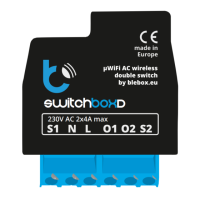
  2. Physical Installation: Connect the device according to the provided wiring diagram, paying close attention to the labeling of connectors for phase (L), neutral (N), and outputs (O1, O2), as well as inputs for local switches (S1, S2). Ensure the device is mounted in a protected location, such as a flush-mounted box, away from metal elements that could interfere with its wireless range.
  3. Power On: Once wired correctly, restore power to the circuit.
  4. Connect via AP: Download the wBox app. Connect your smartphone or tablet to the device's temporary WiFi network (e.g., "switchBoxD-xxxxxxxxxx").
  5. Device Discovery: Open the wBox app; your device should appear. Add it to your application.
  6. Basic Configuration: Access the device settings within the app. Here, you can rename the device, change its WiFi network name and password, and most importantly, connect it to your home WiFi network. This step is crucial for remote control and automatic time synchronization.
  7. Remote Access: To control the device from outside your local WiFi network, ensure the "enable remote access" option is set to "yes" in the controller settings.

Control and Automation:

  • Manual Control: Use the wBox app to manually switch outputs on or off.
  • Local Switch Integration: If wall switches are connected, configure their behavior within the app's "set actions for input" section. You can define up to 10 actions per input, choosing from various action types (e.g., "change state," "turn on," "turn off") and triggers (e.g., "short press," "long press").
  • Scheduling: Set up schedules for automated control. Define specific days, times, and actions. For advanced scheduling based on sunrise/sunset, ensure the device's location is set in the app.
  • State After Reboot: Customize how the device behaves after a power outage, ensuring your lights or appliances return to a desired state.

Connectivity:

The switchboXD v1 offers versatile connectivity options. It can operate as an Access Point for direct connection during setup, connect to a standard router for integration into your home network, and enable remote access from anywhere in the world via the internet. This flexibility ensures that you can always control your devices, whether you are at home or away.

Maintenance Features

The switchboXD v1 is designed for minimal maintenance, focusing on reliability and ease of updates.

Software Updates:

The device supports over-the-air (OTA) software updates. To update the firmware, ensure the controller is connected to your home WiFi network with internet access. Within the wBox application settings, you can find an option to "download new software." Initiating this process will download and install the latest firmware, ensuring your device benefits from the newest features, bug fixes, and security enhancements. It is recommended to keep the device's software up to date for optimal performance. The update process typically takes about a minute, during which it's important not to close the application or interrupt the power supply.

Troubleshooting:

  • Connectivity Issues: If you experience issues connecting to the device, ensure your smartphone/tablet is connected to the correct WiFi network (either the device's AP or your home network). If you change the device's network name or password, you will need to reconnect your phone/tablet to the new network.
  • Location Services: For sunrise/sunset-based scheduling, ensure your phone/tablet's GPS module is active and location sharing services are enabled when setting the device's location.
  • Power Supply: Always verify that the device has a stable power supply and that all connections are secure. Adherence to the PN-EN 50160 standard for power grid quality is crucial to prevent warranty loss.
  • Environmental Protection: The device should be installed in a location protected from unfavorable environmental conditions and unauthorized access, such as within a flush-mounted box. This helps ensure its longevity and reliable operation.

The switchboXD v1 is a robust and intelligent solution for modernizing your home's electrical control, offering convenience, flexibility, and peace of mind through its advanced features and user-friendly interface.

BleBox switchboxD Specifications

General IconGeneral
Product NameswitchboxD
CategorySwitch
ManufacturerBleBox
Power Supply230V AC
Voltage230V AC
Frequency50/60Hz
Number of Inputs2
Number of Outputs2
CommunicationWiFi
Housing TypePlastic
IP RatingIP20
CompatibilityAmazon Alexa, Google Assistant
Maximum Load16A
ProtocolWiFi
InstallationDIN rail

Related product manuals