HOW TO TAKE A PAYMENT PRO TIPS
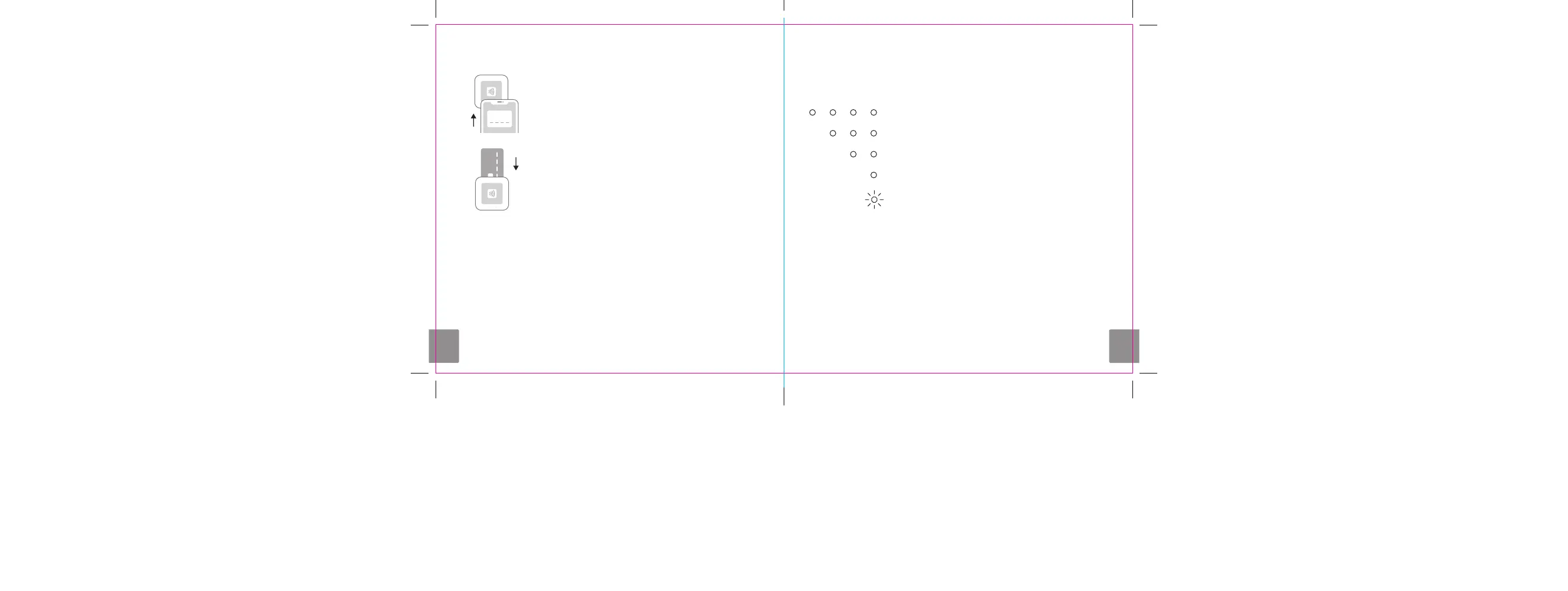
Tap
In the Square app, tap Charge and wait for a single
green light to appear on the reader. Your customer can
then hold a contactless device or card near the reader
to trigger payment.
Dip
In the Square app, tap Charge and wait for a single
green light to appear on the reader. Your customer can
then insert a chip card. Leave it in place until you see
four green lights.
Explore POS Software
Square has a variety of point-of-sale solutions to t your business, whether
you run a restaurant, sell retail goods, book appointments, or just need a
versatile POS for whatever comes next. Compare POS software options at
square.com/pos.
Check your battery
Push the button on your reader once to check its battery level.
4 green lights means your battery is 100% charged.
3 green lights means your battery is 75% charged.
2 green lights means your battery is 50% charged.
1 solid red light means your battery is 25% charged.
1 blinking red light
means your battery is low — charge immediately.


 To Next Page