Control Display and
Controller
Principle
The iDrive functions are shown on the Control
Display. The Control Display can be operated us‐
ing the Controller, touchpad and touch screen.
Overview
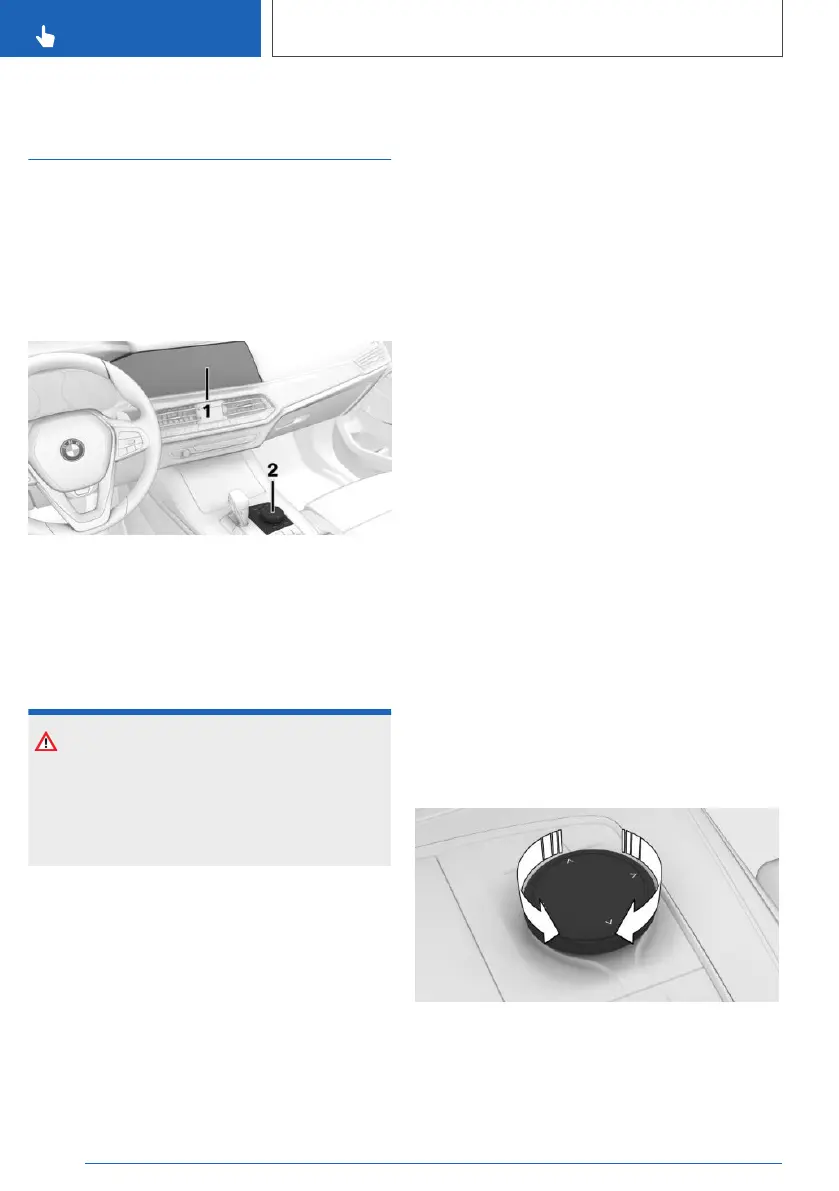
1 Control Display with touchscreen
2 Controller with buttons and touchpad
Control Display
Safety note
NOTE
Objects located in front of the Control Display
may slip and damage the Control Display.
There is a risk of material damage. Do not place
objects in front of the Control Display.
Switching on/off automatically
The Control Display is switched on automatically
after unlocking.
In certain situations, the Control Display is
switched off automatically, for example if no op‐
eration is performed on the vehicle for several
minutes.
Switching on/off manually
The Control Display can also be switched off
manually.
1. Tilt the Controller up.
2. "Screen off"
Press the Controller or any button on the Con‐
troller to switch it back on again.
System limits
If the Control Display is exposed to very high
temperatures, for example because of strong
sunlight, the brightness may be reduced and the
Control Display may even switch itself off. Nor‐
mal functions will be restored when the tempera‐
ture is reduced, for example by shading or using
the air conditioning system.
Controller
General
The buttons can be used to call up menus di‐
rectly. The Controller can be used to select
menu items and perform settings.
Some of the functions of the iDrive can be oper‐
ated with the touchpad of the Controller.
Operation
▷ Turn to switch between menu items, for ex‐
ample.
▷ Press to select a menu item, for example.
Seite 52
CONTROLS
iDrive
52
Online Edition for Part no. xxx - VI/19



 To Next Page