HomeConnect® en-us
23
To be able to use HomeConnect®, you must first set up
the connection to the WLAN home network (Wi-Fi
1
) and to
the HomeConnect® app.
The HomeConnect® app guides you through the entire
registration process. Follow the instructions in the
HomeConnect® app to implement the settings.
Tips
¡ Consult the HomeConnect® documents supplied.
¡ Follow the instructions in the HomeConnect® app as
well.
Note:Also note the safety information in this instruction
manual and ensure that it is also observed when operating
the appliance using the HomeConnect® app.
14.1 HomeConnect® quick start
Connect your appliance to a mobile device quickly and
easily.
Setting up the HomeConnect® app
1. Install the HomeConnect® app on your mobile device.
2. Start the HomeConnect® app and set up access for
HomeConnect®.
The HomeConnect® app guides you through the entire
registration process.
Setting upHomeConnect®
Requirements
¡ The HomeConnect®app is installed on your mobile
device.
¡ The appliance receives signals from the WLAN home
network (Wi-Fi) at its installation location.
¡ The appliance door is closed.
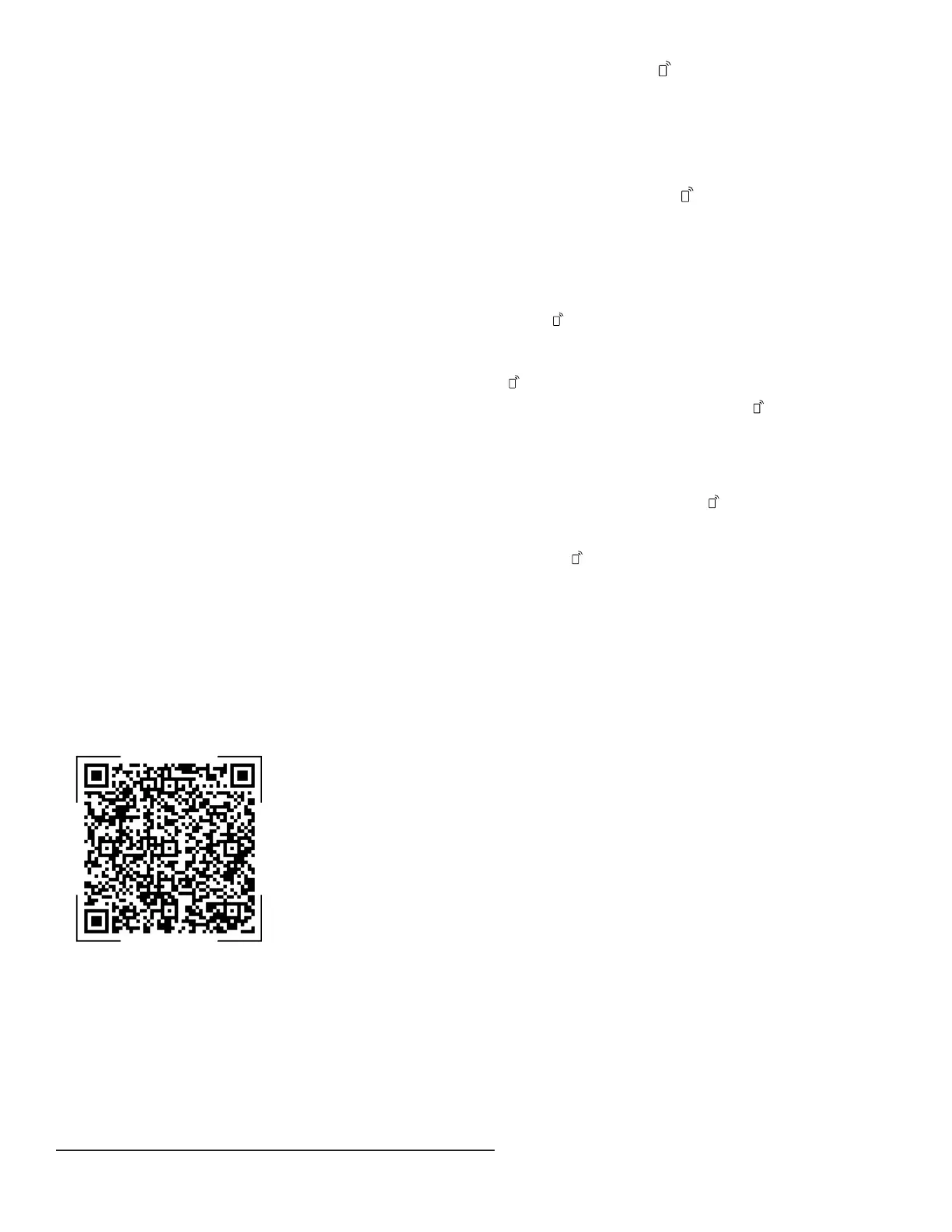
1. Open the HomeConnect® app and scan the following
QR code.
2. Follow the instructions in the HomeConnect® app.
14.2 HomeConnect® settings
Adapt HomeConnect® to your needs.
You can find the HomeConnect® settings in the basic
settings for your appliance. Which settings the display
shows will depend on whether HomeConnect® has been
set up and whether the appliance is connected to your
home network.
14.3 Remote Start
You can use the HomeConnect® app to start the
appliance with your mobile device.
Note:You can change settings using the HomeConnect®
app.
Activating Remote Start
Requirements
¡ The appliance is connected to your WLAN home
network.
¡ The appliance is connected to the HomeConnect® app.
¡ A program is selected.
▶ Press .
If you open the appliance door, the function is
automatically deactivated.
a button lights up.
Tip:To deactivate the function, press .
Note
The following settings are possible using the
HomeConnect® app:
¡ Deactivate the function permanently.
¡ Select the function using the button. This setting is
the default preset at the factory.
¡ Activate the function permanently. With this setting
pressing button is not necessary.
14.4 Remote Diagnostics
The Customer Service can access your appliance via
Remote Diagnostics if you ask them to do so, if your
appliance is connected to the HomeConnect® server and
if Remote Diagnostics is available in the country where
you are using the appliance.
Tip:Further information and details about the availability
of Remote Diagnostics in your country can be found in the
Service/Support section of your local website: www.home-
connect.com.
14.5 Software update
You can use this function to update the software of your
appliance, e.g. for optimization, troubleshooting or safety-
relevant updates.
The HomeConnect® app informs you about available
software updates.
14.6 Data Protection
Please see the information on data protection.
The first time your appliance is registered on a home
network connected to the Internet, your appliance will
transmit the following types of data to the HomeConnect®
server (initial registration):
¡ Unique appliance identification (consisting of appliance
codes as well as the MAC address of the installed Wi-Fi
communication module).
1
Wi-Fi is a registered trade mark of the Wi-Fi Alliance.


 To Next Page
 Loading...