STEP 2: Driver Installation:
1. Display driver Installation
In this step, the interactive pen display is installed as a monitor on your system; On
Windows, the displayLink driver will be installed automatically when you connect
your pen display to your computer for the first time. You can also download and
install the DisplayLink driver from www.displaylink.com.
For more information in details, please review the DisplayLink Manual in CD-ROM
or download from www.displaylink.com.
2. Tablet & Express key driver Installation
Insert the installation CD into your computer’s CD-ROM drive. If the software
installer menu does not automatically display, double-click on the file icon located
on the CD. You can also download and install the latest software driver from the
Bosto local distributor’s website for your region.
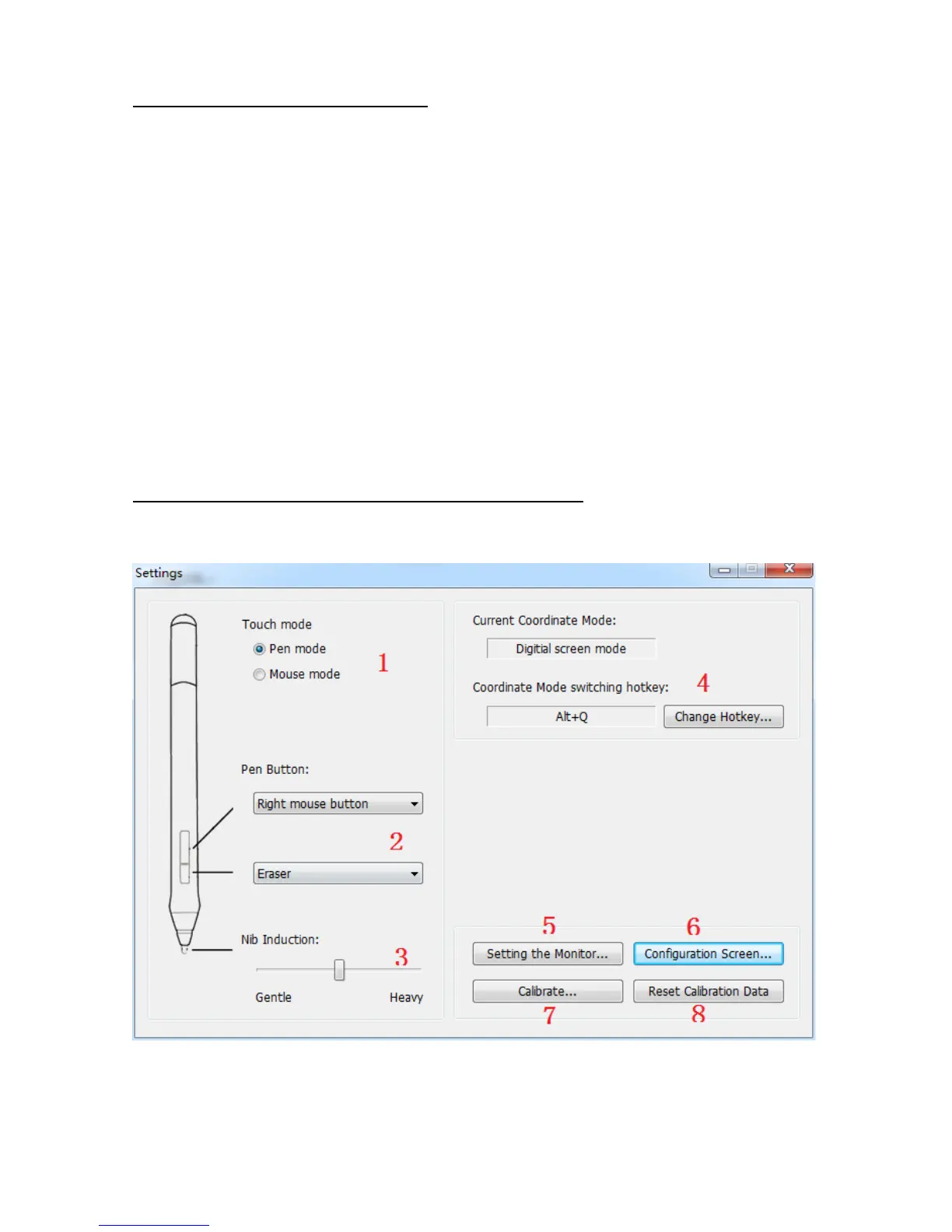
STEP 3: CONTROL PANEL OVERVIEW
1. Tablet Control Panel
1.1 Generally choose “Pen mode”, “Mouse mode” is for office software
1.2 The pen has two programmable switches that can be used whenever the pen tip is
within proximity 5 mm of the display screen surface. The switch function can be
modified or disabled by using this control panel.
1.3 This slider is for adjusting drawing pressure, to create broad brush strokes or to


 To Next Page