Loading documents and paper
19
2
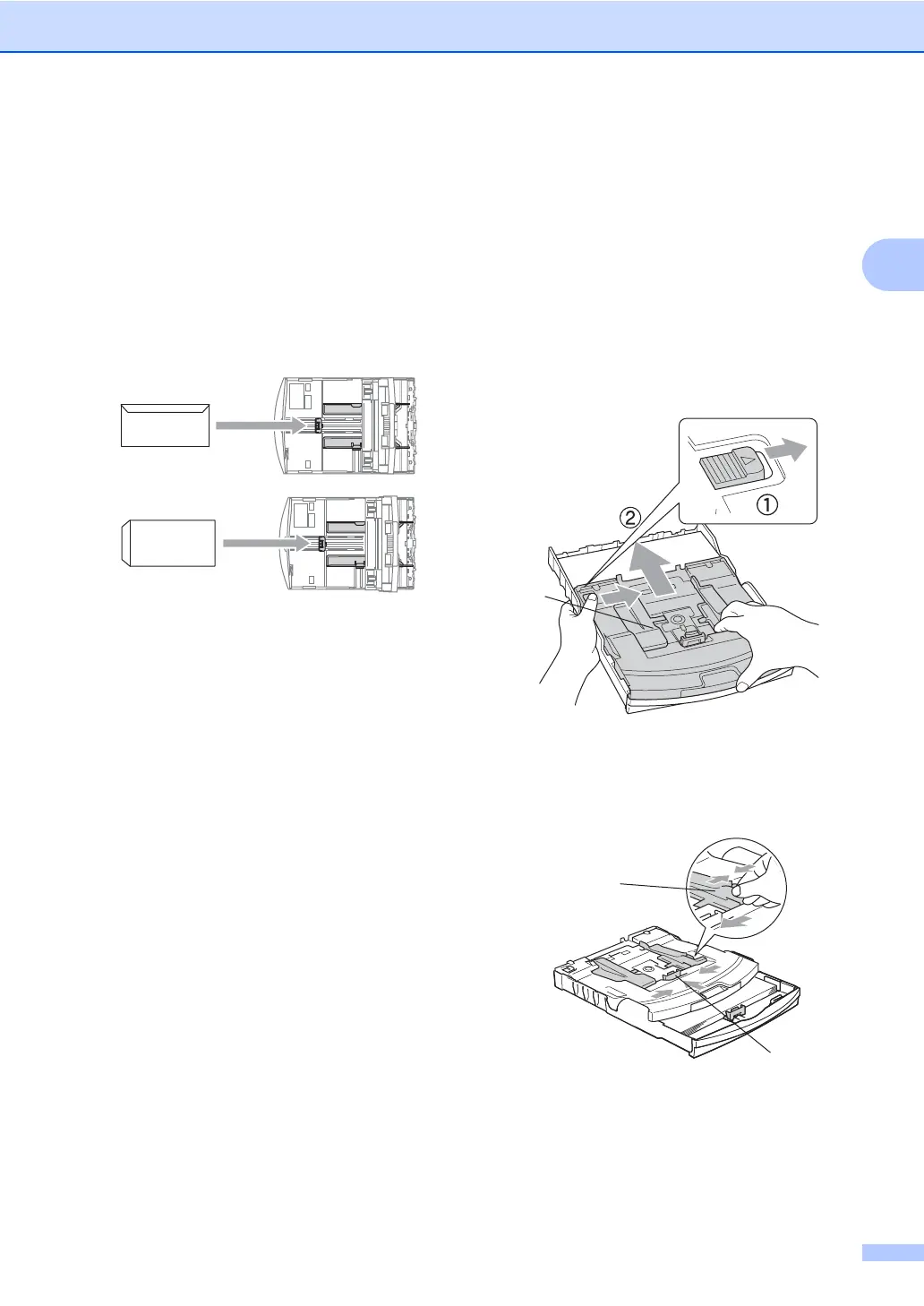
If you have problems when printing on
envelopes, try the following suggestions:
2
a Open the envelope flap.
b Make sure the open flap is either to the
side of the envelope or to the back edge
of the envelope when printing.
c Adjust the size and margin in your
application.
Loading photo paper 2
Use the photo paper tray, which has been
assembled on the top of the output paper tray
cover, to print on photo 10×15 cm and photo
L size paper. You can leave paper in the
standard paper tray when using the photo
paper tray.
a Press the tray release button with your
left thumb and push the photo paper tray
(the top part of the tray) backward until it
clicks into the photo printing position.
1 Photo Paper Tray
b Press and slide the paper side
guides (1) and paper length guide (2) to
fit the paper size.
1
1
2


 To Next Page
 Loading...