20
Creating Your First Label
GETTING STARTED
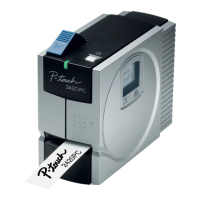
Create a label with your personal computer
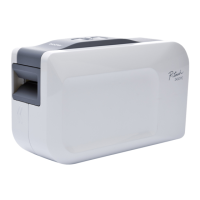
Prepare the P-touch. (Refer to step 1 in the previous section.)
Prepare the personal computer.
Enter the label text using P-touch Quick Editor.
Print the label.
1
2
Install the software.
Software Installation Guide
P. 18
Software Installation Guide
Turn the P-touch on.
Connect the USB
cable.
3
Start P-touch Quick
Editor.
Enter the label text in P-touch Quick Editor.
Software Help Software Help
For example, click
on the layout area
and then type
"Brother".
4
Click on the "Print"
button.
The label is printed.
Software Help Software Help
P-touch Quick Editor (simple label editing software) is ideal for creating simple labels.
To create labels with more complex designs, use P-touch Editor (fully featured label editing
software).
"P-touch Editor" "Create labels with complex designs like these"


 To Next Page
 Loading...