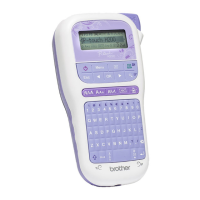
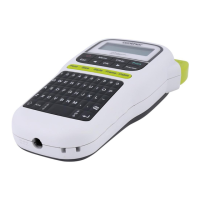
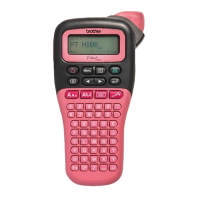
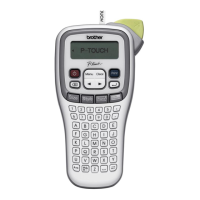
Use Patterns to add visual texture to your
ribbons/tapes. Please note that you cannot enter
text when using Patterns. Refer to the Patterns
table in this guide.
Example:
NOTE
For Initial Marks and Continuous Frame
• To preview ribbons/tapes, press when
[Print] appears on the LCD.
• If you set the label length to longer than the
default length ([Auto]), the text prints repeatedly
within the length you set. If the text length
exceeds the label length you have set, text may
not print completely.
• The available label length setting changes
depending on the length of your text.
• Press to select a font after entering your
text (for Continuous Frame templates, you can
also select the size and style).
For Patterns
• Press the Space key to return to the default
setting ([100 mm]) for [Set Label Length].
For All Templates
• Templates can be used ONLY with 12 mm tape
cassettes.
• Templates cannot be edited.
• To exit a template and return to the text entry
screen, press when [Print] appears on
the LCD.
• Ribbon/tape files created using templates
cannot be saved.
• When you access templates, your most recent
label created with a template opens
automatically.
• After pressing , [Please Cut] appears on
the LCD for two seconds.
Patterns
[Select Category] / [Pattern]
[Select Design] /
[Set Label Length]
/ [30-999 mm] [Print]
// -



 To Next Page
 Loading...