33
z CREATING LABELS
Overview
3
Enter the text.
There are two main methods of entering text on the label.
4
Edit the label.
P-touch Editor provides a variety of editing functions.
5
Print the label.
Enter text with P-touch Editor our easy
to use label creation software.
Enter text into a Microsoft Office software
application and use our Add-In feature.
p. 34 or P-touch Editor Help p. 51 or P-touch Editor Help
Draw toolbar
Provides tools for
drawing graphics
on the label.
Object dock
The object dock
contains icons for
functions to add
text, graphics,
tables, frames and
other decorative
objects to the label.
Use the tools in the Draw toolbar and Object dock to edit the label.
P-touch Editor Help
Click
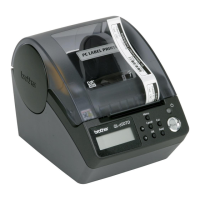
The label is printed from the QL-500/550.
p. 37 p. 37



 To Next Page
 Loading...