242
Opening a Template
Opening a Template
Opening an image in the
background
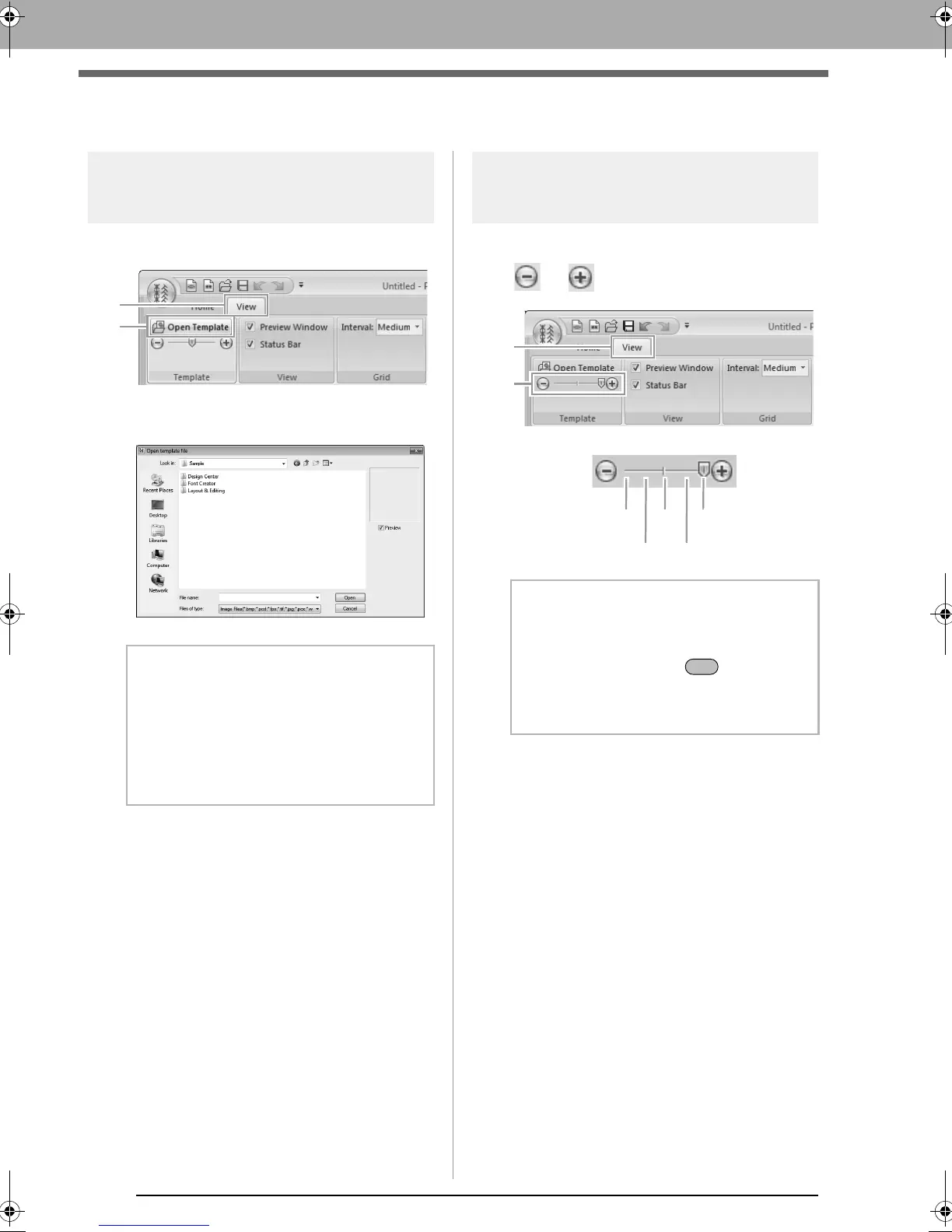
1. Click 1, then 2.
2. Select the drive, the folder and the file, and
then click Open or double-click the file's icon.
Changing the density
background image
1. Click 1, and then drag the slider (2), or click
or .
b Memo:
• Only one image can be added to the work
area. If you try to display a different image,
it will replace the previous one.
• There are many different types of files that
can be opened.
c
“Image file formats” on page 137
b Memo:
• This function is not available if no template
image has been imported into the work area.
• Press the shortcut key ( ) to switch
between displaying the image (
On (100%)
)
to displaying it faded at each density (
75%
,
50%
and
25%
) to hiding the image (
Off
).
Hide (off)
50%
25%
75%
100%
2
1
XE8656-001.book Page 242 Monday, May 24, 2010 5:44 PM



 To Next Page
 Loading...


