How to Use P-touch Editor
41
6
How to use the P-touch Address Book (Windows
®
only) 6
This section describes how to efficiently create labels from contacts using the P-touch Address Book. The
screens may differ depending on your operating system.
(P-touch Address Book is not supported in some languages.)
Starting the P-touch Address Book 6
1 Click [Start] - [All Programs] - [Brother P-touch] - [P-touch Address Book 1.2].
You can also start the P-touch Address Book using the following methods (only if you created the shortcut
during installation):
• Double-click the Shortcut icon on the desktop.
• Click the Shortcut icon on the Quick Launch bar.
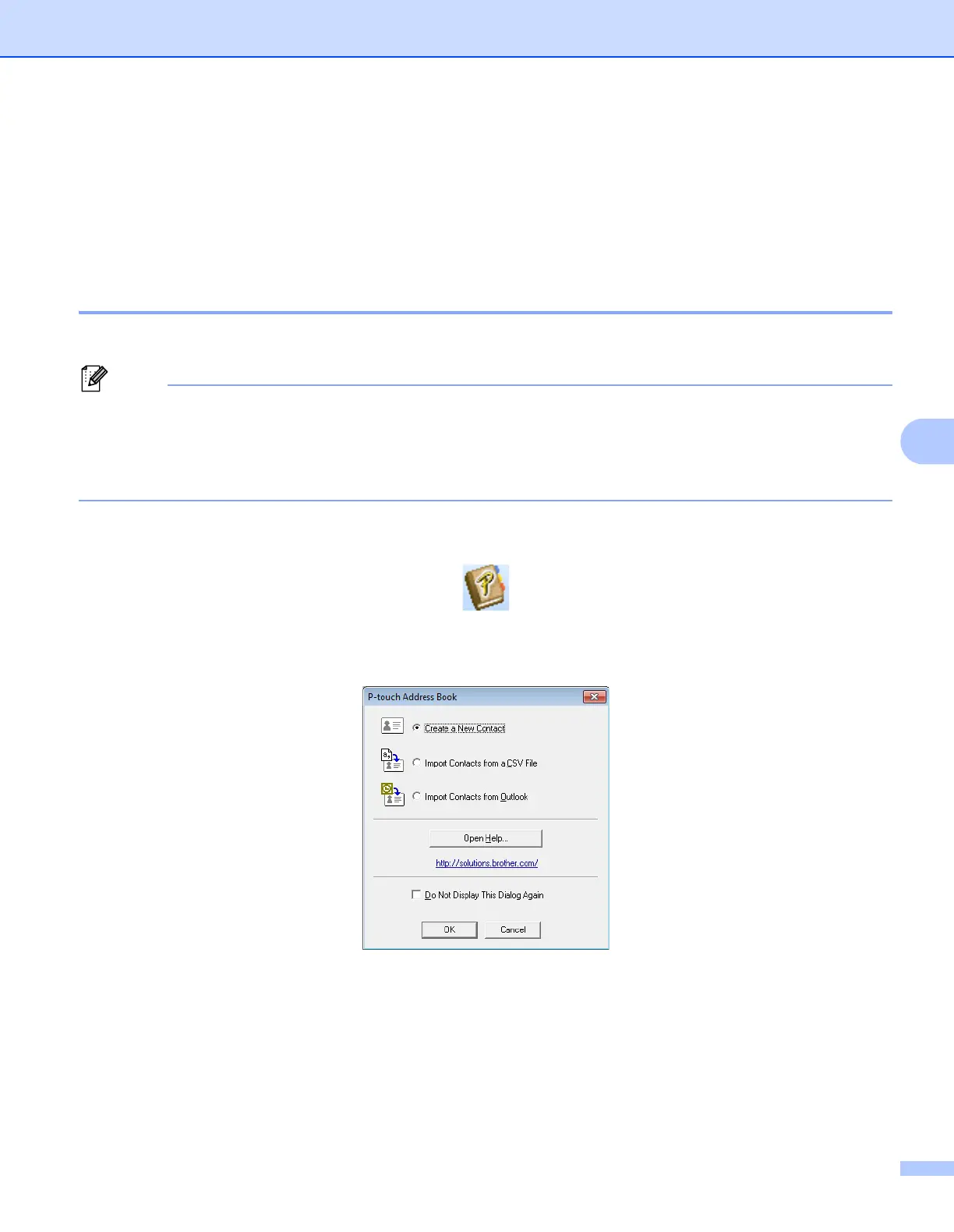
When the P-touch Address Book is launched, the Startup dialog box appears, which allows you to create
new contacts, import CSV format data or Outlook contacts, and so on.
2 In the Startup dialog box, specify the P-touch Address Book operation you want to perform and click the
[OK] button.
When [Create a New Contact] is selected, the Layout Window appears.
When [Import Contacts from a CSV File] or [Import Contacts from Outlook] is selected, you can import
contacts in other formats.
Click the [Open Help...] button to open the P-touch Address Book Help files.
The P-touch Address Book Help offers detailed information on available features and explains how
to use the P-touch Address Book.



 To Next Page
 Loading...