Reference
115
7
Printing the Printer Set-up Information 7
You can use the (Feed) button to print a report that lists the following printer settings:
Program version
Printer usage history
Missing dot test pattern
Printer settings information
List of transferred data
Network setting information
• You can use the Device settings to set in advance which items will be printed (see Device Settings
on page 66).
• The node name appears in the Printer Settings. The default node name is “BRWxxxxxxxxxxxx”.
(“xxxxxxxxxxxx” is based on your printer’s MAC Address/Ethernet Address.)
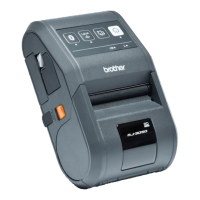
a Make sure that a roll of 76.2 mm receipt paper has been loaded and the RD Roll compartment cover is
closed.
b Turn on the printer.
c Press and hold the (Feed) button until the POWER indicator starts blinking in green (for RJ-3050) or
the message [Printing] is displayed on the LCD display (for RJ-3150).
The settings will print.
• To print the Printer Set-up Information, we recommend to use 76.2 mm receipt paper.
• This operation can also be performed using the Device settings (see Device Settings on page 66).
• If you have an RJ-3150, this operation can also be performed from the [Information] menu.
1 Press the [Menu], [ ], or [ ] button to select the [Information] menu, and then press the [OK]
button.
2 Select [Print Configuration] > [Start] using [ ] or [ ], and then press the [OK] button.

 To Next Page
 Loading...