7
Frequency Analysis Software – BZ 7223
Frequency Analysis Software for Type 2250
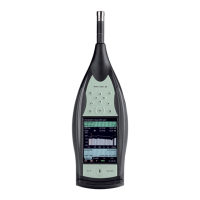
Fig. 7
Example of 1/3-octave
frequency analysis.
Note that two spectra
are displayed
simultaneously
Frequency Analysis Software BZ 7223 is an optional software
module. It allows you to make real-time measurements in
1/1- and 1/3-octave bands over a wide frequency range. This
makes it a simple matter to obtain spectra in order to, for
example, select hearing protection, qualify heat and ventila-
tion systems, and assess tonality.
The following frequency ranges are available:
• 1/1-octave spectra (centre frequencies 8 Hz to 16 kHz)
• 1/3-octave spectra (centre frequencies 6.3 Hz to 20 kHz)
In each band you have a full and unrivalled dynamic range
from the noise floor in that particular band to 140 dB. That
is, a dynamic range generally in excess of 135 dB.
Spectra can be A-, C- or Z-weighted. Five spectra and full spectral statistics are measured and
stored and, in addition, seven different L
N
spectra and instantaneous values are available for
display. Two spectra, for example, a minimum and maximum spectrum, can be superimposed
on the display. As a matter of course, all the broadband quantities measured by Sound Level
Meter Software BZ 7222 are computed in parallel with the frequency analysis. Spectral analyses
can be documented using notes and voice annotations.
Logging Software – BZ 7224
Fig. 8
Logged values,
displayed as a profile.
Note that a text
annotation (left) and a
voice annotation (right)
are attached
With the optional Logging Software enabled, Type 2250 be-
comes a versatile instrument for obtaining time histories. The
Logging Software allows you to select freely among the
broadband parameters and log them at intervals from 1 s to
24 h. At the same time L
Aeq
and/or L
AF
can be logged at
100 ms intervals.
If Frequency Analysis Software BZ 7223 is enabled, the Log-
ging Software additionally lets you log spectra at the same
1 s to 24 h periods.
Logging Software BZ 7224 incorporates a number of features
designed to make difficult field work as manageable as pos-
sible.
Among the most salient of these features are the following:
• Five user-definable markers can be set on-the-fly in the profile. Use these, for example, to
clearly indicate specific noise sources
• Markers can be set directly on the profile display using the stylus and the touch screen.
Simply ‘tap and drag’ on the part of the profile you want to mark and select a marker from
the drop-down list
• Markers can even be set ‘after the fact’. The display covers the latest 100 samples (that is,
100 s of profile when logging at 1 s intervals, otherwise more) meaning that in most cases
you can wait for the event (or disturbance) to stop before placing your marker. Alternatively,
scroll back in the profile and set your marker
• The profile display can be ‘frozen’ at any time (this happens automatically when you tap
the screen), allowing you to work at ease


 To Next Page
 Loading...