5a.
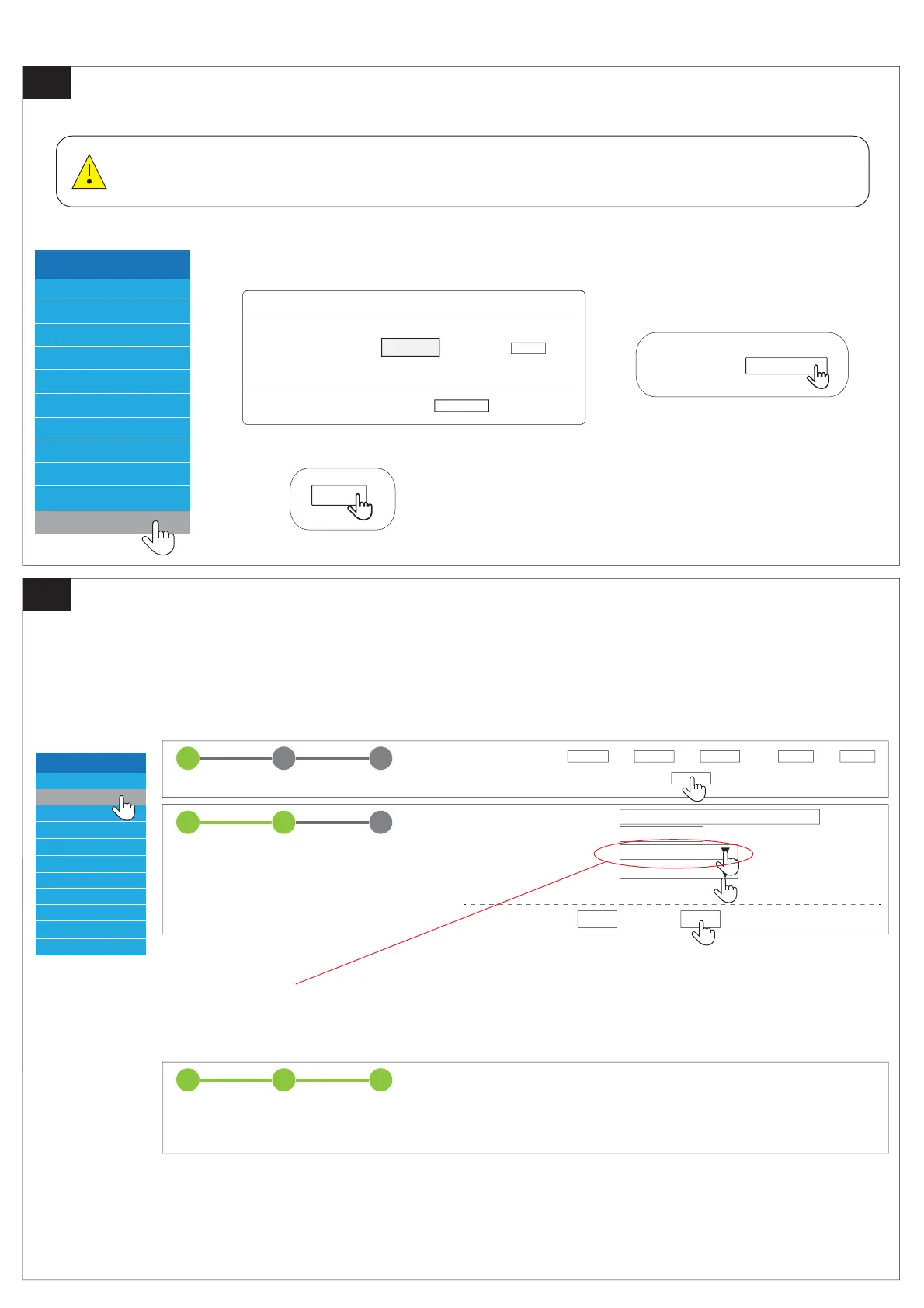
Update the firmware of BCU before connect BCU to BMU.
Battery-Box HV
Privacy Policy
Home
Device Information
Installation Config
Statistics Information
Current Alarm
History Alarm
Run Date
Set Password
Update
1 32
STEP 1 STEP 2 FINISH & REBOOT
1 32
STEP 1 STEP 2 FINISH & REBOOT
Time and Date *
Hour : Min : Day : Month : Year :
Next
Installation
Server IP Address *
Series Battery Conts *
Inverter *
Country *
Asterisk(*)Indicates required fields
bboxhserver.byd.com.cn
PARALLEL
1 32
STEP 1 STEP 2 FINISH & REBOOT
Last
Next
Reboot System…
Please wait about 50 seconds.
5b.
Set parameters for BCU
Battery-Box HV
Privacy Policy
Home
Device Information
Installation Config
Statistics Information
Current Alarm
History Alarm
Run Date
Set Password
Installtion
Update
Update
Please input the file :
Upload
If there is any new version on the server, clicking UpdateCheck will update the syetem.
Search...
Please input file:
Search
Upload
Made sure each BCU to select "inverter" as "PARALLEL", otherwise the parallel connection will fail.
At a minimum, upgrade the firmware of the BCU to V3.013C or V3.013R, otherwise
the next step cannot be performed.
Select the inverter type on BCU before the BCU - BMU - Inverter connected.
Connect the BCU’s WIFI (According to BCU's quick installation guide.)



 To Next Page