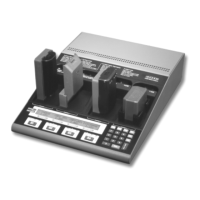
To set HyperTerminal to read Cadex analyzer data
1. Click Start on the Windows Task Bar, point to Programs, then point to
Accessories, and then click HyperTerminal.
2. Double-click the HyperTrm or HyperTrm.exe icon.
3. Type a name for the data log connection, such as Cadex analyzer
connection, and then click OK.
4. In the dialog box that appears, enter these settings:
Connect using. From the list, select Direct to Comx, where x is the number of the
serial port to which the analyzer is connected.
• Bits per second: 9600
• Data Bits: 8
• Parity: None
• Stop Bits: 1
• Flow Control: None
5. Click OK.
The HyperTerminal screen appears. The bottom left-hand corner of the screen
should display the message “Connected h:mm:ss”.
6. Check that HyperTerminal is communicating with the Cadex analyzer
by inserting an adapter in any station on the analyzer. A text string
similar to this one should appear on-screen:
0,2," ","01/25/2001","095126",201,"0\80"
If nothing appears on-screen, check the HyperTerminal properties:
Click File, and then click Properties.
Verify that the serial communication port number is correct.
Click Configure, and verify that the serial port settings match the Cadex analyzer
serial port settings.
97


 To Next Page