92 Infotainment System
adjusted volume level remains in
memory for later calls. The system
maintains a minimum volume level.
Bluetooth (Infotainment
Controls)
For information about how to
navigate the menu system using the
infotainment controls, see
Infotainment on page 3.
Pairing
A Bluetooth-enabled mobile phone
must be paired to the Bluetooth
system and then connected to the
vehicle before it can be used. See
the mobile phone manufacturer's
user guide for Bluetooth functions
before pairing the mobile phone.
Pairing Information
.
A Bluetooth phone with music
capability can be paired to the
vehicle as a phone and a music
player at the same time.
.
Up to 10 devices can be paired
to the Bluetooth system.
.
The pairing process is disabled
when the vehicle is moving.
.
Pairing only needs to be
completed once, unless the
pairing information on the mobile
phone changes or the mobile
phone is deleted from the
system.
.
If multiple paired cell phones are
within range of the system, the
system connects to the paired
cell phone in the order that they
were last used in the system. To
link to a different paired phone,
see "Linking to a Different
Phone" later in this section.
Pairing a Phone
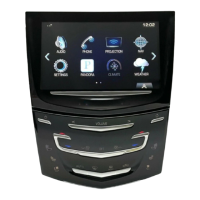
1. Press the PHONE screen
button.
2. Select PHONES and select Pair
Device.
3. A four-digit Personal
Identification Number (PIN)
appears on the display. The PIN,
if required, may be used in
Step 5.
4. Start the pairing process on the
mobile phone to be paired to the
vehicle. See the mobile phone
manufacturer's user guide for
information on this process.
5. Locate “Cadillac CUE” on the
display. Follow the instructions
provided in Step 3 on the cell
phone to enter the PIN or
confirm the six-digit code shown
on the display. After the PIN is
successfully entered or the code
is confirmed, the system
responds with “<Device name>
has been successfully paired”
when the pairing process is
complete.
6. If “Cadillac CUE” does not
appear, turn the phone off or
remove the phone battery and
retry.
7. If the phone prompts to accept
connection or allow phone book
download, select Always Accept
and Allow. The phone book may
not be available if not accepted.



 To Next Page
 Loading...