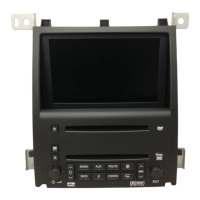
Directly below the DIC information, you will see the
banner with Radio and the currently selected band. For
example, Radio FM1 means that the presets for FM1 are
displayed at the right of the screen. You will also see
either Autostore, Home or Away. This will tell you which
set of presets are displayed. See “FM Menu” following in
this section and Screen Features on page 1-3 Screen
Features for more information.
Near the bottom left of the screen, you will see
six horizontal lines. This is for the six-disc CD changer.
To the right of the CD changer information is the
equalizer, Digital Signal Processing (DSP) and
Automatic Volume Compensation (AVC) information.
See “Setting the Tone” and “Playing a CD” later in
this section for more information.
AM Menu
This menu allows you to customize the AM presets.
To access the AM Menu you must be in the Radio
screen with the AM band active. Pressing the
TUNE/SEL knob will bring up the AM Menu.
The following multi-function buttons are available:
• Home P-Sets
• Away P-Sets
• Autostore
• Back
For a description of each item, see “FM Menu” following.
FM Menu
This menu allows you to customize the FM presets and
RDS presets. To access the FM Menu, you must be
on the Radio screen and the FM1 or FM2 band must be
active. Press the TUNE/SEL knob once. The following
menu will appear:
• Help Prompt
• RDS List
• Seek RDS List
• Region
• Alt Frequency
• Display RDS Messages
• Intrpt Volume
• Display Freq
3-3



 To Next Page
 Loading...