Features and Controls
Using the Navigation System
This section presents basic information you will
need to know to operate the navigation system.
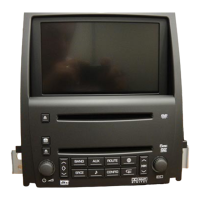
Use the hard keys located on the navigation
system along with the available touch screen
buttons on the navigation screen to operate the
system. See Navigation System Overview on
page 4 for more information.
Once the vehicle is moving, various functions will
be disabled to reduce driver distractions.
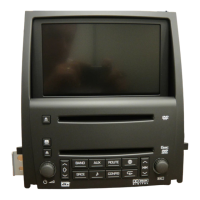
Hard Keys
The following hard keys are located on the
navigation system:
Z(Map DVD Eject): Press the eject key located
next to the map DVD loading slot to eject the
map DVD. The map DVD slot is the slot directly
below the display screen.
M(Load): Press the CD/DVD changer loading
key to go to the loading screen and begin loading
DVDs or CDs. See Six-Disc CD/DVD Changer
on page 103 for more information.
Z(CD/DVD Eject): Press the eject key next to
the CD/DVD changer loading slot to begin
ejecting DVDs or CDs. See Six-Disc CD/DVD
Changer on page 103 for more information.
On(Power/Volume): Press the power/volume
knob to turn the audio system on and off. Turn
the knob to increase or decrease the volume to the
audio system.
ymz(Tilt): Press the up arrow on the tilt key to
tilt the navigation screen forward. Press the
down arrow on the tilt key to tilt the screen
rearward. There are three tilt positions to choose
from.
BAND: Press the BAND key to access the audio
source screen. The press the BAND key to
toggle among the bands available, FM, AM, XM
(if equipped), and WX (weather). See Navigation
Audio System on page 92.
SRCE (Source): Press the source key to switch
between the audio sources. Pressing this key
will switch between the radio and the CD/DVD
player. See Navigation Audio System on page 92.
16


 To Next Page
 Loading...