The Bullet 6S is a smart and beautiful camera designed for various surveillance needs, offering a quick and easy setup process. This device is an outdoor-ready camera, as indicated by its physical design and installation instructions.
Function Description:
The Bullet 6S camera is primarily used for video surveillance, capturing sound, and recording footage. It features motion detection, which triggers push notifications and app alerts when movement is detected. The camera supports continuous 24-hour recording with high-capacity SD card storage. It also boasts powerful night-vision technology, ensuring clear footage even in complete darkness. The video stream can be flipped up or down for maximum flexibility in installation and viewing.
Important Technical Specifications:
- Power: DC12V±10%
- SD Card Storage: Supports local SD Card storage (Max. 128GB)
- Wi-Fi Connectivity: Supports 2.4GHz Wi-Fi network only (does not support 5GHz). The SSID and password of the router should not exceed 24 digits.
- Status Light Indicators:
- Solid red light: Camera is turning on or is malfunctioning.
- Blinking red light: Awaiting Wi-Fi connection.
- Solid blue light: Camera is running correctly.
- Blinking blue light: Currently connecting.
- Microphone: Captures sound for video.
- Speaker: Provides audio output.
Usage Features:
The Bullet 6S is designed for ease of use and integration with the "Smart Life" application, available on both iOS and Android platforms.
- Initial Setup:
- Download App: Search for "Smart Life" in the App Store or Google Play, or scan the provided QR code to download the application.
- Router Setup: Ensure your router supports 2.4GHz Wi-Fi and is connected to the network. Record the SSID and password of your Wi-Fi.
- Registration: Open the Smart Life App, click "Register," read and agree to the "Privacy Policy." Input a valid mobile number or email address, then enter the verification code to log in.
- Family Creation: In the app, click "Create family" and customize the family name and related settings.
- Add Device: Navigate to "Security & Sensor" > "Smart Camera," then choose "Add Device" or "+" to add the camera.
- Wi-Fi Configuration: Click "next step" and input your Wi-Fi password.
- QR Code Scan: Scan the QR code displayed on your phone with the camera. The camera will emit a "dong dong dong" sound upon successful scanning. The configuration process takes approximately 30 seconds.
- Connection Confirmation: Ensure the router, mobile device, and camera are as close as possible during connection. Once successfully added, you can customize the camera's name.
- Camera Functions (via Smart Life App):
- Live View: Access the camera's live feed.
- Screenshot: Capture still images from the live feed.
- Speak: Utilize two-way audio communication.
- Record: Manually start or stop video recording.
- Settings: Adjust various camera common functions.
- Motion Detection: Built-in sensors detect movement and send push notifications and app alerts to your mobile device.
- Daytime & Night Vision: Provides clear video footage in both well-lit and dark environments.
- Video Flip: Allows users to flip the video stream for flexible mounting options.
Maintenance Features:
- Reset Functionality: The camera includes a reset button. Press and hold it for 5 seconds to reset the camera to its factory defaults. This is useful if settings have been modified or if troubleshooting is required.
- SD Card Management: Supports local SD card storage for continuous recording. Users should ensure the SD card is formatted to FAT32 and is functioning correctly.
- Troubleshooting (FAQ):
- Device cannot be previewed properly: Check network connection; place the camera closer to the router.
- Devices not listed after resetting: The reset function only resets network configuration; the camera needs to be re-added to the app.
- Camera network not connecting: Remove and reset the device in the app, then reconfigure.
- Device not identifying SD card: Confirm the SD card is properly inserted, powered, formatted to FAT32, and the internet environment is good.
- No notifications from cell phone App: Confirm the App has permission for notifications and background activity in the phone settings.
Installation:
- Fix the camera to the wall using screws.
- Adjust the camera angle to the desired view.
- Lock the screw after adjusting the camera angle to secure its position.
Compliance:
The device complies with FCC Rules Part 15, ensuring it does not cause harmful interference and accepts any interference received. It also meets FCC radiation exposure limits for an uncontrolled environment, with a recommended separation distance of at least 20 cm from all persons.

 Need help?
 General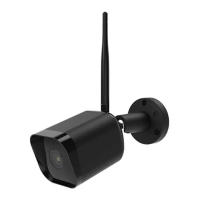

 To Next Page