Get the CamFi app
Connect to the Wi-Fi hotspot of the CamFi Pro
Start CamFi App
Firmware Upgrade
Need Further Assistance?
YouwillneedtoinstalltheCamFiapponyour
smartphoneoryourPC.TheCamFiappisavailable
foriPhone®,Android ™ ,MacandWindows®.Fora
fulllistofsupporteddevices,visit:
http://www.cam-.com/download.html
TheCamFiappwillautomaticallycheckifthereis
anewversionofrmwareavailablefortheCamFi
Pro.Whenthereisanewversionavailable,the
appwillstarttheupgradewizardtoupgradethe
rmwareoftheCamFiPro.Youcanfollowthe
instructionsprovidedbythewizardtoupgrade
thermware.
Foranswerstocommonquestionsand
troubleshootingsteps,pleasevisit:
http://www.cam-.com/support.html
Youcanalsocontactuswiththefollowingcontact
information:
E-mail:support@cam-.com
Address:A1002,TsinghuaSciencePark,1st
CollegeRoad,Zhuhai,Guangdong,China
Website:http://www.cam-.com
1.Onyoursmartphoneoryourcomputerbrowser,
visit:
http://www.cam-.com/download.html
2.FollowtheinstructionstoinstalltheCamFiapp
onyoursmartphoneoryourcomputer.
AfteryouturnonCamFiProandthesystemstatus
indicatorlightturnsaconstantgreen,youcan
ndandconnecttotheWi-FihotspotoftheCamFi
Prowiththenameprexedwith“CamFi-Pro”on
yoursmartphoneoryourcomputer.
LaunchtheCamFiapponyoursmartphoneor
yourcomputer.
CamFi-Pro-xxxxxx
Quick Installation
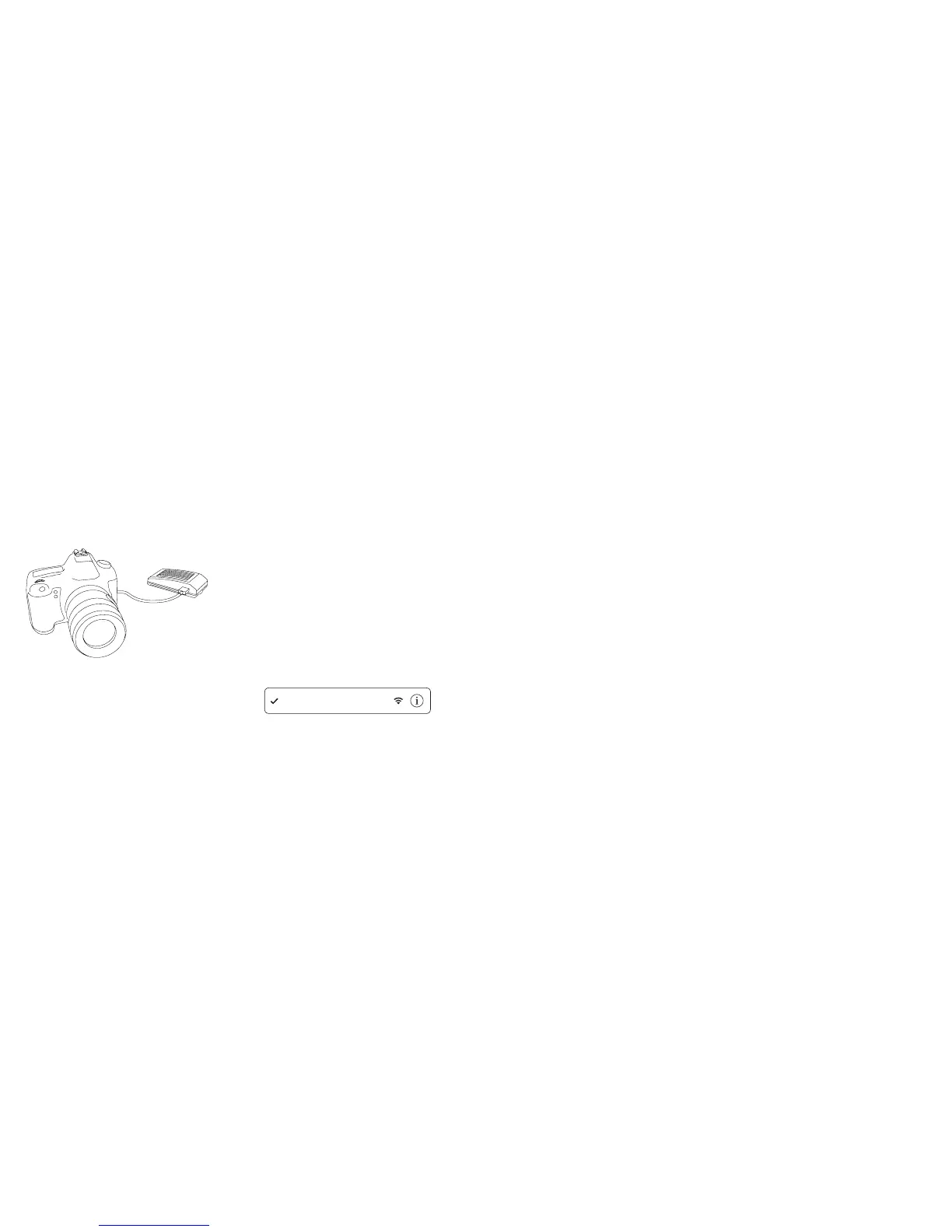
1.ConnectCamFiProtoyourcamera
ConnecttheCamFiProdevicetoyourcamera
usingtheminiUSBcable,thenturnontheCamFi
Proandyourcamera.
FCC Warning:
This equipment has been tested and found to comply with
the limits for a Class B digital device, pursuant to
part 15 of the FCC Rules. These limits are designed to
provide reasonable protection against harmful
interference in a residential installation. This
equipment generates, uses and can radiate radio
frequency energy and, if not installed and used in
accordance with the instructions, may cause harmful
interference to radio communications. However, there
is no guarantee that interference will not occur in a
particular installation. If this equipment does cause
harmful interference to radio or television reception,
which can be determined by turning the equipment off
and on, the user is encouraged to try to correct the
interference by one or more of the following measures:
o Reorient or relocate the receiving antenna.
o Increase the separation between the equipment and receiver.
o Connect the equipment into an outlet on a circuit
different from that to which the receiver is connected.
o Consult the dealer or an experienced radio/TV
technician for help.
Caution: Any changes or modifications to this device not
explicitly approved by manufacturer could void your
authority to operate this equipment.
This device complies with part 15 of the FCC Rules.
Operation is subject to the following two conditions:
(1) This device may not cause harmful interference,
and (2) this device must accept any interference
received, including interference that may cause
undesired operation.
This equipment complies with FCC RF radiation exposure
limits set forth for an uncontrolled environment. This
device and its antenna must not be located or
operating in conjunction with any other antenna or
transmitter.



 To Previous Page
 Loading...