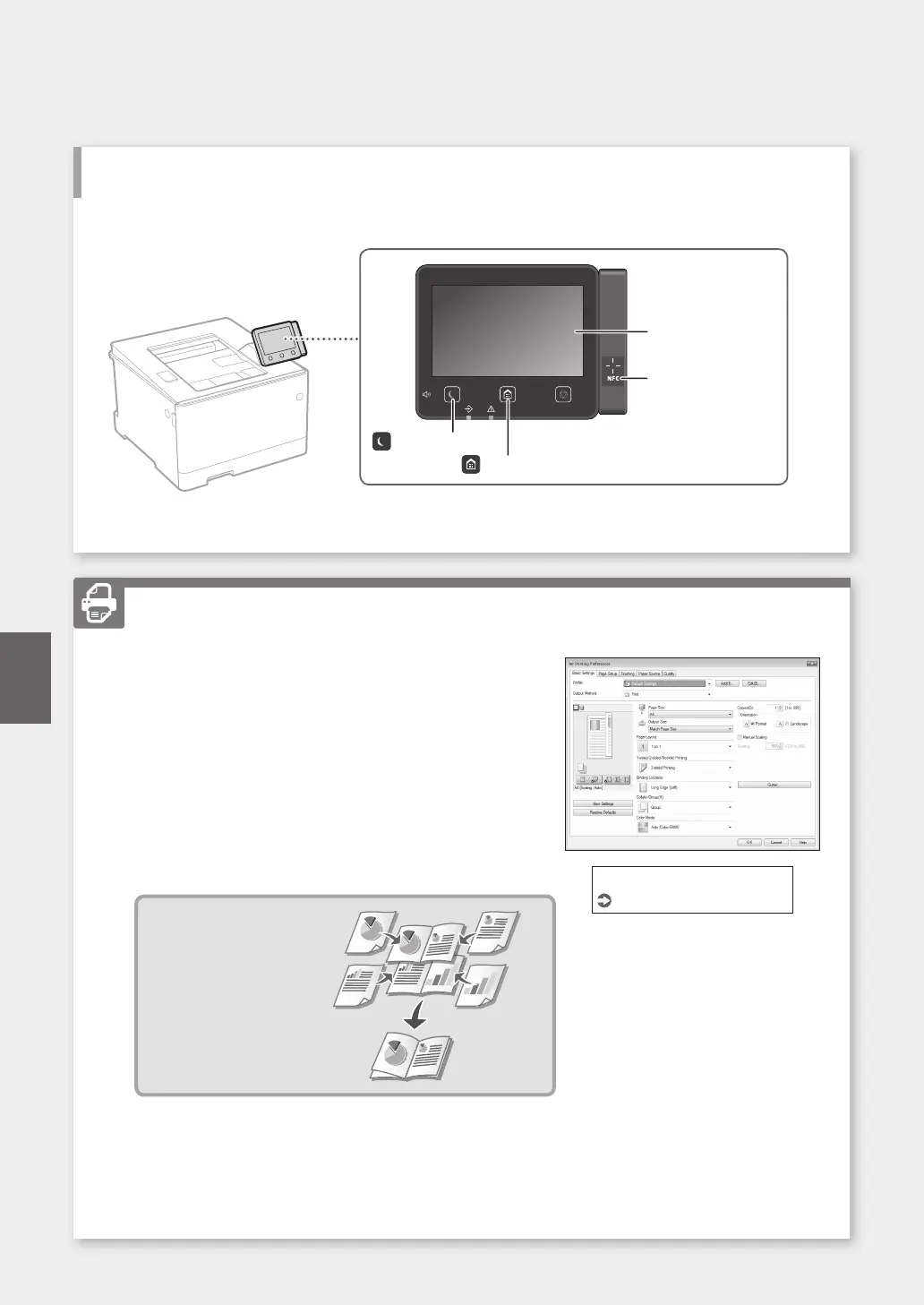
1. Open the document to print, and select the print function of the
application.
2. Select the printer driver for the machine, and select [Preferences]
or [Properties].
3. Specify the paper size.
4. Specify the paper source and paper type.
5. Specify the print settings, as necessary.
6. Select [OK].
7. Select [Print] or [OK].
Useful print settings
■
2-sided
■
N on 1
■
Booklet Printing
Printing
For details
"Help" on the printer driver
24
Quick Operation
Start the Operation from the Operation Panel
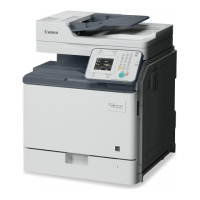
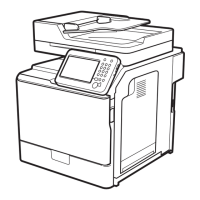
Machine Operation Panel
Display (screen)
([Energy Saver] key)
([Home] key)
NFC (Near Field
Communication) mark
En




 To Next Page