5
Specifying the Network
Settings
Specify the settings for connecting the machine to a
network. Before proceeding, check that the computer and
router are correctly connected to the network.
• You cannot use a wired LAN and a wireless LAN at the
same time.
Wireless LAN
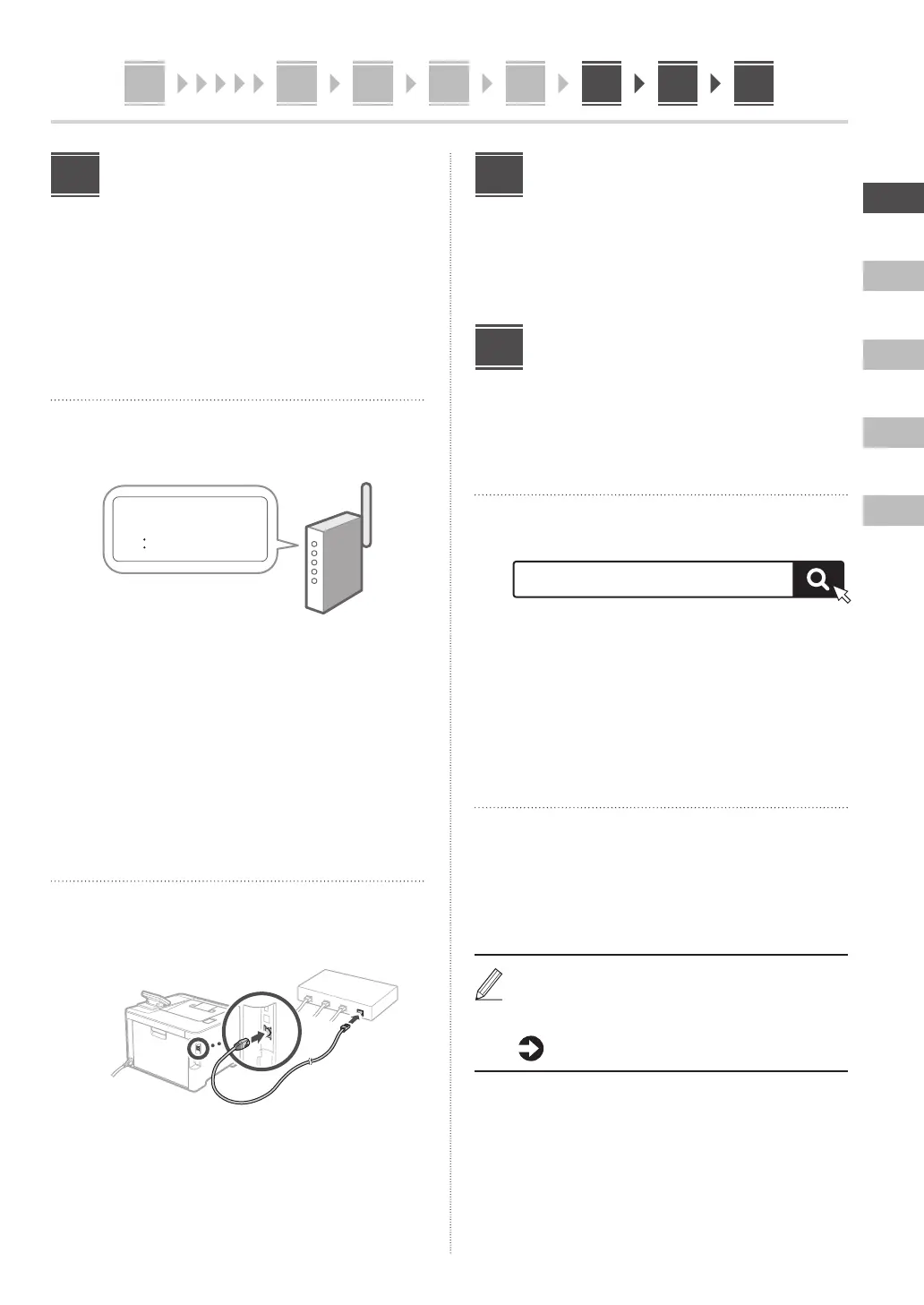
1. Check the router's "SSID" and "Network
key."
SSID
: XXXXXXXXXXXX
Network key
: XXXXXXXXXXXX
2. To configure the settings, select <Yes> on
the operation panel.
3. Select the network with a matching SSID.
4. Enter the password (network key) and select
<Apply>.
Depending on your model, a connection confirmation
screen may appear. To connect, select <Yes>.
Wired LAN
Connect the router to the machine with a LAN cable and
then select <No> in the screen for choosing how to
connect to the network.
Rear
8
Ending the Setup Guide
Check the description in the Application Library and then
select <End>.
* If your model does not support the Application Library
function, this step does not appear.
Installing the Software/
Drivers
To use the print function of the machine, you must install
the printer driver.
Downloading from the Canon website
1. Search for “(model name) download.”
Example: LBP674Cx download
XXXXXXX download
If you cannot find the download site, go to
https://global.canon/en/support/
2. Download the software and drivers, and
install them on your computer.
Installing from the Bundled CD/DVD-
ROM
1. Load the CD/DVD-ROM into your computer,
and install the software and drivers.
For normal installation, select “Easy Installation.”
Selecting “Easy Installation” installs the drivers along
with the standard software and manuals.
If a problem arises during the installation, see “See
Troubleshooting (FAQ) for drivers” in “FAQ.”
Accessing the FAQ
p. 6 “Accessing the Online Manual”
9
10
4 5 6 7 98 101










 To Next Page