24
Android Pairing (with NFC)
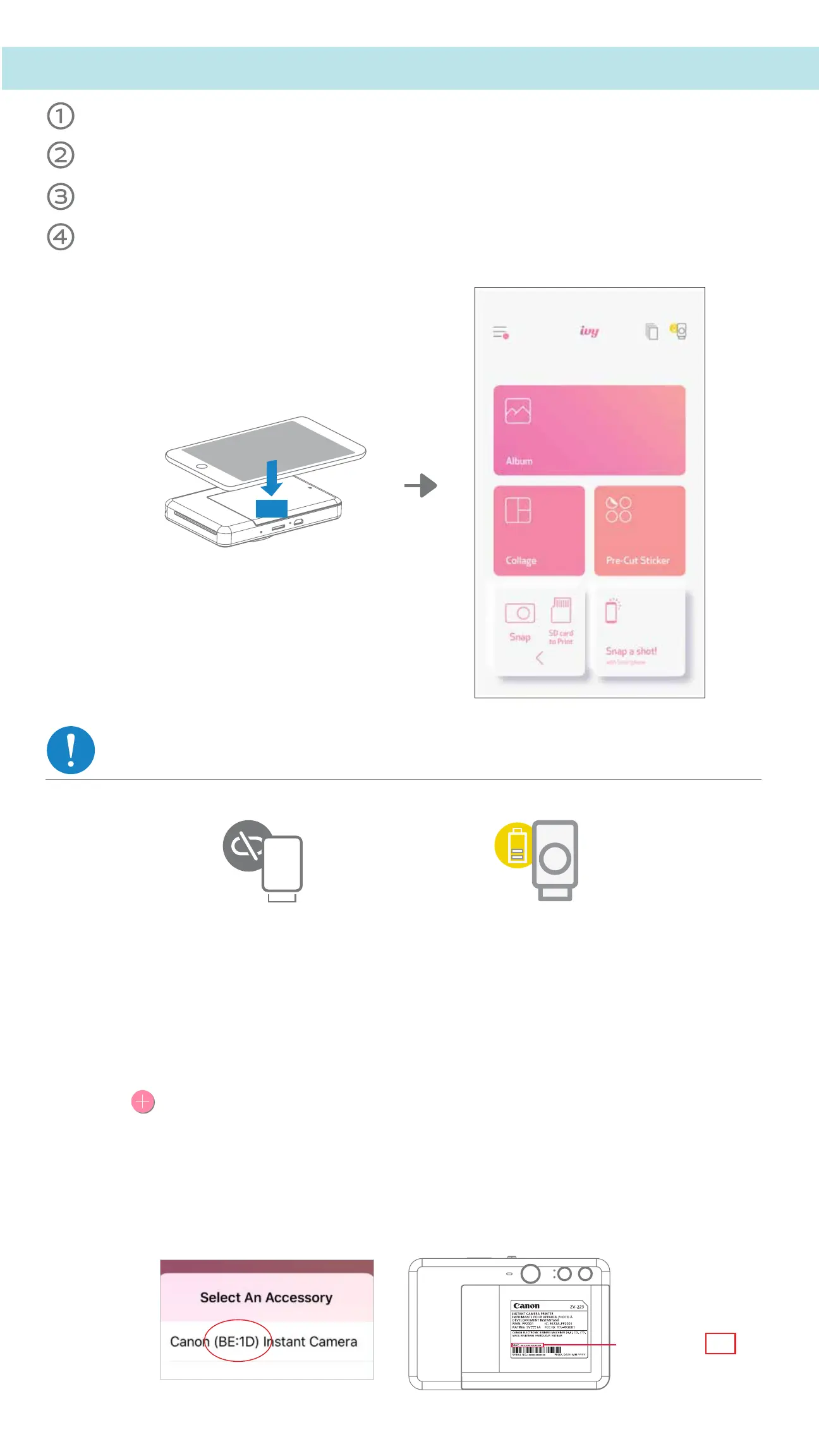
On your mobile device, ensure that NFC and Bluetooth are enabled.
Open the Canon Mini Print app.
Place your mobile device on top of the printer.
Follow the onscreen instructions to complete the pairing and connection for the first
time. Or the printer will pair automatically with the mobile device.
NOTE
Printer Status Icon (shown in App)
About Pairing
• One printer can be paired with only one iOS/Android device.
• One iOS/Android device can be connected to multiple printers.
To pair an additional printer, go to home page and tap on the icon on the top right and
press " " to choose the printer.
• Search for and pair a printer named "Canon (xx:xx) Instant Camera".
Match the last 4 digits of the MACnumber (xx:xx) on the label inside the printer.
• Bluetooth searching and transferring may fail depending on the environment.
Check the Bluetooth setting on your mobile device and try again.
TAP IT
NFC
Printer not connected
MAC: xx:xx:xx:xx:xx:xx
Printer connected
(Battery status shown)


 To Next Page
 Loading...