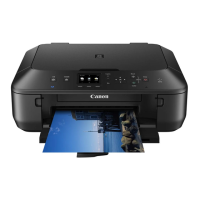
This document outlines the process for installing a Canon PIXMA MG5520 multifunction printer to a wireless network, specifically for Mac OS users, utilizing a "Cableless Setup" method. This setup is designed to simplify the connection process by eliminating the need for an SSID (network name), network passphrase, or a temporary USB cable connection to the computer.
Function Description:
The Canon PIXMA MG5520 is a multifunction device, meaning it combines several functions into one unit, typically including printing, scanning, and copying. Its primary function, as detailed in this guide, is to be connected to a wireless network, allowing multiple computers and devices to access its printing and scanning capabilities without physical cable connections to each device. The "Cableless Setup" feature is a key functionality designed to streamline the initial network configuration, making it more accessible for users who may not be familiar with network settings like SSIDs or passphrases. Once connected to the network, the printer can receive print jobs wirelessly from any connected computer or mobile device on the same network segment. The installation process also includes the setup of necessary drivers and software, which enable the computer to communicate with the printer and utilize its full range of features, such as advanced printing options, scanning utilities, and image management tools.
Usage Features:
The installation guide emphasizes several usage features related to the network setup and software installation:
- Wireless Connectivity: The core usage feature is the ability to connect the multifunction printer to a wireless network (Wi-Fi) without the need for physical cables to the computer. This provides flexibility in printer placement and allows for shared access among multiple users and devices within the network.
- Cableless Setup Method: This specific setup method simplifies the initial network configuration. Instead of manually entering network credentials, the printer and computer establish a direct connection to transfer network settings, making the process more user-friendly, especially for those less familiar with network technicalities.
- Software Installation: The installation process includes installing essential software components:
- MP Drivers: These are fundamental for the computer to recognize and interact with the printer for printing and scanning functions.
- IJ Scan Utility2: This software facilitates scanning documents and photos, offering features for managing scanned images.
- My Image Garden: This application helps users organize, edit, and print photos, often including creative printing options.
- Quick Menu: This utility provides quick access to various printer functions and software applications, enhancing user convenience.
- Canon IJ Network Tool: This tool is crucial for managing and troubleshooting the printer's network connection.
- On-screen Instructions: The installation process is guided by clear, step-by-step on-screen instructions, making it accessible for users with varying levels of technical expertise. Visual cues and prompts help users navigate through the setup screens.
- Connection Method Selection: Users are given the option to choose between a wireless connection (Wi-Fi) or a USB connection during the setup, catering to different user preferences and network environments. The guide specifically focuses on the wireless connection.
- Printer Setup Navigation: The guide details how to navigate the printer's own LCD screen using its physical buttons (HOME, Function, OK) to select network setup options, such as "WLAN setup" and "Wireless LAN setup," ensuring that the printer is ready to receive network configurations from the computer.
- Network Compatibility: The printer is designed to connect to standard wireless networks. The guide advises ensuring that the computer and access point/router are properly configured and connected to the network before initiating the printer setup.
- Security Considerations: The guide briefly touches upon security, advising against connecting to unprotected networks to mitigate the risk of data disclosure. It also mentions that if security software (firewall) is active, users might need to allow Canon software access to the network.
- Administrator Privileges: To ensure a smooth installation, users are instructed to log on as an administrator, which is a common requirement for installing system-level software and drivers.
- Application Management: Users are advised to quit all running applications before installation to prevent conflicts and ensure a stable setup process.
- User Interface Guidance: The guide provides specific instructions on which buttons to click (e.g., "Next," "Add Printer," "Other Methods," "Cableless setup") and what to expect on various setup screens, such as the "Software Installation List" and "Add Printer" screens.
- Automatic Search for Access Points: During the setup, the printer can automatically search for compatible access points, simplifying the discovery process for network connections.
- Restarting the Computer: The installation process may require the computer to restart, and users are instructed to follow on-screen prompts and not remove the setup media during this time.
Maintenance Features:
While the document primarily focuses on installation, some aspects touch upon ongoing maintenance or considerations for optimal performance:
- Driver and Software Updates: Although not explicitly detailed as a maintenance feature, the installation of "MP Drivers" and other Canon software implies that these components will likely receive updates over time to ensure compatibility, improve performance, and address any issues. Keeping these updated is a form of software maintenance.
- Network Stability: The guide's emphasis on proper network configuration and placing the machine and computer on the same network segment contributes to maintaining a stable and reliable connection, which is crucial for consistent printer operation.
- Troubleshooting Guidance: The "Canon IJ Network Tool" installed as part of the software package is a maintenance utility designed to help users diagnose and resolve network-related issues with the printer.
- Security Best Practices: The advice to connect to protected networks and configure firewalls to allow Canon software access helps maintain the security and integrity of the user's network environment, preventing potential vulnerabilities that could affect printer functionality or data privacy.
- System Requirements: The mention of "Internet connection may be required during the installation" and "Connection fees may apply" highlights the need for a functioning internet connection, which is a prerequisite for downloading software updates or additional components, an aspect of ongoing system maintenance.
- Printer Status Monitoring: While not explicitly stated, the installed software typically includes utilities that allow users to monitor the printer's status, such as ink levels, paper jams, or connection issues, which are essential for routine maintenance.
- Instruction Manual Reference: The guide advises referring to the device's instruction manual or contacting the manufacturer for details on network device configuration, router functions, setup procedures, and security settings. This points to the manual as a resource for ongoing maintenance and troubleshooting beyond the initial setup.
- Network Administrator Consultation: For office setups, the recommendation to consult a network administrator implies that professional guidance might be needed for complex network environments, ensuring proper integration and maintenance within a larger IT infrastructure.
In summary, the Canon PIXMA MG5520, through its "Cableless Setup" and comprehensive software package, aims to provide a user-friendly experience for wireless network integration, offering robust printing and scanning functionalities, supported by tools for network management and general system upkeep.

 Need help?
 General
 Weight and Dimensions





 To Next Page
