Using the Software on the Windows Platform – Preparations
14
8 When the installation is over, select
[Restart computer immediately
(Recommended)] and click [Restart].
AtÅthisÅstage,ÅdoÅNOTÅremoveÅtheÅSolutionÅ
DiskÅfromÅtheÅCD-ROMÅdriveÅyet.
IfÅthereÅisÅnoÅneedÅtoÅrestartÅtheÅcomputer,ÅtheÅ[Finish]ÅscreenÅwillÅdisplay.ÅClickÅ[Finish],Å
removeÅtheÅSolutionÅDiskÅfromÅtheÅCD-ROMÅdriveÅandÅproceedÅtoÅStepÅ10.
9 Remove the disk from the CD-ROM drive when your
normal desktop screen appears after restarting.
ThisÅconcludesÅtheÅsoftwareÅinstallation.Å
ContinueÅbyÅconnectingÅtheÅcameraÅtoÅtheÅcomputerÅsoÅ
thatÅtheÅUSBÅdriverÅcanÅbeÅutilized.Å
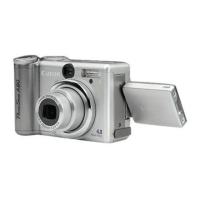
10 Attach the camera to the computer with the
interface cable and set the camera to the
correct mode for connecting.
If you installed a USB driver, so far the required files have only been
copied to your computer. You must now connect the camera to the
computer with the interface cable to complete the installation and
prepare the driver for use.
See Uninstalling the Software (p. 72) to delete the installed programs.
Procedures for attaching the camera to the computer and placing the
camera in the correct mode for connecting vary between camera models.
See the Camera User Guide.



 To Next Page
 Loading...