12 CaptionCall
Watch What Happens During Startup
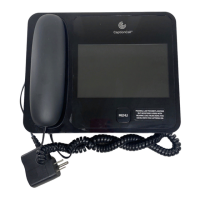
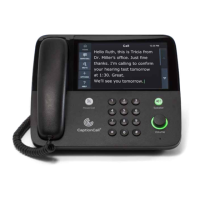
Here’s what to expect as your CaptionCall phone starts up:
• The display’s backlight will illuminate and the CaptionCall logo will appear.
• The CaptionCall light and Menu button will then turn on (illuminate).
• The “Recent Calls” screen will then appear on the display.
What Can Go Wrong?
If you’ve made all the required connections, everything should work well.
If something does go wrong, CaptionCall will tell you what the problem
is. Here’s what you might see on the display screen if there’s a problem:
• A message that reads “Handset Is Not Seated.”
Fix this by putting the handset back on the base unit.
• A message that reads “Network Problem.”
Fix this by checking the Ethernet cable and your Internet service (i.e.,
make sure it’s available). If using wireless, check your wireless setup
(refer to your CaptionCall User Guide for wireless setup details).
• A message that reads “CaptionCall Service Unavailable.”
• A message that reads “Cannot Access CaptionCall Account.”
These two messages should go away by themselves after just a few
minutes. If not, please call us for help to resolve these problems.
All Systems Go...
If You Need Help
If your CaptionCall phone does not start up
normally and you’ve tried the suggested
fixes, just call us for help.
See Page 22 for details on how to contact
the CaptionCall Support team.
A Quick Fix You Can Try
If your CaptionCall phone does not work
properly or seems unresponsive, you can
try unplugging the power cord. Wait about
10 seconds, then plug the cord back in.
The problem should be resolved when the
phone restarts.


 To Next Page