setup guide 5
Set Up Your CaptionCall Phone
When you’re ready to set up your CaptionCall phone, here’s what to do:
Step 1: Find a good place to put the phone.
Look around for a good place to set up your phone. You’ll need a stable
table, counter, or wall mount that’s located near a power outlet, phone
line, and your Broadband modem. If you’re planning on using wireless,
you won’t need to worry about having the Broadband modem close by.
Step 2: Unpack the phone and cables from the box.
If your CaptionCall phone is still packed in its original box, you can now
take everything out of the box. Here’s what you’ll find packed inside:
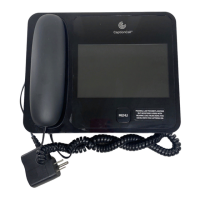
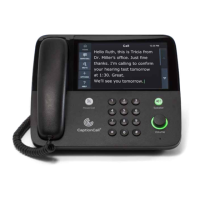
• CaptionCall phone base unit
•Handset
• Handset cord (black, coiled, 12-ft length)
• Phone line cord (gray, 14-foot length)
• Phone line cord (gray, 6-inch length)
• Ethernet cable with attached Ferrite filter (black, 6-foot length)
• Power adapter with power cord (in small white box)
• CaptionCall Setup Guide and User Guide documentation
Get Going...
Phone Mounting Option
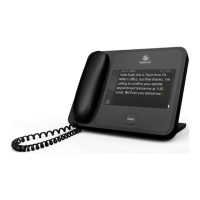
You can mount your CaptionCall phone to
a standard wall telephone mounting plate.
The phone’s Base Platform will fit a
standard wall mounting plate.
Remember that you will need to be able to
connect the power cord and the Ethernet
cable to the phone mounted on the wall. If
you are using the wireless feature, you
won’t need to use the Ethernet cable.
See the note on Page 11 for more
information on using the wireless feature.


 To Next Page