Verifying and Completing Records
Getting Started with CardScan Lead Qualifier 2-3
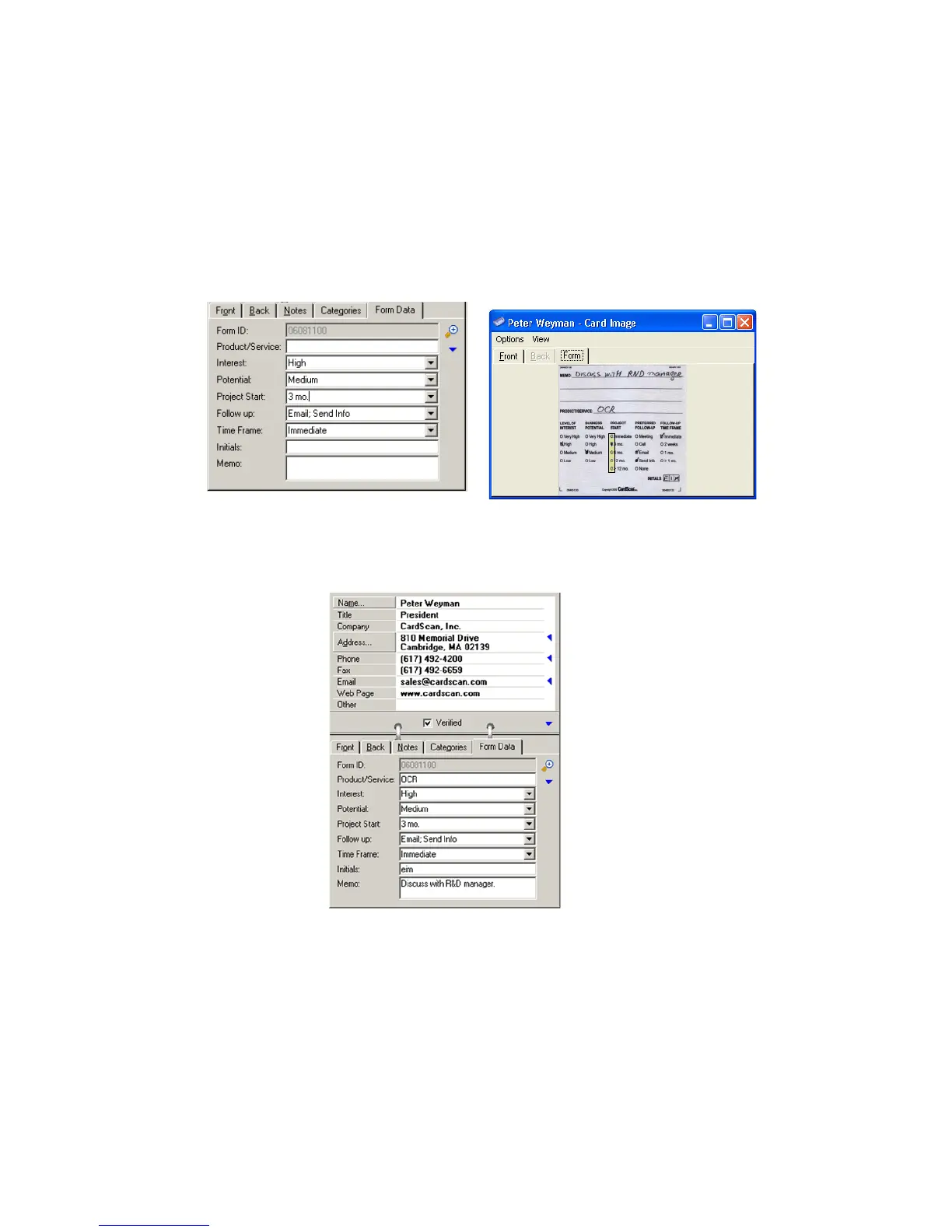
3. To verify the accuracy of the form data, click on the Form Data tab to open its fields, and then
double-click anywhere on this tab (or choose View→Big Picture) to display the scanned image.
As you move the cursor from field to field, note a rectangle highlighting the corresponding part of
the image.
4. If the image contains any handwritten information, copy this information to the fields by typing.
When confident that the record is accurate, check the box labeled “Verified.”
If you don’t check the “Verified” box, CardScan Lead Qualifier will display warnings whenever you
try to use the record.This is to prevent you from applying features to inaccurate records.
Consider, for example, the importance of accuracy when using AutoActions in Summary view
(see “Reaching Leads from Summary View” on page 2-4).
Note the blank fields labeled for the
handwritten data.
The Big Picture allows you to view all the images
included with the record.



 To Next Page