THE SKYPORTAL APP
Celestron provides a free planetarium application, SkyPortal. You can control your telescope mount via the SkyPortal
app and this SkyPortal WiFi Module. The app is available as a free download in the Apple App Store and Google
Play.
CHOOSING A CONNECTION METHOD
The SkyPortal WiFi Module allows you to connect to your telescope in two ways. Direct Connect Mode is useful when
you are in the field and you just want to connect your phone to the WiFi signal coming from the WiFi Module. This is
the fastest and simplest way to connect. However, this method will eliminate your ability to connect your phone to the
internet for other uses. If you want to maintain internet access on your device while connected to your telescope, you
will need to connect using WLAN Access Point Mode.
CONNECTING TO THE SKYPORTAL WIFI MODULE USING DIRECT CONNECT MODE
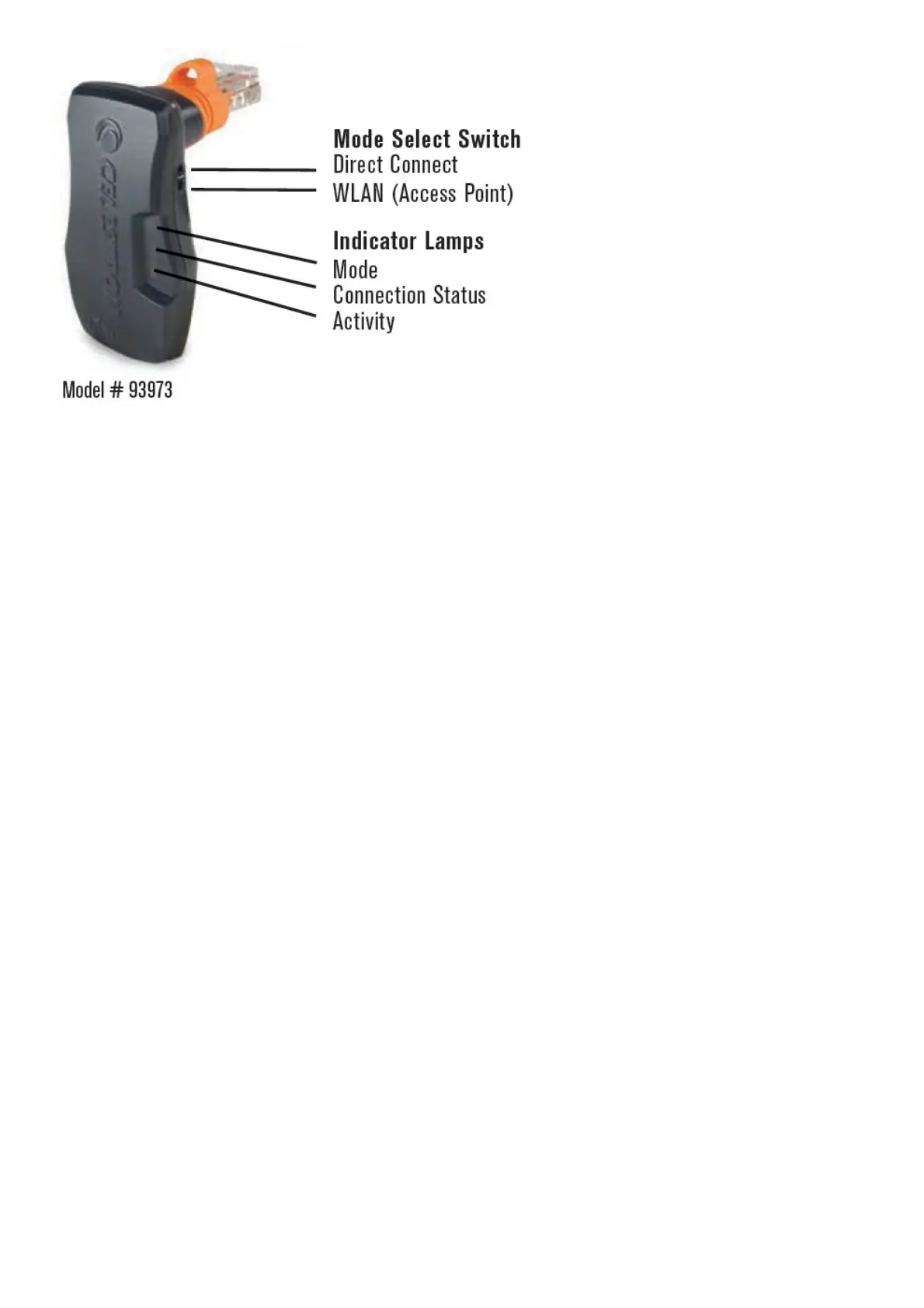
1. Slide the Mode Select switch into the Direct Connect position as shown in the figure below.
2. Plug the Celestron SkyPortal WiFi Module into an available “AUX” port on your telescope mount. Alternatively,
you may unplug the hand control and replace it with your WiFi Module.
3. Turn on the mount. After a short delay, the Connection Status lamp will begin flashing.
4. Open the Settings menu on your mobile device and choose WiFi options.
5. Choose the network named “Celestron-###”. The Connection Status lamp will flash more slowly when your
mobile device’s network is connected.
CONFIGURING YOUR WIRELESS LOCAL AREA NETWORK (WLAN) FOR WLAN ACCESS POINT
MODE
1. Connect your phone to your WiFi Module in Direct Connect mode as described above.
2. Open the Celestron SkyPortal app.
3. Tap the telescope icon on your screen, then tap Connect.
4. Tap the Settings button (gear icon).
5. Select Communication.
6. Select Configure Access Point.
7. Enter the SSID and Password for your wireless network.
8. Tap Send Configuration.
9. Return to the previous menu and tap Use Access Point.
CONNECTING TO THE SKYPORTAL WIFI MODULE USING WLAN ACCESS POINT MODE
1. Slide the Mode Select switch to the WLAN (Access Point) position as shown in the figure.


 To Next Page
 Loading...