Contact Customer Support to
schedule a preventive maintenance
check on your equipment to ensure
that it continues to function as it did
when it was first installed. Including
recalibration, if needed.
10.2 Troubleshooting
10.2.1 Software update
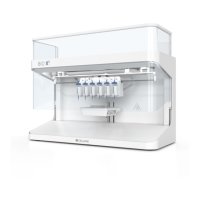
Make sure the main user has a MyCELLINK account. If you have not registered your BIO X6
yet, go to my.cellink.com and register to enable software updates.
Keeping your BIO X6 updated with the latest software version is highly recommended. This
allows you to take advantage of the latest features and avoid any malfunctions while printing.
Follow the steps below to update your printer with the latest software version.
1. Log into your MyCELLINK account at my.cellink.com. If you do not have an account,
follow the steps online to register.
Note: You need to provide the serial number of your BIO X6. This number is located
on the back of the bioprinter.
2. Once you are logged in, go to Downloads and click on the View button in the BIO X6
image.
3. In the Software Versions list, click on the link to the latest version of HeartOS BIO
X6 and click Download software.
4. Locate the downloaded file on your computer and move it to the main folder on a
USB flash drive.
5. Insert the USB flash drive into one of the USB ports on the BIO X6.
6. Locate the Gear icon in the upper right corner of the BIO X6 home screen.
7. Click Update.
8. Select the software file from your USB flash drive and follow the instructions shown
on the screen. Do not turn off the bioprinter while it is updating.


 To Next Page
 Loading...