BIO X6 User Manual v. 1.0 25
3.4 Starting the BIO X6 for the first time
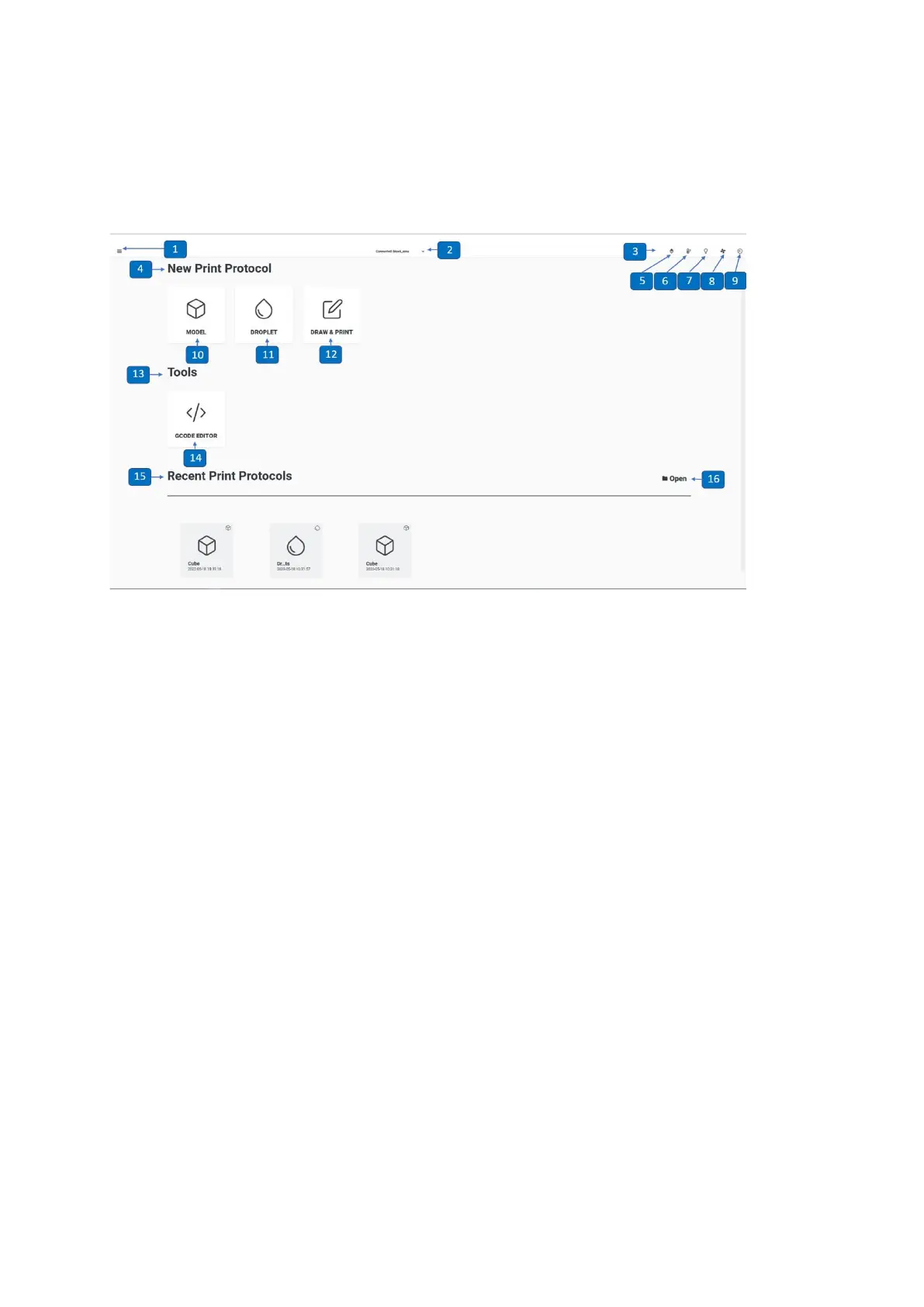
When you start the BIO X6 for the first time, you are taken to the home screen.
1. Printing Utilities menu with advanced settings and troubleshooting functions
2. Connection status: Indicates whether the tablet/computer is connected to the BIO X6
3. Tool bar: Buttons to enable or disable functions as open and close door, temperature
status, chamber lights, clean chamber fan and sterilize chamber
4. New Print Protocol: In this section you find the Model print, Droplet print and Draw &
Print modes
5. Open/close door
6. Temperature settings
7. Chamber Lights on/off
8. Clean Chamber fan
9. Chamber UV light
10. Model print: Tap to start a bioprinting process
11. Droplet print: Tap to access the droplet process
12. Draw & Print: Tap to start a draw & print process
13. Tools: In this section you find tools such as Gcode Editor
14. Gcode Editor: Tap to open the Gcode Editor


 To Next Page