284 MULTIMEDIA
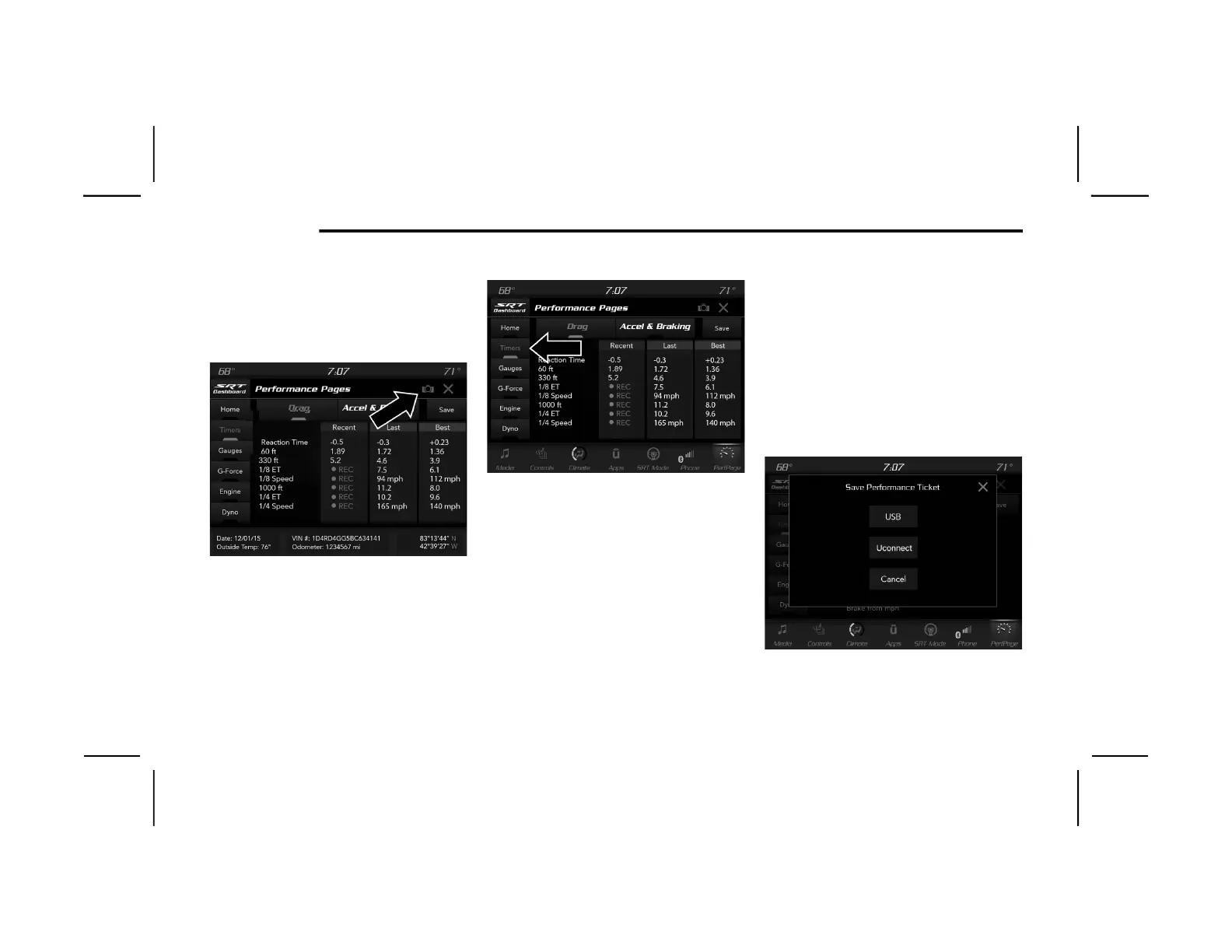
3. To take a screenshot of the historical data,
make sure a USB device is plugged into the
vehicle. Next, click the Camera icon located
in the top right corner of the touchscreen.
The historical data image file will be saved
to the USB drive.
Historical Data Camera Icon
Timers
Performance Pages — Timers
When the Timers Page is selected, you will be
able to select the Drag or Accel & Braking tabs.
The following will be displayed:
Recent
A “real-time” summary of performance
timers.
Last
The last recorded run of performance timers.
Best
The best recorded run of performance
timers, except for braking data.
Save
Pressing the Save button will let you save the
visible page, recent/last/best. Any saved run
over 10 will overwrite the last saved run for
Uconnect System storage. The operation of
the Save feature is listed below:
NOTE:
Pressing the Camera icon in the upper right
corner of the screen at any time will save a
screenshot of the screen currently being viewed
to the connected USB device.
Performance Pages — Save
20_LX_OM_ENA_GCC_t.book Page 284









 To Next Page