48 GETTING TO KNOW YOUR VEHICLE
Automatic Climate Control Descriptions
Icon Description
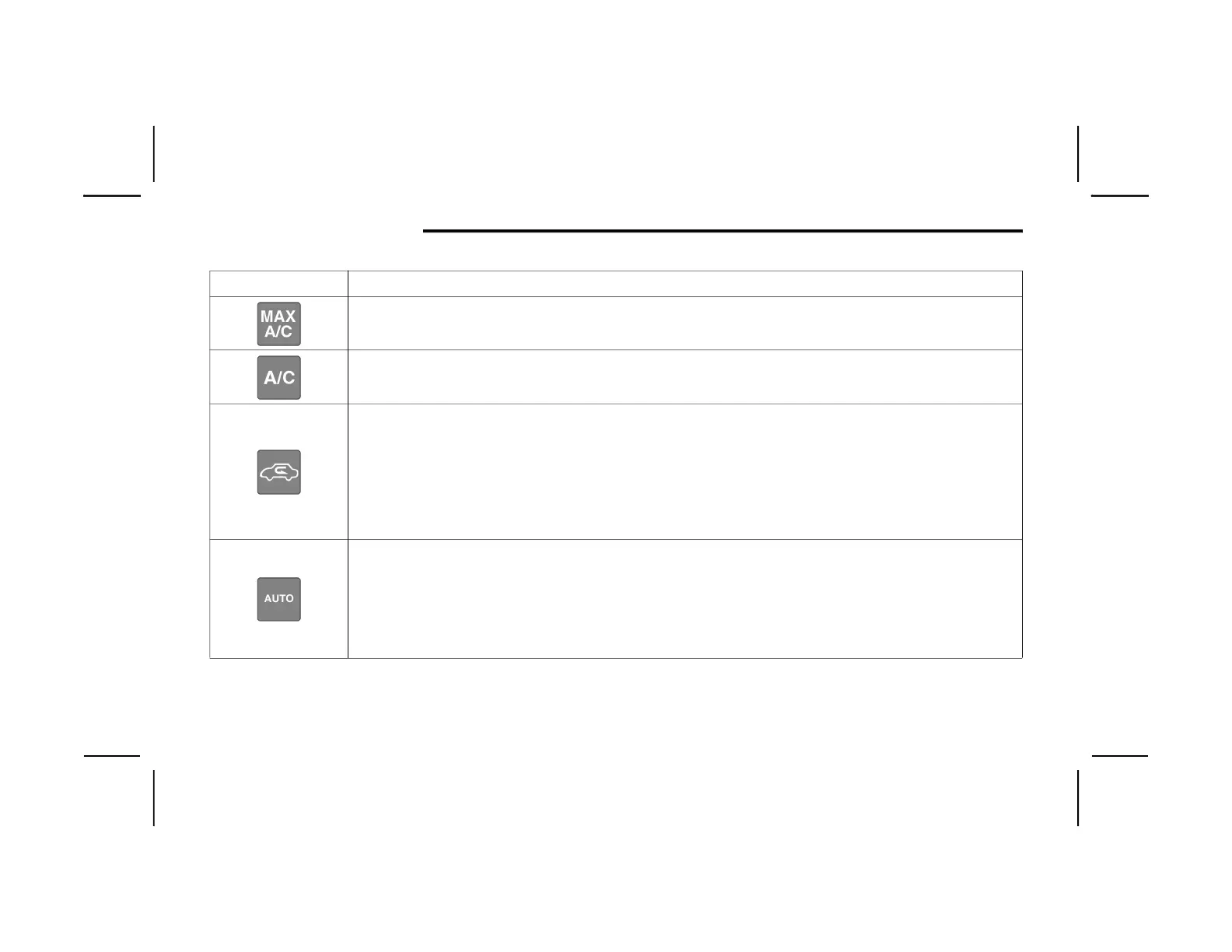
MAX A/C Button
Press and release the MAX A/C button on the touchscreen to change the current setting to the coldest output of air. The
MAX A/C indicator illuminates when MAX A/C is on. Pressing the button again will cause the MAX A/C operation to exit.
A/C Button
Press and release this button on the touchscreen, or push the button on the faceplate to change the current setting.
The A/C indicator illuminates when A/C is on.
Recirculation Button
Press and release this button on the touchscreen, or push the button on the faceplate, to change the system between
recirculation mode and outside air mode. The Recirculation indicator illuminates when Recirculation is on. Recirculation
can be used when outside conditions such as smoke, odors, dust, or high humidity are present. Recirculation can be used
in all modes. Recirculation may be unavailable (button on the touchscreen greyed out) if conditions exist that could create
fogging on the inside of the windshield. The A/C can be deselected manually without disturbing the mode control section.
Continuous use of the Recirculation mode may make the inside air stuffy and window fogging may occur. Extended use of
this mode is not recommended.
AUTO Button
Set your desired temperature and press AUTO. AUTO will achieve and maintain your desired temperature by automatically
adjusting the blower speed and air distribution. AUTO mode is highly recommended for efficiency. You can press and
release this button on the touchscreen, or push the button on the faceplate, to turn AUTO on. The AUTO indicator
illuminates when AUTO is on. Toggling this function will cause the system to switch between manual mode and automatic
modes.
Refer to “Automatic Operation” within this section for more information.
20_LX_OM_ENA_GCC_t.book Page 48








 To Next Page