-PS Button
5. Function of Keyboard Buttons
1)
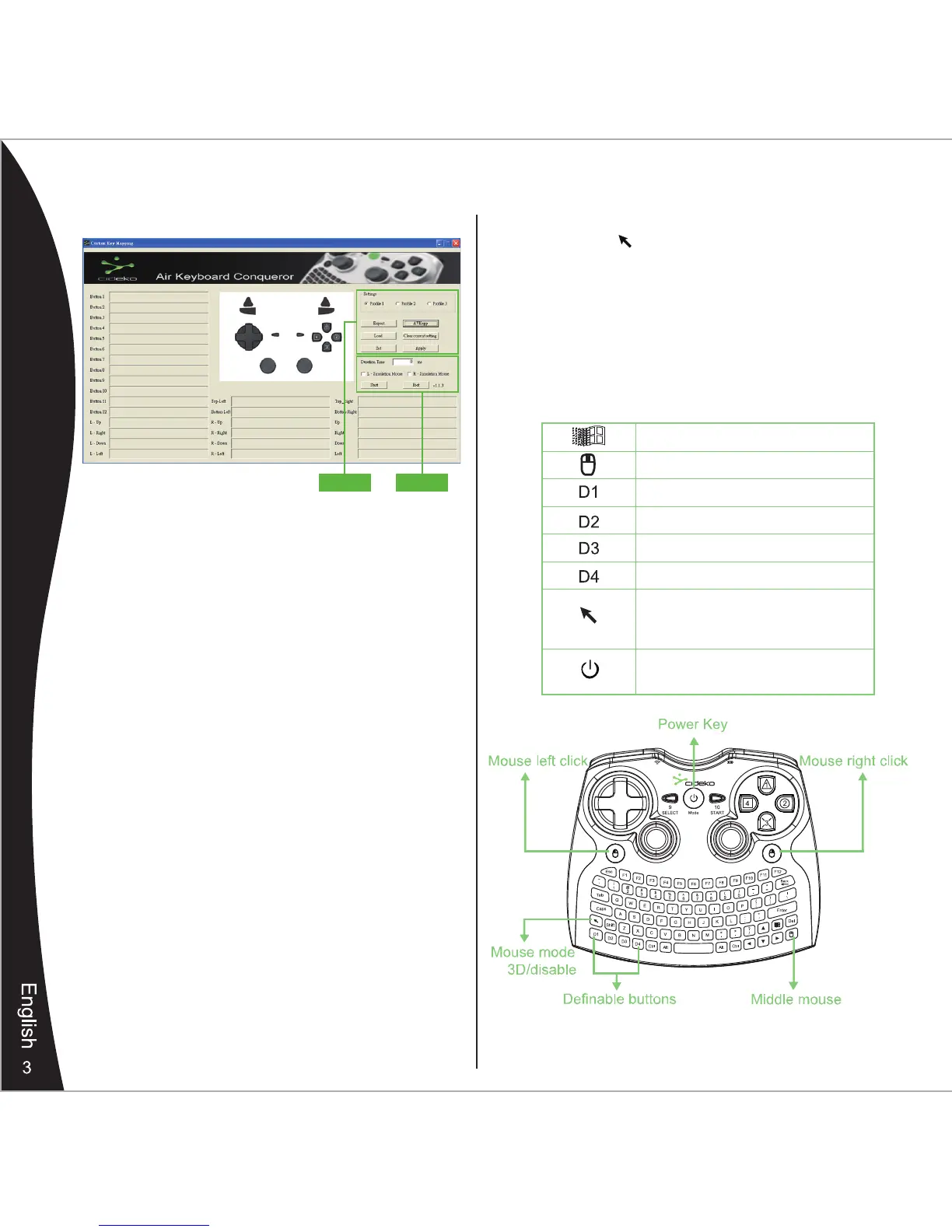
Please use the button to select the mouse mode.
The mode switches in a cycle (enable 3D mouse/
disable mouse function).
Under 3D mode:
Move Air Keyboard to control the gyro mouse and use
the mouse left click and mouse right click buttons for
left/right click.
4. Custom Key Mapping Software
Windows
Middle mouse
Definable Button
Definable Button
Definable Button
Definable Button
-Power Key
(long press to turn off)
Mode Switch:
1.Enable 3D mouse function
2.Disable
Block 1 Block 2
Block 1
Profile:
You can set 3 different profile settings. Click profile 1,
profile 2, profile 3 to select.
Export: click to export your settings.
Load: click to load your previous settings.
Set/Stop:
click to start or stop setting process. Click on
each button to highlight the button so you can
set mapping, you can map up to 8 keys for one
button.
AVKapp: click to start the User Definable Button application.
Clear current setting: click to clear settings.
Apply: click to confirm the setting.
Block 2
Duration Time: you can set the duration time by millisecond.
Stop the setting process before defining the
duration time.
L- Simulation Mouse: check the box to use left joystick
as mouse.
R- Simulation Mouse:
check the box to use right joystick
as mouse.
It is suggested to check one box at a time.
Start/Stop: click to start playing game with your settings
or stop playing with your settings.
Exit:
click to exit this application. Do not exit while playing
game with your settings, you can minimize it.


 To Next Page