What you’ll nd in the box
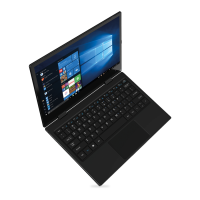
■ CODA WAVE Convertible Notebook
■ Power adapter
■ Quick start guide + 1 year warranty
Quick set-up
Need more help?: To access help topics, select the Start
button, and then select the Get Started App.
User Guides: Visit codacomputers.com/faqs or
codacomputers.com/user-guides to get the latest
information about your device.
Support: Contact our support team at
codacomputers.com/support
Touchpad gestures
Get to know your Windows 10 start screen
Access your favourite Windows Store Apps, send/receive emails,
browse the web, stream videos and view photos all from one
central location.
Windows 10 icons
Start
button
Search
Microphone
Wi-Fi
networks
Shut down
Access
Cortana
Browse
with Edge
When using for the rst time, plug into mains electricity
supply using power adapter/cable supplied.
Note: Charge your device for 30 minutes before using it
without the power adapter for the rst time.
Features
Getting started
Display the Start menu: Select the Start button in the
lower-left corner of the taskbar and easily nd your
favourite Apps, settings and les.
Access Cortana: Get things done with your very own digital
assistant. To get started, type a question in the search box,
or select the microphone icon and talk to Cortana.
Search: In the taskbar search box, begin typing the name of
an App, setting, le or internet topic.
Browse the web: Microsoft Edge gives you new ways to
nd stuff, manage your tabs, read e-books and write on
the web. To get going, select Microsoft Edge on the
Windows taskbar.
Shut down your computer: Select the Start button, select
the power icon, then select shut down.
Connect to a wireless network: Select the network icon in
the lower-right corner of the taskbar and select one of the
available networks.
Note: Windows features screen may vary from image
shown above.
Tap to
select
Pinch to
zoom in
Stretch to
Zoom out
Scroll up,
down, left
and right
Open
Cortana
Open
Action
Center
360° rotation
Notebook Theatre
Tent Tablet
Display positions
3 4 521
10
974 8
14
15
1312
11
Note: All pictures and illustrations are for reference
only and may vary from the nal product.
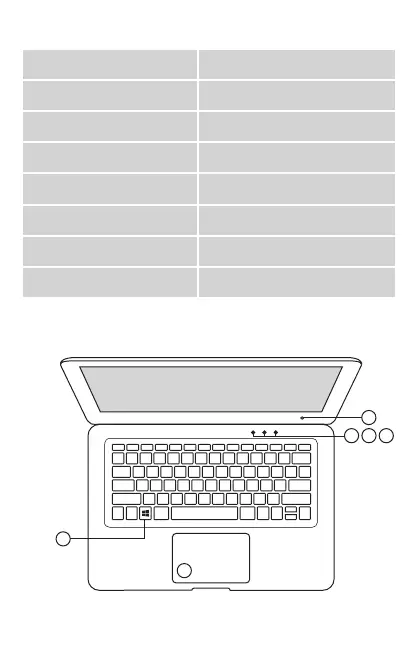
1. Headphones port 9. Micro USB port
2. Volume up/down 10. USB Type C port
3. Power button on/off 11. Camera
4. Microphone 12. Number lock light
5. Speaker 13. Caps lock light
6. Micro SD card slot 14. Power indicator light
7. Micro HDMI port 15. Windows
®
button
8. Charging light 16. Precision touchpad
5 6
16
Note: Expandable SSD Window (underneath)
M.2 2242 SATA B Key Connection (upto 512GB).
T228_CODA_WAVE_USERGUIDE.indd 2 18/12/2018 14:52


 To Next Page
 Loading...