Using Your Go-tcha Ranger- Manual Catch
To connect your Go-tcha Ranger to the Pokémon App:
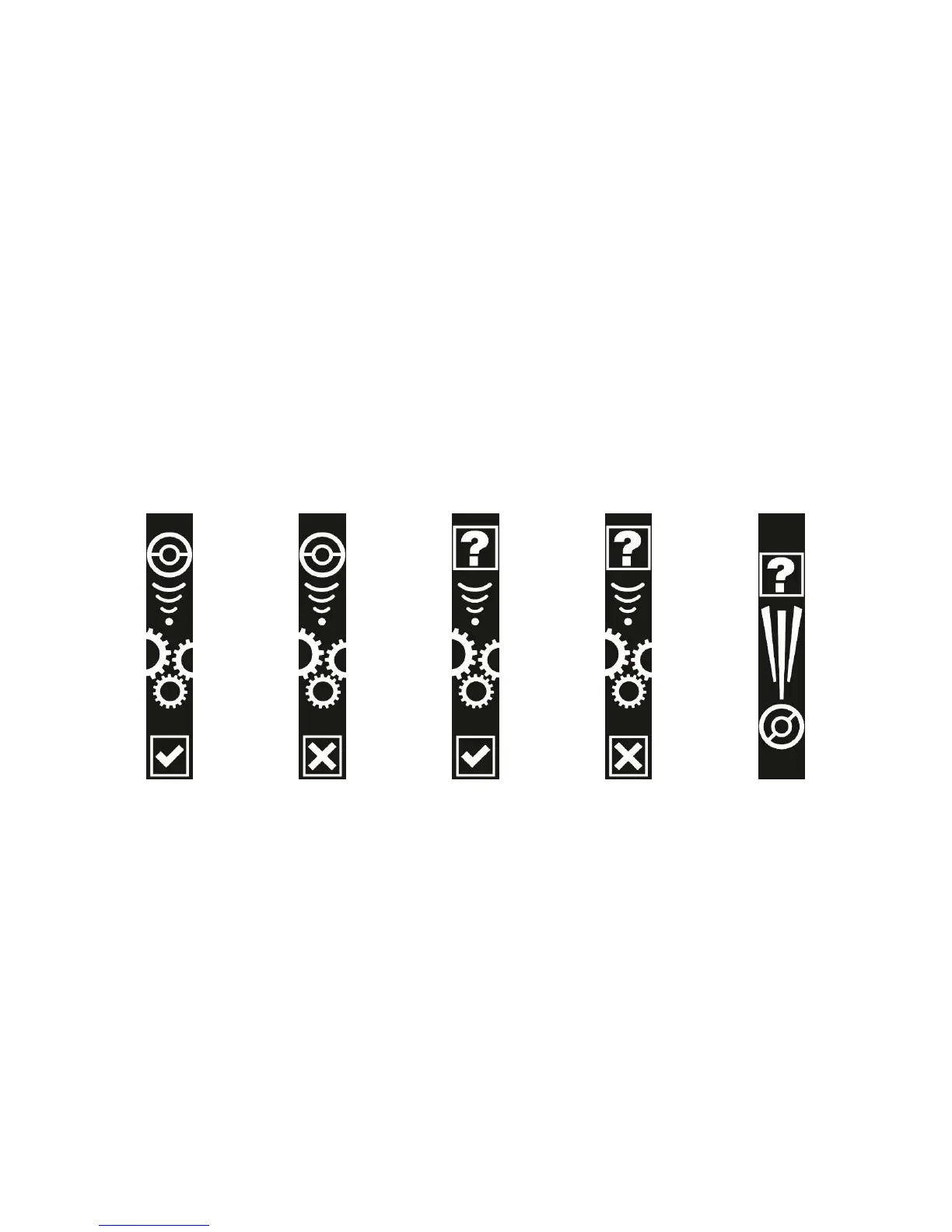
1. Go-tcha will vibrate and animate the screen to show a new/duplicate Pokémon is near
2. Press the Go-tcha button/screen to catch the Pokémon
3. Go-tcha will vibrate and animate the screen to show a successful/unsuccessful catch
4. Go-tcha will vibrate and animate the screen to show when a Pokéstop is in range
5. Press the Go-tcha button to retrieve items from a Pokéstop
6. Go-tcha will vibrate and animate the screen to show it has successfully/unsuccessfully
collected the items and how many items it has collected.
See ‘Go-tcha Ranger Screens’ below for a complete guide to the screen animation alerts.
Using Your Go-tcha Ranger - Auto Catch
To turn the ‘Auto-catch’ function on, press the the Go-tcha button until ‘Auto-catch ON’ is selected.
If you have Auto Catch on:
1. Go-tcha will vibrate and animate the screen to show a successful/unsuccessful catch.
2. Go-tcha will vibrate and animate the screen to show it has successfully/unsuccessfully
collected the items and how many items it has collected at a Pokéstop.
To turn ‘Auto-catch’ off, press and hold the Go-tcha button until ‘Auto-catch OFF’ is selected.
Go-tcha Screens - Catching/Caught Pokémon


 To Next Page
 Loading...