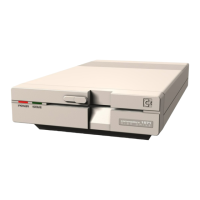
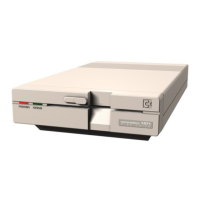
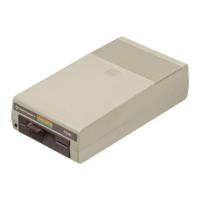
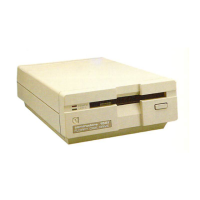
The printer device# is selected
in
the same way.
To change the device number
of
the actual drive (the physical drive), position the
cursor on the 'CHANGE DISK DEVICE
#'
line and press the SPACE BAR. A message
then appears on the screen guiding you through the steps
to
change the device#.
If
you
change your mind before completing the steps, press the STOP or
F5
keys to cancel the
device#
change.
F5
returns you to the logical drive selections and STOP returns you to
the primary menu screen.
Changing the device# locks
in
all current parameters in this function.
NOTE:
Unless the Disk Setup
is
set for a single drive unit, when you choose any of
the following functions, a question appears on the screen asking you which drive
you want to use.
In
describing these functions, we'll assume that you have a single
disk.
If
you have more than one, then you'll have
to
provide the appropriate answer
to that question through the use
of
the CRSR keys and SPACE BAR.
RUN A
PROGRAM
This function automatically loads and runs a program
file
that you choose from a
file
list shown on the screen (for this function the
file
list contains only program files). Use the
CRSR keys
to
position the cursor over the desired file, then press the SPACE BAR
to
choose that file.
If
you change your mind, press the
F5
key
to
un-select the file. Press the
F7 key to load and run it.
If
you press the stop key before the loading
is
complete, the
function
is
cancelled.
You can print out the file list, whenever it's displayed for a function,
by
pressing the
F3 key. Make sure your printer
is
turned on and the paper
is
at the top
of
a page.
Note that some machine language programs won't run
in
the Shell.
FORMAT
A DISK
When you select this function, a message appears on the screen telling you
to
insert a
blank disk into the drive. After you
do
that, press the SPACE BAR and the Shell checks
to
see
if
the disk has already been formatted.
If
it has, the disk header information
is
displayed on the screen as a precaution that there may
be
files on the disk. To proceed
with formatting, either enter a new disk name or accept the old one and press RETURN. If
the disk was previously formatted,
it
retains its old ID code.
If
not, the Shell randomly
generates one. You can enter your own ID code
by
entering a comma and two-digit
ID
code
as
the last three characters
of
the disk name.
CLEANUP
A DISK
This function enables you to validate the Block Availability Map of a disk (see the
VALIDATE command in chapter 2 or the' COLLECT command in chapter 3).
34


 To Next Page
 Loading...