11
System Remote Control
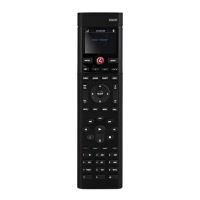
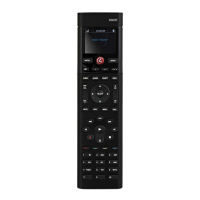
SR-260
User Guide
Use the SR-260 to control devices throughout your Control4
home automation system.
• Navigate system menus and access media on a TV or other
display using the on-screen Navigator (home automation
menu).
• Navigate system menus and access media using the remote’s
List Navigator (text-based home automation menu).
Features
• Two-way communication with your Control4 system.
• Backlit display with a text-based List Navigator.
• 50 buttons total, including quick access buttons, transport
control buttons, and a full alphanumeric keypad.
• All buttons are programmable.
• Wakes from sleep mode when picked up or moved (if
enabled).
• Ambient light sensor automatically changes the keypad
brightness, depending on the light in the room.
• Recharging Station available.
Quick access buttons
Use the remote’s WATCH and LISTEN buttons to quickly select
from all playback devices in the room or to select the most
recently used device (depending on how the installer configured
your system). These buttons can be configured by your Control4
Dealer.
See the Control4 System Quick Start Guide to learn how to
navigate through the system menu and discover all of the cool
features and functions of the Navigators.
Programmable buttons
All buttons on the remote are programmable, but the buttons
listed below are the most commonly programmed. If these
buttons have been programmed by your installer, note their
functions here:
______________________________________________
______________________________________________
______________________________________________
______________________________________________
______________________________________________
______________________________________________
______________________________________________
______________________________________________
______________________________________________
SR-260 buttons
B
C
D
E
F
G
H
I
J
K
L
M
N
O
P
A
B
C
D
E
F
G
H
I
J
K
L
M
N
O
P
A
SR-260 SR-260-I
A
B
C
D
E
F
G
H
I
J
Control4 button—Displays
Control4 menu on TV (if enabled)
ROOM OFF —Turns room o
Display—Screen that displays List
Navigator
WATCH —Displays video
sources or plays most recently
watched source
LISTEN —Displays audio sources
or plays most recently played
source
LIST —Displays the system
menu (List Navigator) on the
remote’s display screen
Programmable buttons—Functions
vary (installer programs)
GUIDE —Displays TV listings
▲PAGE —Scrolls pages up
PAGE▼ —Scrolls pages down
PREV —Returns to previous
channel or screen
VOL —Controls device volume
SELECT and directional
buttons—Moves through menus
and selects menu items
K
L
M
N
O
P
CH+– —Changes TV channels
MUTE —Toggles device sound
INFO —Shows program
information
MENU —Accesses device
features and settings
CNCL —Sends “Cancel” or “Exit”
command
Playback control buttons
Rewinds or fast forwards
Skips back or forward
Plays the current AV source
Starts recording
Stops record or playback
Pauses
DVR Controls the DVR
Programmable buttons—Functions
vary (installer programs)
Alphanumeric buttons—Directly
enters channel numbers or text
descriptions
Special characters—Alphanumeric
buttons that can also be
programmed to work directly with
a device


 To Next Page
 Need help?
 General