7
8
ENGLISH
Go to corsair.com/support/downloads to download the
CORSAIR Utility Engine (‘CUE’) Software.
Using the CUE software will enable the full feature set of the
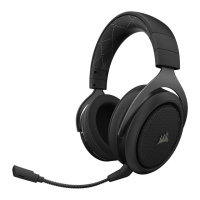
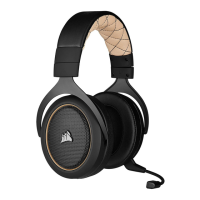
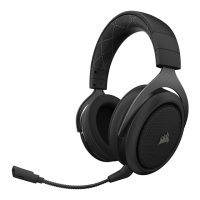
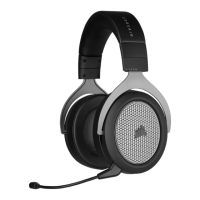
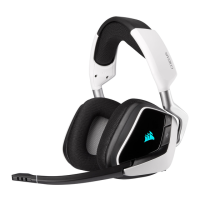
HS70 WIRELESS headset.
NOTE: If the headset is used without software, some features will be disabled.
• Install the software on a PC running Windows 10, Windows 8, or Windows 7.
• After installation is complete, reboot your PC, and launch CUE.
YOU CAN USE IT TO:
• Select and customize audio equalizer (EQ) settings.
• Adjust microphone input volume, and microphone sidetone.
• Set 7.1 virtual surround sound on or o.
The software’s built-in documentation explains how to use the HS70 WIRELESS
headset features in greater detail.
CHARGING WHILE POWER IS ON — “PLAY AND CHARGE MODE”:
When the headset is ON, and CHARGING with a connected USB cable, the Status
LED reports the charge and battery status.
STATUS LED:
AMBER: Nominal battery (0%-89%)
GREEN: Fully charged (90%-100%)
CHARGING 2 CORSAIR UTILITY ENGINE



 To Next Page