13
ENGLISH
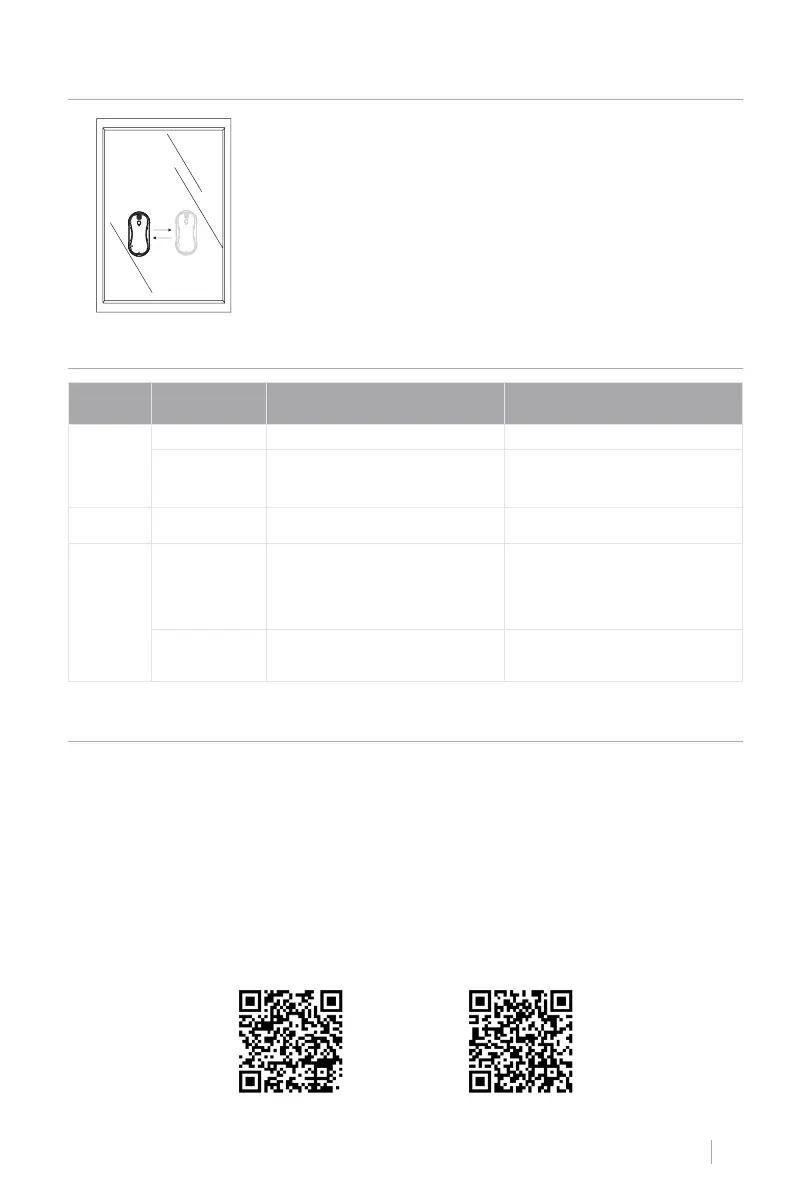
SPOT CLEANING ROUTE
Spot Cleaning:
In the area range specied by the user, the robot will start cleaning
up and down in Spot Cleaning. Open the water spray function when
cleaning dirty areas. The rising nozzle will spray water while clean-
ing to achieve a better cleaning result.
LED INDICATOR LIGHT AND SOUND
Indicator
Light and
sound
Reason and Solution Solution
Status
indicator
Green light • Working normal.
Green light
and three long
beeps
• Window cleaning is complete.
Charge
indicator
Red light • Battery power is insufcient.
• Charge for 15 more minutes to
turn the robot back on.
Status
indicator
Flashing red
• The robot is ofine.
• Insufcient suction power.
• The friction with the glass is too
great or too small.
• Plug in the power supply or re-
move the robot from the glass.
• Check the robot for air leaks.
• Replace the cleaning cloth as
appropriate.
Alternating
light
red and green
• Robot error.
• Please contact customer service
staff.
1. Reset the robot's bluetooth:
• Turn off the robot, unplug from the power source and plug back into the power source.
• Press and hold the power button for more than 8 seconds.
• When the reset is successful, the fan will stop spinning and then a beep will sound for
2 seconds.
2. Turn on the Bluetooth of your mobile phone.
3. Download the CREATE HOME app and register or log in to the app if you already have a
user.
4. Add the device by pressing “+” and follow the instructions in the app until you nish con-
necting your device.
BLUETOOTH CONNECTION
iPhone OS Android OS



 To Next Page
 Loading...