EN
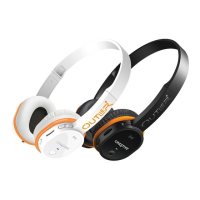
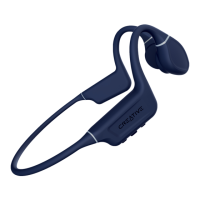
Thank you for selecting Creative Outlier wireless headset.
This documentation aims to guide you in making full use
of the headset. Fully charge the headset before rst use. Then
you need to “pair” the headset once with your Bluetooth
®
audio or
mobile device before enjoying subsequent automatic connection.
Charging headset
•
Connect the Right earcup to your laptop or computer using the
supplied USB cable
•
The indicator lights up in Red. The indicator lights up in Red.
When fully charged, this indicator turns off.
Pairing new
Bluetooth
devices
•
Power off the headset.
•
Press and hold the Multifunction button for more than 5 seconds
on the Right earcup until the indicator lights up in Blue and
blinking rapidly
•
Turn on Bluetooth search function on your audio or mobile device
•
Select “Creative Outlier” and if prompted for a Passcode, key in
“0000”
•
Once paired, the Blue indicator on the Right earcup blinks slowly
•
Note that when pairing with a computer, connect the headset
as a Hands-free Audio or Headset device instead of a Stereo
Audio device in order to make use of the microphone function. If
microphone function is not needed, it is recommended to connect
as a Stereo Audio device for better playback performance.
Certain Bluetooth solution detects the application that you are
using and congures the microphone automatically. You are
recommended to update your computer’s Bluetooth drivers to the
latest.
•
If your mobile device supports NFC (Near Field Communication)
connectivity, you can simplify the above Bluetooth pairing process
by just tapping the mobile device on the NFC icon at the Right
earcup. A second tap will disconnect your mobile device. Refer to
your mobile device’s user guide to enable NFC functionality.
Playback from audio devices
•
Turn on Bluetooth function on your paired audio device
•
Press and hold the Multifunction button on the Right earcup
until the indicator lights up in Blue and blinks moderately. The
headset automatically searches for the last paired device.
Once connected, the indicator turns Blue and blinks slowly. In
certain cases, you may need to press the Multifunction button to
establish connection
•
You can now Play or Pause music playback, skip forward or
reverse tracks, and make volume adjustments
Call functions with mobile phones
•
Turn on Bluetooth function on your paired mobile device
•
Press and hold the Multifunction button on the Right earcup
until the indicator lights up in Blue and blinks moderately. The
headset automatically searches for the last paired device.
Once connected, the indicator turns Blue and blinks slowly. In
certain cases, you may need to press the Multifunction button to
establish connection
•
To answer or end a call, press and release the Multifunction
button. To reject a call, press the Multifunction button for 2
seconds (audible reject tone).
•
To accept a call waiting and drop the ongoing call, press and
release the Multifunction button. To accept a call waiting and put
on hold to the ongoing call, press the Multifunction button twice.





 To Next Page