5. After successful connection, the App will display a screen
advising the device has been added. It also provides an option
to rename the device appropriate to your use, press save and
then press the "Done" button and this device will be displayed
on the home screen.
Note: If there is an interruption of the power or wireless network
signal to this Smart Power Adaptor, then it will be displayed as
"offline" and cannot be remotely controlled.
App Control:
The Crest Power Socket has the following features:
• Remote switching - Turning the adaptor on or off remotely.
• Timer - Ability to have the adaptor to turn on
automatically on selected days at a specific time.
• Countdown - Ability to turn the power on or off
with a countdown timer.
• Monitor - Ability to measure the power used by your
home appliance over time.
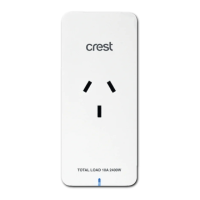
Plug the Smart Power Adaptor into your desired location &
switch the power on at the wall socket. Press the Power Button
to turn the adaptor "ON".
Add a Device:
1. Open the Crest Smart app and tap “+”
in the upper right to add a new device
on your network.
2. Ensure the device’s indicator light is
flashing rapidly (refer to page 4) and tap
“confirm”.
3. Select your WiFi network (note:
selected network must be 2.4GHz, this
device will not connect to a 5GHz
network. Refer to your WiFi router
manual) and enter the WiFi password.
4. The device will commence the pairing
process and connect to
the app.
Connecting to your Google Home:
Note: You will need to set up a Google Home Account prior to
linking your Crest Smart Device.
1. On the “home control” screen, select the + icon.
2. On the “Add and manage” screen select "Set up device".
3. A list will appear showing actions and a search function to
access more apps: from here search for the Crest Smart app.
4. Log into your Crest Smart account with your email address or
mobile number. (If you have signed up using a mobile number
you will need to retrieve a verification code from within the
Crest Smart app which can be found under Settings / More
Services / Third party access service).
5. Once linked it will show all the devices linked to your account:
You can assign them to rooms and you will be prompted to
authorise apps to sync.
6. When successfully linked, you will see your devices on the
“home control” screen. You can now control your Crest Smart
devices through Google Home.
Connecting to your Amazon Alexa:
Note: You will need to set up an Alexa account prior to linking
your Crest Smart device.
1. Select “Devices” and then “Your smart home skills”.
2. Press "Enable Smart Home Skills".
3. Search for "Crest Smart" and select "Enable to use".
4. Login to "Crest Smart".
5. Select "Discover Devices".
6. When successfully linked you will see a list of devices on the
devices menu
.
The LED on the Smart Power
Adaptor will start flashing rapidly.
Note: If the LED is not flashing, press
and hold the power button for 5
seconds.
7.


 To Next Page
 Loading...