15
Operating Your Wine Dispensing System
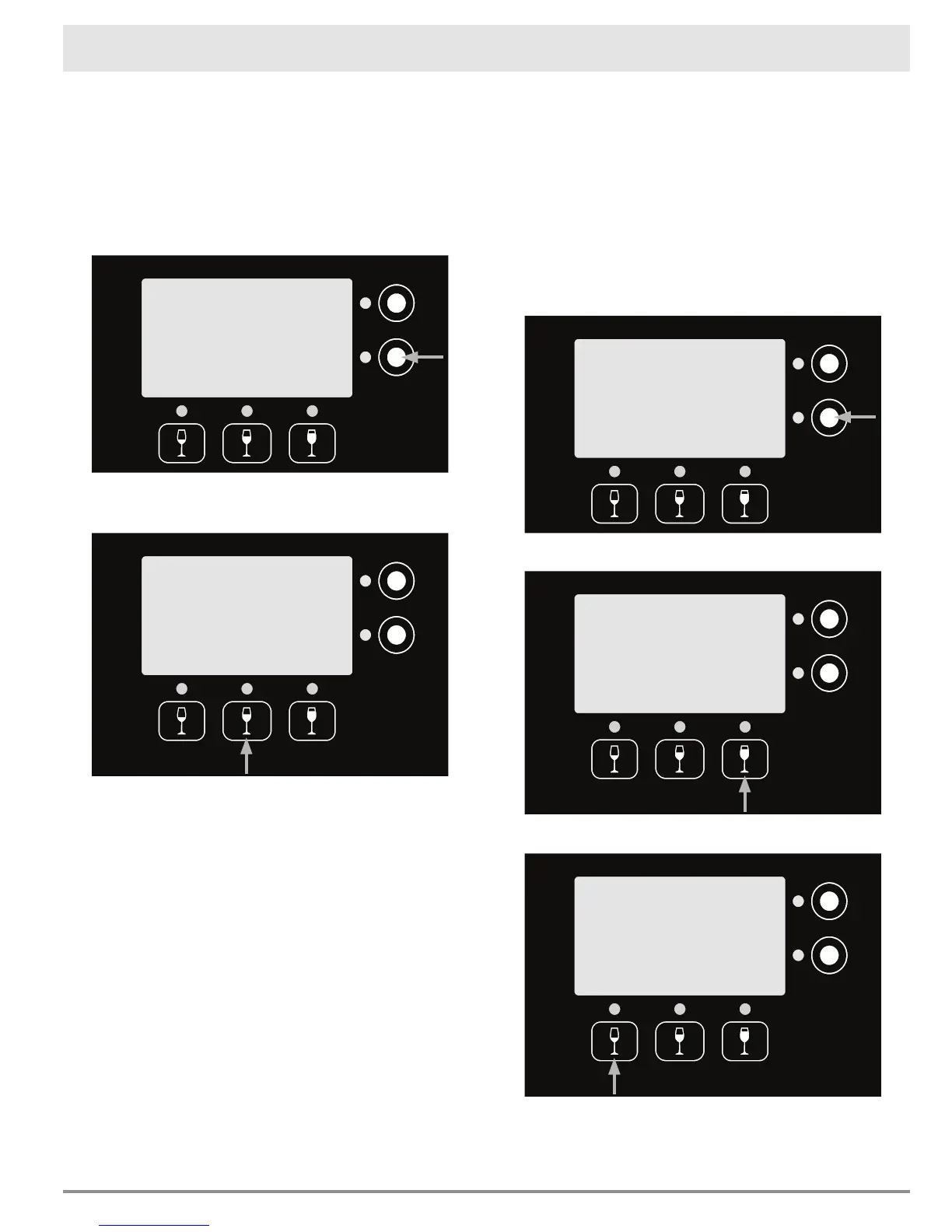
Locking the Control Panel
The control panel lock may be set from the front
panel to avoid undesired operation.
To lock the control panel:
1. From the main service menu (see page 11),
push WineStation Service next to any of the
displays.
2. Push LOCK. The lock notice will appear on the
display.
3. Slide the power switch up to the ON position.
4. Lower the spout cover and close the front door.
5. The entire control panel is now locked.
Unlocking the Control Panel
To unlock the control panel:
1. From the main service menu (see page 11),
push WineStation Service next to any of the
displays.
2. Push Exit.
3. Slide the power switch up to the ON position.
4. Lower the spout cover and close the front door.
5. The entire control panel is now unlocked.
NOTE: There is no "unlock" button. The process of
entering the service menu and exiting unlocks the
display.
Setting the System Temperature, System Fan
and Temperature Scale(F/C)
The system has three temperature settings, OFF,
ON and MAX. When the the system is set to ON,
the fan will run less making the system quieter, but
the bottle bay will take longer to cool.
To access the temperature/fan settings:
1. From the main service menu (see page 11),
push WineStation Service next to any of the
displays.
1. Push More.
2. Push Set Temp.
continued...
STBY
PWR
LOCK
Exit
More
STBY
PWR
LOCK
Exit
More
Bottle Service
WineStation Service
Bottle Service
WineStation Service
Temp
Set
Screen
Diag.
Exit
More
GLT


 To Next Page