6
Adjust the volume on the voice recorder
Press and hold the "+" button on the remote control during
Press and hold the "-" button to decrease the volume.
(Note: To adjust the volume, you need to press and hold
Select recording on the voice recorder
How to play on PC
(Recommended playback software: Windows system:
Windows Media Player or Quick Time Player, Mac system:
iTunes or vlc media player)
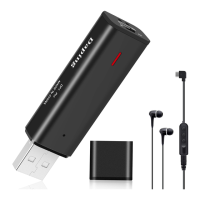
Since it is a recorder with USB interface, it can be directly
connected to the computer by simply removing the USB
protective cover.
playback to increase the volume.
the "+"/"-" button.)
By pressing the "+" / "-" buttons on the remote control, you
can select the playback content from "Previous"/"Next".
(1) Remove the USB protective cap and connect the USB to
the computer. Then open the drive of the product in "My
Computer" on your PC and find the "RECORD" folder.
(2) Save the recording file in it to the desktop of the PC or a
specified folder.
(3) Play the WAV format recording file with playback software
that can support it.


 To Next Page