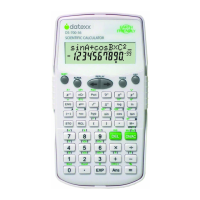
2-lines display
Scientific Calculator
with advance
statistical functions
Please read before using.
Owner's Manual
DS-700-36
DS-700C
DS-70021-36
Safety Precautions
Be sure to read the following safety precautions before
using this calcu lator. Keep this manual handy for later
reference.
Batteries
• After removing the batteries from the calculator, put
them in a safe place where there is no danger of them
getting into the hands of small children and accidently
swallowed.
• Keep batteries out of the reach of children. If accidentally
swallowed, consult with a physician immediately.
• Never charge batteries, try to take batte ries apart, or
allow batteries to be come shor ted. N ever expose
batterie s to direct h eat o r di spose of them by
incineration.
• Misuse of batteries can cause them to leak acid that can
cause dam age t o nea rby it ems a nd cr eates the
possibility of fire and personal injury.
• Alwa ys make sure that a battery's positive (+) and
negative (–) sides are facing correctly when you load it
into the calculator.
• Remove the batteries if you do not p lan to use the
calculator for a long time.
• Use only the type of batteries specified for this calculator
in this manual.
Disposing of the Calculator
• Never dispose of the calculator by burning it. Doing so
can cau se certain c omponents to s uddenly burs t,
creating the danger of fire and personal injury.
• The displays and i llustrations (such as key markings)
shown in this Owner's Manual are for ill ustrative
purposes only, and may differ somewhat from the actual
items they represent.
• The contents of this manual are subject to chan ge
without notice.
Handling Precautions
• Be sure to press t he "AC/ON" key before using the
calculator for the first time.
• Even if the calculator is operating normally, replace the
battery at least once every three years. Dead battery can
leak, cau sing dam age to and malfunct ion of the
calculator. Never leave the dead battery in the calculator.
• The battery that comes with this unit discharges slightly
during shipmen t and storage. Because ofthis, it may
require replacement sooner than the normal expected
battery life.
• Low batter y power can cause m emory con tents to
become corrupt ed or lost com pletely. Always keep
written records of all important data.
• Avoid use and storage in areas subjected to temperature
extremes. Very low temperatures can cause slow display
response,total failure of the display, and shortening of
battery life.Also avoid leaving the calculator in direct
sunlight, neara window, near a heater or anywhere else
it might become exposed to very high temperatures.
Heat ca n cause d iscoloration o r deformation of th e
calculator's case, anddamage to internal circuitry.
• Avoid use and storage in areas subject ed to large
amounts of humidity and dust. Take care never to leave
the calculator where it might besplashed by water or
exposed to large am ounts of humidity or dust. Such
elements can damage internal circuitry.
• Never drop the calculator or otherwise subj ect it to
strong impact.
• Never twist or bend the calculator. Avoid carrying the
calculator in the pocket of your trousers or other tight-
fitting clothing where it might be subjected to twisting
or bending.
• Never try to take the calculator apart.
• Never press the keys of the calculator with a ball-point
pen or other pointed object.
• Use a soft, dry cloth to clean the exterior of the unit. If the
calculator becomes very dirty, wipe it off with acloth
moistene d in a weak solut ion of water and a
mildneutral household detergent. Wring out all excess
moisture before wiping the calculator. Never use thinner,
benzine or other volatile agents to clean the calculator.
Doing so can remove printed markings and damage the
case.
Two-lines Display
You can simultaneously check the calculation formula and
its answer. The first line displays the calculation formula.
The second line displays the answer.
Keys Layout
Before Starting Calculations
Operation Modes
When using this calculator, it is necessary to select th e
proper mode to meet your requirements. This can be done
by pressing [MODE] to scroll through sub-menu s. Then
select the appropriate mode by keying in the number.
Press [MODE] once to read the first pag e of the main
menu.
Press [MODE] again.
Press [MODE] further.
Press "MODE" once more to leave the menu.
Calculation Modes
"COMP" mode : - general calculations, including function
calculations can be executed.
"SD" m ode:- stand ard deviati on calcula tion can be
executed. "SD" symbol appears in display.
"REG" mode:- regression calculations can be performed.
"REG" symbol appears in display.
Angular Measurement Modes
"DEG" mode:- sp ecify measurement in "deg rees". "D "
symbol appears in display window.
"RAD" mode:- speci fy measure ment in "radi ans". "R"
symbol appears in display window.
"GRA" mode:- specify measureme nt in "gra ds". " G"
symbol appears in display window.
Display Modes
"FIX" mode :- specify numbe r of decimal places. "FIX"
symbol appears in display window.
"SCI" mode:- specify number of significant digits. "SCI"
symbol appears in display window.
"NORM" mode:- cancels "Fix" and "Sci" specifications.
Note:-
• Mode indicators appear in the lower part of the display.
• The "COMP", "SD", and " REG" modes can b e used in
combination with the angle unit modes.
• Be sure to check the current calculation mode (COMP, SD,
REG) and ang le unit mode (DEG, RAD, GR A) before
beginning a calculation.
Calculation Priority Sequence
Calculations are performed in the following order of
precedence:-
1. Coordinate transformation: Pol(x, y),Rec(r, u)
2. Type A functions :-
These functions are those in which the value is entered
and than the function key is pressed, such as x
2
, x
–1
, x!,
º
'''.
3. Powers and roots, x
y
,
x
∏
4. Fractions, a
b
/c
5. Abbreviated multiplication format in front of π, memory
name or variable name, such as 2π, 5A, πA, etc.
6. Type B functions :-
These func tions are those in which the function key is
pressed and then the value is entered such as ∏,
3
∏, log,
ln, e
x
, 10
x
, sin, cos, tan, sin
–1
, cos
–1
, tan
–1
, sinh, cosh, tanh,
sinh
–1
, cosh
–1
, tanh
–1
, (–).
7. Abbreviated multiplication format in front of Type B
functions, such as, 2∏3, A log2, etc.
8. Permutation, combination, nPr, nCr
9. 3, 4
10. 1, 2
• When functions with the same priority are used in series,
execution is performed from right to left for :- e
x
ln∏120
fi e
x
{ln(∏120)}. Otherwise, execution is from left to right.
• Operations enclosed in parentheses are performed first.
Stacks
This c alculator us es memory areas, ca lled "stack s", to
temporarily store values (numeric stack) and commands
(command stack) according to their precedence during
calculations. The numeric s tack has 10 levels a nd the
command stack has 24 levels. A stack error (stk ERROR)
occurs whenever you tr y to perform a calculation that is
so complex that the capacity of a stack is exceeded.
Error Loacator
Pressing [3 ] or [4] after an err or occurs display the
calculation with the cursor p ositioned at t he location
where the error occured.
Overflow and Errors
The calculator is locked up while an error message is on
the display. Press [AC/ON] to clear the error, or press [3]
or [4] to display the calculation and correct the problem.
"Ma ERROR" caused by:-
• Calculation result is outside t he allowable calculation
range.
• Attempt to perform a function calculation using a value
that exceeds the allowable input range.
• Attempt to perform an illegal operation (division by zero,
etc.).
Action
• Check your input values a nd make sure they are all
within the all owable ranges. Pay special attention to
values in any memory areas you are using.
"Stk ERROR" caused by:-
• Ca pacity of the numeric stack or operator stack is
exceeded.
Action
• Simplify the calculation. The numeric stack has 10 levels
and the operator stack has 24 levels.
• Divide your calculation into two or more separate parts.
"Syn ERROR" caused by:-
• Attempt to perform an illegal mathematical operation.
Action
• Press to display the calculation with the cursor located at
the location of the error. Make necessary corrections.
Number of Input/output Digits and Calculation Digits
The memor y area used for calculation input can hold 79
"steps". One function comprises one step. Each press of
numeric or 1 , 2 , 3 and 4 keys comprise one step.
Though such operations as [SHIFT] [x!] (x
–1
key) require
two k ey operati ons, they a ctually c omprise on ly one
function, and, therefore, only one step. These steps can be
confirmed using the cursor. With each press of the [3] or
[4] key, the cursor is moved one step.
Whenever you input the 73rd step of any calculation, the
cursor changes from "_" to "n" to let you know memory is
running low. If you still need to input more, you should
divide you calculation into two or more parts.
When numeric values or calculation commands are input,
they appear on the display from the left. Calcula tion
results, however, are displayed from the right.
The allowable input/output range (number of digits) of
this unit is 10 digits for a mantissa and 2 digits for the
exponent. Calculations, however, are performed internally
with a range of 12 digits for a mantissa and 2 digits for an
exponent.
Example: 3 3 10
5
4 7 =
3[EXP]5[∏]7[=]
3[EXP]5[∏]7[2]42857[=]
Corrections
To make corrections in a formula that is being input, use
the [3] and [4] keys to move to the position of the error
and press the correct keys.
Example: To change an input of 122 to 123 :-
[1] [2] [2]
[3]
[3]
Example: To change an input of cos60 to sin60 :-
[cos] [6] [0]
[3] [3] [3]
[sin]
If after mak ing correcti ons, inpu t o f th e fo rmula is
complete, the answer can be obtained by pressing [ = ]. If,
however, more is to be added to the formula, advance the
cursor using the [4] key to the end of the formula for
input.
If an unnecess ary c haracter has been incl uded i n a
formula, use the [3] and [4] key s to move to the
position of the error and press the "DEL" key. Each press
of "DEL" will delete one command ( one step ).
Example: To correct an input of 369 3 3 2 to 369 3 2 :-
369[3][3]2
[3][3][DEL]
If a character has been omitted from a formula, use the
[3] and [4] key to move to the position where the
character should have been input, and press [SH IFT]
followed by [INS] key. Each press of [SHIFT ] [INS] will
create a space for input of one command.
Example: To correct an input of 2.36
2
to sin 2.36
2
:-
2[•]36[x
2
]
[3][3][3][3][3]
[SHIFT][INS]
[sin]
When [SHIFT] [INS] are pressed, the space that is opened
is displayed as " ". The function or value assigned to the
next key you press will be inserted in the . To exit from
the insertion mode, move the cursors, or press [SHIFT]
[INS] , or press [=].
Even after the [=] key has been pressed to calculate a
result, it is possible to use this procedure for correction.
Press the [3] key to move the cursor to the place where
the correction is to be made.
Arithmetic Operations & Parenthesis Calculations
• Arithmetic operatio ns are performed by pressing the
keys in the same order as noted in the formula.
• For negative values, press [(-)] before entering the value
• For mixed basic arithmetic operations, multiplication and
division are given priority over addition and subtraction
• Assuming that display mode "Norm 1" is selected.
Percentage Calculations
Use the "COMP" mode for percentage calculations.
Specifying the Format of Calculation Results
You can change the precision of cal culation results by
specifying the number of decimal places or the number of
significant digits. You can also shift the decimal place of a
displayed value three places to the left or right for one-
touch conversions of metric weights and measures.
Upon power up reset, the display format is defaulted at
"Norm1". Each time when you press "[MODE] [MODE]
[MODE] [MODE] [3]" you can choose either "Norm 1" or
"Norm 2" by keying in [1] or [2] respectively.
Norm 1 :- all values less than 10
–2
or greater than 10
9
are
automatically expressed as exponents.
Norm 2 :- all values less than 10
–9
or greater than 10
9
are
automatically expressed as exponents.
Note: You cannot specify the display format (Fix, Sci) while
the calculator is in Base-N mode.
Specifying the Number of Decimal Places
The calculator always performs calculations using a 10-
digit mantissa and 2-digit exponent, and results are stored
in memory as a 12-digit mantissa and 2-digit exponent no
matter how many decimal plac es yo u spe cify.
Interm ediate results and final results are then
automatical ly rounded off to th e number of decimal
places you have specified.
It should be noted that displayed results are rounded
to the specified number of decimal places, but stored
results are normally not rounded.
To specify the numb er of decimal places ( Fix ), press
"[MODE] [ MODE] [MODE] [1 ]" and then a v alue
indicating the number of decimal places (0~9).
At this time, you should be able to see "Fix" on the display.
The number of decimal place s specified will remain in
effect until "Norm" (to selec t "Norm" press "[MODE]
[MODE] [MODE] [3]") is specified or significant digits are
specified using "[MODE] [MODE] [MODE] [2]".
[AC/ON] [MODE]
[MODE]
[MODE]
[1]
[4] (to specify 4 decimal places)
Reset to "Norm"
[AC/ON] [MODE]
[MODE]
[MODE]
[3]
Rounding the Intermediate Result
As th e number of decimal places is specifie d, the
intermediate result will be automatically rounded to the
specif ied de cimal places. However, the stored
intermediate result is not rounded. In order to match the
displayed value and the stored value, [SHIFT] [RND] can
be input.
You can compare the final result obtained in the previous
example with the final result of the following example.
Specifying the Number of Significant Digits
This specifi cation is used to a utomatically round
intermediate results and final results to the number of
digits you have specified.
As with the number of decimal places, displayed results
are rounded to the specified number of digits, but stored
results are normally not rounded.
To specify the number of significant digits (Sci.), select
[SCI] in the sub-menu "FIX/SCI/NORM" and then you are
asked to enter a value indicating the number of significant
digits (0~9) as below.
Note : "0" indicating 10 significant digits.
Meanwhile, the "Sci" indicator will appear on the display.
Shifting the Decimal Place
You can use the key [ENG] to shift the decimal point of
the displayed value three places to the left or right. Each
3-place shift to the left is the same as dividing the value
by 10 00, and e ach shift to the ri ght is the same as
multiplying by 1000. This means that this function is
useful when converting metric weights and measures to
other metric units.
Memory
This calculator contains 9 standard memories. There are
two basic types of memories, i.e., " variable" memories,
which are accessed by using the [STO] and [RCL] keys in
combination with the alphabets A, B, C, D, E, F, M, X and Y.
The "independent" memory, which is accessed by using
the [M +] , [Shift] [M–] a nd [RCL] and [M ] keys. The
independent memory us es the same mem ory area as
variable M.
Contents of both the variable and independent memories
are protected even when the power is turned OFF.
Variable memories
Up to 9 values can be retained in memory at the same
time, and can be recalled when desired.
Example: Input 123 into memory "A" :-
[AC/ON] 123
[STO] [A]
[AC/ON]
[RCL] [A]
When formulas are i nput, the r esult of the formula's
calculation is retained in memory.
Example: Input the result of 1233456 into memory "B" :-
[AC/ON] 123 [3] 456
[STO] [B]
[AC/ON]
[RCL] [B]
If a variable expression is entered, the expression is first
calculated according to the values stored in the variable
memories used in the expression. The result is then stored
in the variable memory specified for the result.
Example: Input the results of A3B into memory "C" :-
[AC/ON] [ALPHA] [A] [3]
[ALPHA] [B]
[STO] [C]
[AC/ON]
[RCL] [C]
Deleting memories
To delete all contents of variable memories, press [Shift]
followed by [Mcl] [=].
Independent Memory
Addition and subtraction (to and from sum) results can be
stored directly in memory. Results can also be totalized in
memory, making it easy to calculate sums. The icon "M"
will be lighted as long as M is not empty.
Example: Input 123 to independent memory.
[AC/ON] [1] [2] [3]
[M+]
Recall memory data
[AC/ON]
[RCL] [M]
Add 25, subtract 12
25 [M+] 12 [SHIFT] [M–]
Recall memory data
[AC/ON]
[RCL] [M]
To clear memory contents, press [0] [STO] [M].
Addition/subtraction to or from sum in memory cannot
be carried out with [M+], [Shift] [M–] keys in "SD" mode
and "REG" mode.
Difference between [STO][M] and [M+], [Shift][M–] :-
Both [STO] [M] and [M+], [Shift] [M–] can be used to
input results into memory, however when the [STO] [M]
operation is used, previous memory contents are cleared.
When either [M+] or [Shift] [M–] is used, value is added or
subtracted to or from present sum in memory.
Example: Input 456 into memory "M" using [STO] [M]
procedure. Memory already contains value of 123.
[AC/ON] [1] [2] [3] [STO] [M]
[AC/ON] [4] [5] [6] [STO] [M]
[AC/ON]
[RCL] [M]
Example: Input 456 into memory "M" using M+. M emory
already contains value of 123.
[AC/ON] [1] [2] [3] [STO] [M]
[AC/ON] [4] [5] [6] [M+]
[AC/ON]
[RCL] [M]
Special Functions
Answer Function
This unit has an answer function that stores the result of
the most recent calcu lation. Once a numer ic value or
numeric ex pression is ent ered and [=] is pressed, the
result is stored by this function.
To recall the stored value, press the [Ans] [=] key. When
[Ans] is pressed, "Ans" will appear on the display, and the
value can be used in subsequent calculations.
Example: 1231456 = 579
7892579 = 210
[AC/ON][1][2][3][1][4][5][6][=]
[7][8][9][2][Ans]
[=]
Numeric values with 12 digits for a mantissa and 2 digits
for an exponent can be stored in the "Ans" memory. The
"Ans" memory is not erased even if the power of the unit
is turned OFF. Each time [=] , [Shift] [%] , [M+] , [Shift] [M–] ,
and [STO] ` (` = A ~ F, M, X, Y ) is pressed, the value in the
Ans memory is replaced with the new value produced by
the ca lculation executi on. W hen execut ion of a
calculation results in an error, however, the "Ans" memory
retains its current value.
Note:- Contents of "Ans" memory are not altered when
RCL ` (` = A~F, M, X, Y) is used to recall contents of variable
memory. Also, contents of "Ans" memory are not altered
when variables are input when the variable input prompt
is displayed.
Omitting the multiplication sign (3)
When inputting a formula as it is written, from left to right,
it is possible to omit the multiplication sign (3) in the
following cases :-
• Before the following functions :-
sin, cos, tan, sin
–1
, cos
–1
, tan
–1
, sinh, cosh, tanh, sinh
–1
,
cosh
–1
, tanh
–1
, log, ln, 10
x
, e
x
, ∏,
3
∏, Pol(x,y), Rec(r, u)
example: 2sin30, 10log1.2, 2∏3, 2Pol(5, 12), etc.
• Before fixed numbers, variales and memories :-
example: 2π, 2AB, 3Ans, etc.
• Before parentheses :-
example: 3(516), (A11)(B21), etc.
Continuous Calculation Function
Even if calculations are concluded with the [=] key, the
result obtained can be used for further calculations. In
this case, calculations are performed with 10 digits for the
mantissa which is displayed.
Example: To calculate 43.14 continuing a fter 334=12
[AC/ON] [3] [3] [4] [=]
(continuing) [4] [3] [•] [1] [4]
[=]
Example: To calculate 14333 =
[AC] [1] [4] [3] [3] [3] [=]
[1] [4] [3] [=]
(continuing) [3] [3] [=]
This function can be used with Type A functions ( x
2
, x
–1
,
x!), 1, 2, x
y,
x
∏ and º' ".
Example: Squaring the result of 7846=13
[AC/ON] [7] [8] [4] [6] [=]
(continuing) [x
2
]
[=]
Replay Function
This function stores formulas that have been executed.
After execution is complete, p ressing either the [3] or
[4] key will display the formula executed.
Pressing [4] will display the formula from the beginning,
with the cursor located under the first character.
Pressing [3] will display the formula from the end, with
the cu rsor locat ed at th e space following the last
character. After this, using the [4] and [3] to move the
cursor, the formula can be checked and numeric values or
commands can be changed for subsequent execution.
Example:
[AC/ON] [1] [2] [3] [3]
[4] [5] [6] [=]
[4]
[=]
[3]
Example:
4.1233.5816.4 = 21.496
4.1233.5827.1 = 7.6496
[AC/ON] [4] [•] [1] [2] [3]
[3] [•] [5] [8] [1] [6] [•] [4] [=]
[3]
[3] [3] [3] [3]
[2] [7] [•] [1]
[=]
The replay function is not cleared even when [AC/ON] is
pressed or when power is turned OFF, so contents can be
recalled even after [AC/ON] is pressed.
Replay functio n is cleared when mode or o peration is
switched.
Error Position Display Function
When an ERROR messag e appear s durin g operat ion
execution, the error can be cle ared by pres sing th e
[AC/ON] key, and the values or formula can be re-entered
from the beginning. However, by pressing the [3] or [4]
key, the ERROR message is cancelled and the cursor moves
to the point where the error was generated.
Example: 144032.3 is input by mistake
[AC/ON] [1] [4] [4] [0] [3]
[2] [.] [3] [=]
[3] (or [4] )
Correct the input by pressing
[3] [SHIFT] [INS] [1]
[=]
Scientific Function
Trigonometric functio ns and inverse trigonometri c
functions
• B e sure to set the unit of angular measurement before
perfor ming tr igonometri c f unction and invers e
trigonometric function calculations.
• The u nit of an gular measurem ent (degrees, rad ians,
grads) is selected in sub-menu.
• Once a unit of angular measurement is set, it remains in
effect until a new unit is set. Settings are not cleared
when power is switched OFF.
Performing Hyperbolic and Inverse Hyperbolic Functions
Logarithmic and Exponential Functions
Coordinate Transformation
• Th is sc ientific calculat or le ts you conver t bet ween
rectangular coordinates and polar coordinates, i.e., P(x, y)
↔ P(r, u)
• Calculation results are stored in variable memor y E and
variable memory F. Contents of variable memory E are
displayed initi ally. To display contents of me mory F,
press [RCL] [F].
• With polar coordi nates, u ca n be calculated within a
range of –180
º
< u≤180
º
.
(Calculated range is the same with radians or grads.)
Permutation and Combination
Total number of permutations nPr = n!/(n2r)!
Total number of combinations nCr = n!/(r!(n2r)!)
Other Functions (∏ , x
2
, x
–1
, x!,
3
∏, Rnd#)
Fractions
Fractions are input and displayed in the order of integer,
numerator and de nominator. Values are automaticall y
displayed in decimal format whenever the total number of
digits of a fra ctional value (inte rger + numer ator +
denominator + separator marks) exceeds 10.
Degree, Radian, Gradient Interconversion
Degree, radian and gradient can be converted to each
other w ith the u se of [SH IFT][DRG>]. Once [SH IFT]
[DRG>] have been keyed in, the "DRG" selection menu
will be shown as follows.
Degrees, Minutes, Seconds Calculations
You can perform sexagesimal calculations using degrees
(hours), minutes a nd seco nds. And conver t be tween
sexagesimal and decimal values.
Statistical Calculations
This unit can be u sed to make statistical calculations
including stand ard devia tion in the "SD" mode, and
regression calculation in the "REG" mode.
Standard Deviation
In the "SD" mode, calculations including 2 types of
standard deviation formulas, mean, number of data, sum
of data, and sum of square can be performed.
Data input
1. Press [MODE] [2] to specify SD mode.
2. Press [SHIFT] [Scl] [=] to clear the statistical memories.
3. Input data, pressing [DT] key (= [M+]) each time a new
piece of data is entered.
Example Data: 10, 20, 30
Key operation: 10 [DT] 20 [DT] 30 [DT]
• When multiples of the same data are input, two different
entry methods are possible.
Example 1 Data: 10, 20, 20, 30
Key operation: 10 [DT] 20 [DT] [DT] 30 [DT]
The previously entered data is entered again each time
the DT is pressed without entering data (in this case 20
is re-entered).
Example 2 Data: 10, 20, 20, 20, 20, 20, 20, 30
Key operation: 10 [DT] 20 [SHIFT] [;] 6 [DT] 30 [DT]
By pressing [S HIFT] and then en tering a semicolon
followed by value that represents the number of items the
data is repeated (6, in this case) and the [DT] key, the
multiple data entrie s (for 20, in this case) are made
automatically.
Deleting input data
There are various ways to delete value data, depending on
how and where it was entered.
Example 1 40 [DT] 20 [DT] 30 [DT ] 50 [DT]
To delete 50, press [SHIFT] [CL].
Example 2 40 [DT] 20 [DT] 30 [DT ] 50 [DT]
To delete 20, press 20 [SHIFT] [CL].
Example 3 30 [DT] 50 [DT] 120 [SHIFT ] [;]
To delete 120 [SHIFT] [;] , press [AC/ON].
Example 4 30 [DT] 50 [DT] 120 [SHIFT ] [;] 31
To delete 120 [SHIFT] [;] 31, press [AC].
Example 5 30 [DT] 50 [DT] 120 [SHIFT ] [;] 31 [DT]
To delete 120 [SHIFT] [;] 31 [DT], press [SHIFT] [CL].
Example 6
50 [DT] 120 [SHIFT] [;] 31 [DT ] 40 [DT] 30 [DT]
To delete 120 [SHIFT] [;] 31
[DT]
, press 120 [SHIFT] [;] 31
[SHIFT] [CL].
Example 7 [∏] 10
[DT]
[∏] 20
[DT]
[∏] 30
[DT]
To delete [∏] 20
[DT]
, press [∏] 20 [=] [Ans] [SHIFT] [CL].
Example 8 [∏] 10
[DT]
[∏] 20
[DT]
[∏] 30
[DT]
To delete [∏] 20
[DT]
, press [∏] 20 [SHIFT] [;] [(–)] 1
[DT]
.
Performing calculations
The following procedures are used to perform the various
standard deviation calculations.
Standard deviation and mean calculations are performed
as shown below:
Population standard deviation σn = ∏(∑(x
i
2x)
2
/n)
where i = 1 to n
Sample standard deviation σn–1 = ∏(∑(x
i
2x)
2
/(n-1))
where i = 1 to n
Mean x = (∑x)/n
Regression Calculation
In the REG mode, calculations including linear regression,
logarithmi c regres sion, exponen tial reg ression, power
regression, inverse regression an d quadratic regression
can be performed.
Press [MODE] [3] to enter the "REG" mode:
and then select one of the following regression types:-
Lin: linear regression
Log: logarithmic regression
Exp: exponential regression
press [4] for the other three regression types:-
Pwr: power regression
Inv: inverse regression
Quad: quadratic regression
Linear regression
Linear regression calculations are carried out using the
following formula:
y = A + Bx.
Data input
Press [MODE] [3] [1] to specify linear regression under
the "REG" mode.
Press [Shift] [Scl] [=] to clear the statistical memories.
Input data in the following format: <x data> [,] <y data>
[DT]
• When multiples of the same data are input, two different
entry methods are possible:
Example 1 Data: 10/20, 20/30, 20/30, 40/50
Key operation: 10 [,] 20 [DT ]
20 [,] 30 [DT] [DT ]
40 [,] 50 [DT]
The previously entered data is entered again each time
the [DT] key is pressed (in this case 20/30 is re-entered).
Example 2 Data: 10/20, 20/30, 20/30, 20/30, 20/30, 20/30,
40/50
Key operation: 10 [,] 20 [DT ]
20 [,] 30 [SHIFT] [;] 5 [DT ]
40 [,] 50 [DT]
By pressing [S HIFT] and then en tering a semicolon
followed by a value that represents the number of times
the data is repeated (5, in this case) and the [DT] key, the
multiple data entries (for 20/30, in this case) are made
automatically.
Deleting input data
There are various ways to delete value data, depending on
how and where it was entered.
Example 1 10 [,] 40 [DT]
20 [,] 20 [DT]
30 [,] 30 [DT]
40 [,] 50
To delete 40 [,] 50, press [AC/ON]
Example 2 10 [,] 40 [DT]
20 [,] 20 [DT]
30 [,] 30 [DT]
40 [,] 50 [DT]
To delete 40 [,] 50 [DT], press [SHIFT][CL]
Example 3
To delete 20 [,] 20 [DT], press 20 [,] 20 [SHIFT][CL]
Example 4 [∏] 10 [,] 40 [DT ]
[∏] 40 [,] 50 [DT ]
To delete[∏]10[,]40[DT],
press [∏]10[=][Ans][,]40[SHIFT][CL]
Key Operations to recall regression calculation results
Performing calculations
The following procedures are used to perform the various
linear regression calculations.
The regression formula is y = A + Bx. The constant term of
regressio n A, regress ion coeffi cient B, corr elation r,
estimated va lue o f x, and es timated value of y a re
calculated as shown below:
A = ( ∑y2∑x )/n
B = ( n∑xy2∑x∑y ) / ( n∑x
2
2(∑x )
2
)
r = ( n∑xy2∑x∑y ) / ∏ (( n∑x
2
2(∑x )
2
)( n∑y
2
2(∑y )
2
))
y = A + Bx
x = ( y2A) / B
Logarithmic regression
Logarithmic regression calculations are carried out using
the following formula:
y = A + B•lnx
Data input
Press [MODE] [3] [2] to specify logarithmic regression
under "REG" mode.
Press [SHIFT] [Scl] [=] to clear the statistical memories.
Input data in the following format: <x data>, <y data>
[DT]
• To make multiple entr ies of the same data, follow
procedures described for linear regression.
Deleting input data
To delete input data, follow the procedures described for
linear regression.
Performing calculations
The logarithmic regression formula y = A + B•lnx. As x is
input, In(x) will be stored instead of x itself. Hence, we can
treat t he logarithm ic regression formula same as the
linear re gression formula . Therefor e, the formulas fo r
constant term A, regression coefficient B and correlation
coefficien t r ar e ide ntical for logar ithmic and linea r
regression.
A number of loga rithmic regression calcu lation results
differ from those produced by linear regression. Note the
following:
Exponential regression
Exponential regression calculations are carried out using
the following formula:
y = A•e
B•x
(ln y = ln A +Bx)
Data input
Press [MODE] [3] [3] to specify exponential regression
under the "REG" mode.
Press [SHIFT] [Scl] [=] to clear the statistical memories.
Input data in the following format: <x data>,<y data> [DT]
• To make multiple entr ies of the same data, follow
procedures described for linear regression.
Deleting input data
To delete input data, follow the procedures described for
linear regression.
Performing calculations
If we assume that lny = y and lnA = a', the exponential
regression formula y = A•
e
B•x
(ln y = ln A +Bx) becomes
the linear regression formula y =a' + bx if we store In(y)
instead of y itself. Therefore, the formulas for constant
term A, regression coefficient B and correlation coefficient
r are identical for exponential and linear regression.
A number of exponential regression calculation results
differ from those produced by linear regression. Note the
following:
Power regression
Power regression calculations are carried out using the
following formula:
y = A•x
B
(lny = lnA + Blnx)
Data input
Press [MODE] [3] [4] [1] to specify "power regression".
Press [SHIFT] [Scl] [=] to clear the statistical memories.
Input data in the following format: <x data>,<y data> [DT]
• To make multiple entr ies of the same data, follow
procedures described for linear regression.
Deleting input data
To delete input data, follow the procedures described for
linear regression
Performing calculations
If we assume that lny = y, lnA =a' and ln x = x, the power
regression formula y = A•
x
B
(lny = lnA + Blnx) becomes
the linear regression formula y = a' + b
x if we store In(x)
and In(y) instead of
x and y themselves. Therefore, the
formulas for constant term A, regression coefficient B and
correlation coefficient r are identical the power and linear
regression.
A number of power regression calculation results differ
from those pro duced by linear regres sion. Note th e
following:
Inverse regression
Power regression calculations are carried out using the
following formula:
y = A + ( B/x )
Data input
Press [MODE] [3] [4] [2] to specify "inverse regression".
Press [SHIFT] [Scl] [=] to clear the statistical memories.
Input data in the following format: <x data>,<y data> [DT]
• To make multiple entr ies of the same data, follow
procedures described for linear regression.
Deleting input data
To delete input data, follow the procedures described for
linear regression
Performing calculations
If 1/x is stored instead of x itself, the inverse regression
formula y = A + ( B/x ) beco mes the linear regression
formula y = a + bx. Therefore, the formulas for constant
term A, regression coefficient B and correlation coefficient
r are identical the power and linear regression.
A number of inverse regression calculation results differ
from those pro duced by linear regres sion. Note th e
following:
Quadratic Regression
Quadratic regression calculations are carried out using the
following formula:
y = A + Bx + Cx
2
Data input
Press [MODE] [3] [4] [3] to specify quadratic regression
under the "REG" mode.
Press [SHIFT] [CLR] [=] to clear the statistical memories.
Input data in this format: <x data>,<y data> [DT]
• To make multiple entr ies of the same data, follow
procedures described for linear regression.
Deleting input data
To delete input data, follow the procedures described for
linear regression.
Performing calculations
The following procedures are used to perform the various
linear regression calculations.
The regression formula is y = A + Bx + Cx
2
where A, B, C are
regression coefficients.
C = [(n∑x
2
2(∑x)
2
) (n∑x
2
y2∑x
2
∑y )2(n∑x
3
2∑x
2
∑x) (n∑xy
2∑x∑y)]4[(n∑x
2
2(∑x)
2
) (n∑x
4
2(∑x
2
)
2
)2(n∑x
3
2∑x
2
∑x)
2
]
B = [
n∑xy2∑x∑y2
C (
n∑x
3
2∑x
2
∑x
)]
4
(
n∑x
2
2
(
∑x
)
2
)
A = (
∑y2
B
∑x2
C
∑x
2
) / n
To read the value of
∑x
3
,
∑x
4
or
∑x
2
y
, you can rec all
memory [RCL] M, Y and X respectively.
Replacing the Battery
Dim figures on the display of the calculator indicate that
battery p ower is low. Continued use of the calcul ator
when the battery is low can result in improper operation.
Replace the battery as s oon as possible wh en display
figures become dim.
To replace the battery:-
• Remove the screws that hold the back cover in place and
then remove the back cover,
• Remove the old battery,
• Wipe off the side of the new battery with a dry, soft cloth.
Load it into the unit with the positive(+) side facing up.
• Replace the battery cover and secure it in place with the
screws.
• Press [AC/ON] to turn power on.
Auto Power Off
Calculator power automat ically turns off if you do not
perform any op eration for about six minutes. When this
happens, press [AC/ON] to turn power back on.
Specifications
Power supply: single CR2025 battery
Operating temperature: 0
º
~ 40
º
C (32
º
F ~ 104
º
F)
hyp M STO RCL SD REG FixSci
S A D R G
– 1 –
– 2 –
– 3 –
– 4 – – 8 – – 12 – – 16 – – 20 – – 24 – – 28 – – 32 – – 36 –
– 9 – – 13 – – 17 – – 21 – – 25 – – 29 – – 33 – – 37 –
– 10 – – 14 – – 18 – – 22 –
– 26 – – 30 – – 34 – – 38 –
– 11 – – 15 – – 19 – – 23 – – 27 – – 31 – – 35 – – 39 –
– 5 –
– 6 –
– 7 –
3E5∏7
42857.14286
D
123
_
0.
D
A=
123.
D
_
0.
D
A=
123.
D
123X456
_
0.
D
B=
56088.
D
_
0.
D
B=
56088.
D
3E5∏7–42857
0.1428571
D
369xx2_
D
0.
2.36
2
_
D
0.
369x2
D
0.
2.36
2
D
0.
.36
2
D
0.
sin .36
2
D
0.
Display
Example Operation (Lower)
23 + 4.5 –53 =–25.5
563(–12)4(–2.5)=268.8
1236937532374103=
6.903680613310
12
(4.5310
75
)3(–2.33
10
–79
) = –1.035310
–3
(2+3)310
2
=500
(1310
5
)47=
14285.71429
(1310
5
)47214285=
0.7142857
please note that internal calculation is calculated
in 12 digits for a mantissa and the result is
displayed and rounded off to 10 digits.
3 + 5 3 6 = 33
7 3 8 2 4 3 5 = 36
1 1 2 2 3 3 4 4 5 1 6
= 6.6
100 2 (213) 3 4 = 80
2 1 3 3 ( 4 1 5 ) = 29
( 7 2 2 ) 3 ( 8 1 5 ) = 65
10 2 { 2 1 7 3 ( 3 1 6 )}
= –55
23 [1] 4.5 [2] 53 [=]
56[3][(–)]12[4][(–)]2.5[=]
12369[3] 7532 [3]
74103[=]
4.5[EXP]75 [3] [(–)]2.3
[EXP] [(–)]79 [=]
[( ] 2 [1] 3[ )][3]
10[x
2
] [=]
1[EXP]5 [4] 7 [=]
1[EXP]5[4]7 [2]
14285 [=]
3 [1] 5 [3] 6 [=]
7 [3] 8 [2] 4 [3] 5 [=]
1 [1] 2 [2] 3 [3] 4 [4]
5 [1] 6 [=]
100 [2][( ] 2 [1] 3[ )]
[3] 4 [=]
2 [1] 3 [3] [(] 4 [1] 5 [=]
Closed parentheses
occurring immediately
before operation of the
[=] key may be omitted.
[( ] 7 [2] 2 [ )][( ] 8 [1] 5 [=]
A multiplication sign [
3
]
occurring immediately
before an open parantheses
can be omitted.
10 [
2
][( ] 2 [
1
] 7 [( ] 3 [
1
]
6 [=]
–25.5
268.8
6.903680613
12
–1.035
–03
500.
14285.71429
0.7142857
33.
36.
6.6
80.
29.
65.
–55.
Display
Example Operation (Lower)
sin 63
º
52'41"
= 0.897859012
cos (π/3 rad) = 0.5
tan (–35 grad)
= –0.612800788
2sin45
º
3cos65
º
= 0.597672477
sin
–1
0.5 = 30
cos
–1
(∏2/2)
= 0.785398163 rad
= π/4 rad
tan
–1
0.741
= 36.53844577
º
= 36
º
32' 18.4"
If the total number of digits for degrees/minutes/seconds exceed
11 digits, the higher order values are given display priority, and
any lower-order values are not displayed. However, the entire
value is stored within the unit as a decimal value.
2.53
(
sin
–1
0.8
2
cos
–1
0.9)
= 68
º
13'13.53"
[
MODE
][
MODE
][1]("DEG" selected)
[sin] 63 [
º
' "] 52 [
º
' "]
41 [
º
' "][=]
[
MODE
][
MODE
][2]("RAD" selected)
[cos][(] [
SHIFT
][π][4]3
[)] [=]
[
MODE
][
MODE
][3]
("GRA" selected)
[tan] [(–)] 35 [=]
[
MODE
][
MODE
][1]("DEG")
2[sin] 45 [cos] 65 [=]
[
SHIFT
][sin
–1
] 0.5 [=]
[
MODE
][
MODE
][2]("RAD")
[
SHIFT
][cos
–1
][(][∏]2 [4]2
[)][=]
[4][
SHIFT
][π][=]
[
MODE
][
MODE
][1]("DEG")
[
SHIFT
][tan
–1
]0.741[=]
[
SHIFT
] [←º' "]
2.5[3] [(] [
SHIFT
] [sin
–1
]0.8
[2] [
SHIFT
] [cos
–1
] 0.9 [)]
[=] [
SHIFT
] [←º' "]
0.897859012
0.5
–0.612800788
0.597672477
30.
0.785398163
0.25
36.538445576
36
º
32
º
18.4
º
68
º
13
º
13.53
º
Display
Example Operation (Lower)
Percentage
26% of $15.00
Ratio
75 is what % of 250?
15 [3]26 [SHIFT] [%]
75[4]250 [SHIFT] [%]
3.9
30.
Sc i 0~ 9 ?
Display
Example Operation (Lower)
20047314 = 400
rounded to 3 decimal
places
round the stored
intermediate result to
the specified three
decimal places
Cancel specification by
specifying "Norm" again.
200[4]7 [3] 14[=]
[
Mode
][
Mode
][
Mode
][1][3]
200[4]7 [=]
The intermediate result is
automatically rounded
to the specified three
decimal places.
[SHIFT] [RND]
[3]
14 [=]
[
Mode
][
Mode
][
Mode
][3][1]
400.
400.000
28.571
28.571
Ans 3
(upper display)
399.994
399.994
Display
Example Operation (Lower)
10046 = 16.66666666
specify 5 significant
digits
Cancel specification by
specifying "Norm" again.
100[4]6 [=]
[
Mode
][
Mode
][
Mode
][2][5]
[
Mode
][
Mode
][
Mode
][3][1]
16.66666667
1.6667
01
16.66666667
Display
Example Operation (Lower)
123m3456 = 56088m
= 56.088km
78g30.96 = 74.88g
= 0.07488kg
123[3]456 [=]
[ENG]
78[3]0.96 [=]
[SHIFT] [ENG]
56088.
56.088
03
74.88
0.07488
03
AXB_
0.
D
78∏6
13.
D
Ans
2
_
13.
D
Ans
2
169.
D
123x456
56088.
D
123x456
56088.
D
123x456
_
56088.
D
C=
6898824.
D
_
0.
D
C=
6898824.
D
123_
0.
D
123
123.
D
_
0.
D
_
0.
D
M=
123.
D
M=
136.
D
M=
123.
D
M=
456.
D
_
0.
D
M=
456.
D
M=
123.
D
456
456.
D
_
0.
D
M=
579.
D
123+456
579.
D
789–Ans_
579.
D
789–Ans
210.
D
3x4
12.
D
Ans∏3.14_
12.
D
Ans∏3.14
3.821656051
D
1∏3x3
1.
D
1∏3
0.333333333
D
Ansx3
1.
D
12
12.
D
123x456
56088.
D
4.12x3.58+6.
21.1496
D
4.12x3.58–7.
7.6496
D
Ma ERROR
12x3.58+6.4
_
21.1496
D
12x3.58–7.1
_
21.1496
D
14∏10x2.3
0.
D
14∏10x2.3
3.22
D
Display
Example Operation (Lower)
log1.23
= 8.9905111310
–2
In90 = 4.49980967
log4564In456
= 0.434294481
10
1.23
= 16.98243652
e
4.5
= 90.0171313
10
4
• e
–4
11.2 • 10
2.3
= 422.5878667
(–3)
4
= 81
–3
4
= –81
5.6
2.3
= 52.58143837
7
∏123 = 1.988647795
(78223)
–12
= 1.305111829310
–21
2133
3
∏6424 = 10
233.4
(5+6.7)
= 3306232
[log] 1.23 [=]
[In] 90 [=]
[log]4564[In]456 [=]
[
SHIFT
][10
x
] 1.23 [=]
[
SHIFT
][e
x
]4.5[=]
[
SHIFT
][10
x
]4[3][
SHIFT
][e
x
]
[(–)]4[1]1.2[3][
SHIFT
][10
x
]
2.3[=]
[(][(–)] 3 [)] [x
y
] 4 [=]
[(–)] 3 [x
y
] 4 [=]
5.6 [x
y
] 2.3 [=]
7 [
SHIFT
][
x
∏] 123 [=]
[(]78[2]23[)][x
y
][(–)]12[=]
2[1]3[3]3[
SHIFT
][
3
∏]64
[2]4[=]
2[3]3.4[x
y
][(]5[1]6.7[)][=]
0.089905111
4.49980967
0.434294481
16.98243652
90.0171313
422.5878667
81.
–81.
52.58143837
1.988647795
1.305111829
–21
10.
3306232.001
Display
Example Operation (Lower)
sinh3.6= 18.28545536
cosh1.23 = 1.856761057
tanh2.5= 0.986614298
cosh1.52sinh1.5
= 0.22313016
sinh
–1
30 = 4.094622224
cosh
–1
(20/15)
= 0.795365461
x = (tanh
–1
0.88) / 4
= 0.343941914
sinh
–1
23cosh
–1
1.5
= 1.389388923
sinh
–1
(2/3)1tanh
–1
(4/5)
= 1.723757406
[hyp][sin] 3.6 [=]
[hyp][cos] 1.23 [=]
[hyp][tan] 2.5 [=]
[hyp][cos] 1.5 [2][hyp]
[sin] 1.5 [=]
[hyp][
SHIFT
][sin
–1
] 30 [=]
[hyp][
SHIFT
][cos
–1
][(] 20
[4] 15 [)][=]
[hyp][
SHIFT
][tan
–1
]0.88
[4]4[=]
[hyp][
SHIFT
][sin
–1
]2[3]
[hyp][
SHIFT
][cos
–1
]1.5[=]
[hyp][
SHIFT
][sin
–1
][(]2[4]
3[)][1][hyp][
SHIFT
][tan
–1
]
[(]4[4]5[)][=]
18.28545536
1.856761057
0.986614298
0.22313016
4.094622224
0.795365461
0.343941914
1.389388923
1.723757406
Display
Example Operation (Lower)
x=14 and y=20.7, what
are r and u
º
?
x=7.5 and y=–10, what
are r and u rad?
r=25 and u= 56
º
, what
are x and y?
r=4.5 and =2π/3 rad,
what are x and y?
[
MODE
][
MODE
][1]("DEG" selected)
[Pol(]14 [
,
]20.7[)][=]
[RCL][F]
[
SHIFT
][←º' "]
[
MODE
][
MODE
][2]("RAD" selected)
[
Pol(
]
7.5
[
,
][(–)]
10
[)][=]
[RCL][F]
[
MODE
][
MODE
][1]("DEG" selected)
[
SHIFT
][Rec(]25 [
,
]56[)][=]
[RCL][F]
[
MODE
][
MODE
][2]("RAD" selected)
[
SHIFT
][Rec(]4.5[
,
][(]2[4]
3[3][
SHIFT
][π][)][)][=]
[RCL][F]
24.98979792(r)
55.92839019(u)
55
º
55
º
42.2
º
(u)
12.5(r)
–0.927295218
(u)
13.97982259(x)
20.72593931(y)
–2.25(x)
3.897114317(y)
Example Operation Display
Define degree first
Change 20 radian to
degree
To perform the following
calculation :-
10 radians+25.5 gradients
The answer is expressed
in degree.
[
MODE
][
MODE
][1]("DEG" selected)
20[
SHIFT
][DRG>][2][=]
10[
SHIFT
][DRG>][2]
[1]25.5[
SHIFT
][DRG>][3]
[=]
20
r
1145.91559
10
r
125.5
g
595.9077951
Example Operation Display
To express 2.258 degrees
in deg/min/sec.
To perform the calculation:
12
º
34'56"33.45
2.258[º' "][=]
12[º' "]34[º' "]56[º' "][3]
3.45[=]
2
º
15
º
28.8
º
43
º
24
º
31.2
º
Display
Example Operation (Lower)
Taking any four out of
ten items and arranging
them in a row, how many
different arrangements
are possible?
10P4 = 5040
10[
SHIFT
][nPr]4[=] 5040.
Display
Example Operation (Lower)
Using any four numbers
from 1 to 7, how many
four digit even numbers
can be formed if none of
the four digits consist of
the same number?
(3/7 of the total number
of permutations will be
even.)
7P43347 = 360
If any four items are
removed from a total
of 10 items, how many
different combinations
of four items are
possible?
10C4 = 210
If 5 class officers are
being selected for a
class of 15 boys and
10 girls, how many
combinations are
possible? At least one
girl must be included
in each group.
25C5215C5 = 50127
7[
SHIFT
][nPr]4[3]3[4]
7[=]
10[nCr]4[=]
25[nCr]5[2]15[nCr]5[=]
360.
210.
50127.
Display
Example Operation (Lower)
∏21∏5 = 3.65028154
2
2
13
2
14
2
15
2
= 54
(23)
2
= 9
1/(1/3–1/4) = 12
8! = 40320
3
∏(36342349) = 42
Random number
generation (number is
in the range of 0.000 to
0.999)
[∏]2[1][∏]5[=]
2[x
2
][1]3[x
2
][1]4[x
2
]
[1]5[x
2
][=]
[(][(–)]3[)][x
2
][=]
[(]3[x
–1
][2]4[x
–1
][)][x
–1
][=]
8[
SHIFT
][x!][=]
[
3
∏][(]36[3]42[3]49[)][=]
[
SHIFT
][Rnd#][=]
3.65028154
54.
9.
12.
40320.
42.
0.792
(random)
Display
Example Operation (Lower)
2
/513
1
/4 = 3
13
/20
3
456
/78 = 8
11
/13
1
/25781
1
/4572
= 0.00060662
1
/230.5 = 0.25
1
/33(–
4
/5)–
5
/6 = –1
1
/10
1
/23
1
/31
1
/43
1
/5
=
13
/60
(
1
/2)/3 =
1
/6
1
/(
1
/31
1
/4) = 1
5
/7
2[a
b
/c]5[1]3[a
b
/c]1
[a
b
/c]4[=]
[a
b
/c]
(conversion to decimal)
Fractions can be converted
to decimals, and then
converted back to fractions.
3[a
b
/c]456[a
b
/c]78[=]
[
SHIFT
][
d
/c]
1[a
b
/c]2578[1]1[a
b
/c]
4572[=]
When the total number
of characters, including
integer, numerator,
denominator and
delimiter mark exceeds
10, the input fraction is
automatically displayed
in decimal format.
1[a
b
/c]2[3].5[=]
1[a
b
/c]3[3][(–)]4[a
b
/c]5
[2]5[a
b
/c]6[=]
1[a
b
/c]2[3]1[a
b
/c]3[1]
1[a
b
/c]4[3]1[a
b
/c]5[=]
[(]1[a
b
/c]2[)][a
b
/c]3[=]
1[a
b
/c][(]1[a
b
/c]3[1]
1[a
b
/c]4[)][=]
3
13
20.
3.65
8
11
13.
115
13.
6.066202547
–04
0.25
–1
1
10.
13
60.
1
6.
1
5
7.
Display
Example Operation (Lower)
∏(1–sin
2
40)
= 0.766044443
1/2!11/4!11/6!11/8!
= 0.543080357
[
MODE
][
MODE
][1]("DEG" selected)
[∏][(]1[2][(][sin]40[)][x
2
]
[)][=]
[
SHIFT
][cos
–1
][Ans][=]
2[
SHIFT
][x!][x
–1
][1]
4[
SHIFT
][x!][x
–1
][1]
6[
SHIFT
][x!][x
–1
][1]
8[
SHIFT
][x!][x
–1
][=]
0.766044443
40.
0.543080357
D R G
1 2 3
CO M P S D RE G
1 2 3
Key operation Result
[
SHIFT
][xσn]
[
SHIFT
][xσn–1]
[
SHIFT
][
x
]
[RCL][A]
[RCL][B]
[RCL][C]
Population standard deviation, xσn
Sample standard deviation, xσn–1
Mean, x
Sum of square of data, ∑x
2
Sum of data, ∑x
Number of data, n
Linear regression Logarithmic regression
∑x
∑x
2
∑xy
∑Inx
∑(Inx)
2
∑y•Inx
Linear regression Exponential regression
∑y
∑y
2
∑xy
∑Iny
∑(Iny)
2
∑x•Iny
Example Operation Display
Data 55, 54, 51, 55, 53,
53, 54, 52
What is deviation of the
unbiased variance, and
the mean of the above
data?
[
MODE
][2]
(SD Mode)
[
SHIFT
][Scl][=]
(Memory cleared)
55[DT]54[DT ]51[DT]
55[DT]53[DT ][DT]54[DT]
52[DT]
[RCL][C]
(Number of data)
[RCL][B]
(Sumof data)
[RCL][A]
(Sum of square of data)
[
SHIFT
][
x
][=]
(Mean)
[
SHIFT
][xσn][=]
(Population SD)
[
SHIFT
][xσn–1][=]
(Sample SD)
[
SHIFT
][xσn–1]
[x
2
][=]
(Sample variance)
0.
0.
52.
8.
427.
22805.
53.375
1.316956719
1.407885953
1.982142857
Key operation Result
[
SHIFT
][
A
][=]
[
SHIFT
][
B
][=]
[
SHIFT
][
C
][=]
[
SHIFT
][
r
][=]
[
SHIFT
][x][=]
[
SHIFT
][y][=]
[
SHIFT
][yσn]
[
SHIFT
][yσn–1]
[
SHIFT
][y]
[
SHIFT
][xσn]
[
SHIFT
][xσn–1]
[
SHIFT
][
x
]
[RCL][A]
[RCL][B]
[RCL][C]
[RCL][D]
[RCL][E]
[RCL][F]
Constant term of regression A
Regression coefficient B
Regression coefficient C
Correlation coefficient r
Estimated value of x
Estimated value of y
Population standard deviation, yσn
Sample standard deviation, yσn–1
Mean, y
Population standard deviation, xσn
Sample standard deviation, xσn–1
Mean, x
Sum of square of data, ∑x
2
Sum of data, ∑x
Number of data, n
Sum of square of data, ∑y
2
Sum of data, ∑y
Sum of data, ∑xy
Example Operation Display
Temperature and length
of a steel bar
Temp Length
10ºC 1003mm
15ºC 1005mm
20ºC 1010mm
25ºC 1011mm
30ºC 1014mm
Using this table, the
regression formula and
correlation coefficient
can be obtained. Based
on the coefficient
formula, the length of
the steel bar at 18ºC
and the temperature
at 1000mm can be
estimated. Furthermore
the critical coefficient
(r
2
) and covariance can
also be calculated.
[
MODE
][3][1]
("REG" then select linear regression)
[
SHIFT
][Scl][=]
(Memory cleared)
10[
,
]1003[DT]
15[
,
]1005[DT]
20[
,
]1010[DT]
25[
,
]1011[DT]
30[
,
]1014[DT]
[
SHIFT
][
A
][=]
(Constant term A)
[
SHIFT
][
B
][=]
(Regression coefficient B)
[
SHIFT
][
r
][=]
(Correlation coefficient r)
18[
SHIFT
][y]
(Length at 18ºC)
1000
[
SHIFT
][x]
(Temp at 1
000
mm)
[
SHIFT
][
r
][x
2
][=]
(Critical coefficient)
[(][RCL][F][–][RCL][C][3]
[
SHIFT
][
x
][3][
SHIFT
][
y
][)][4]
[(][
RCL
][
C
][
–
]1[)][=]
(Covariance)
0.
0.
10.
15.
20.
25.
30.
997.4
0.56
0.982607368
1007.48
4.642857143
0.965517241
35.
Example Operation Display
xi yi
29 1.6
50 23.5
74 38
103 46.4
118 48.9
The logarithmic
regression of the above
data, the regression
formula and correlation
coefficient are obtained.
Furthermore, respective
estimated values y and
x can be obtained for
xi = 80 and yi = 73 using
the regression formula.
[
MODE
][3][2]
("REG" then select LOG regression)
[
SHIFT
][Scl][=]
(Memory cleared)
29[
,
]1.6[DT]
50[
,
]23.5[DT]
74[
,
]38[DT]
103[
,
]46.4[DT]
118[
,
]48.9[DT]
[
SHIFT
][
A
][=]
(Constant term A)
[
SHIFT
][
B
][=]
(Regression coefficient B)
[
SHIFT
][
r
][=]
(Correlation coefficient r)
80[
SHIFT
][y]
(y when xi=80)
73
[
SHIFT
][x]
(x when yi=73)
0.
0.
29.
50.
74.
103.
118.
–111.1283976
34.02014748
0.994013946
37.94879482
224.1541314
Example Operation Display
xi yi
6.9 21.4
12.9 15.7
19.8 12.1
26.7 8.5
35.1 5.2
Through exponential
regression of the above
data, the regression
formula and correlation
coefficient are obtained.
Furthermore, the
regression formula is
used to obtain the
respective estimated
values of y and x, when
xi = 16 and yi = 20.
[
MODE
][3][3]
("REG" then select Exp regression)
[
SHIFT
][Scl][=]
(Memory cleared)
6.9[
,
]21.4[DT]
12.9[
,
]15.7[DT]
19.8[
,
]12.1[DT]
26.7[
,
]8.5[DT]
35.1[
,
]5.2[DT]
[
SHIFT
][
A
][=]
(Constant term A)
[
SHIFT
][
B
][=]
(Regression coefficient B)
[
SHIFT
][
r
][=]
(Correlation coefficient r)
16[
SHIFT
][y]
(y when xi=16)
20
[
SHIFT
][x]
(x when yi=20)
0.
0.
6.9
12.9
19.8
26.7
35.1
30.49758742
–0.049203708
–0.997247351
13.87915739
8.574868045
Linear regression Inverse regression
∑x
∑x
2
∑xy
∑(1/x)
∑(1/x)
2
∑(y/x)
Example Operation Display
xi yi
2 2
3 3
4 4
5 5
6 6
Through inverse
regression of the above
data, the regression
formula and correlation
coefficient are obtained.
Furthermore, the
regression formula is
used to obtain the
respective estimated
values of y and x, when
xi = 10 and yi = 9.
[
MODE
][3][4][2]
("REG" then select Inv regression)
[
SHIFT
][Scl][=]
(Memory cleared)
2[
,
]2[DT]
3[
,
]3[DT]
4[
,
]4[DT]
5[
,
]5[DT]
6[
,
]6[DT]
[
SHIFT
][
A
][=]
(Constant term A)
[
SHIFT
][
B
][=]
(Regression coefficient B)
[
SHIFT
][
r
][=]
(Correlation coefficient r)
10[
SHIFT
][y]
(y when xi=10)
9
[
SHIFT
][x]
(x when yi=9)
0.
0.
2.
3.
4.
5.
6.
7.272727272
–11.28526646
–0.950169098
6.144200627
–6.533575316
Linear regression Power regression
∑x
∑x
2
∑y
∑y
2
∑xy
∑Inx
∑(Inx)
2
∑Iny
∑(Iny)
2
∑Inx•Iny
Example Operation Display
xi yi
28 2410
30 3033
33 3895
3 4491
38 5717
Through power
regression of the above
data, the regression
formula and correlation
coefficient are obtained.
Furthermore, the
regression formula is
used to obtain the
respective estimated
values of y and x, when
xi = 40 and yi = 1000.
[
MODE
][3][4][1]
("REG" then select Pwr regression)
[
SHIFT
][Scl][=]
(Memory cleared)
28[
,
]2410[DT]
30[
,
]3033[DT]
33[
,
]3895[DT]
35[
,
]4491[DT]
38[
,
]5717[DT]
[
SHIFT
][
A
][=]
(Constant term A)
[
SHIFT
][
B
][=]
(Regression coefficient B)
[
SHIFT
][
r
][=]
(Correlation coefficient r)
40[
SHIFT
][y]
(y when xi=40)
1000
[
SHIFT
][x]
(x when yi=1000)
0.
0.
28.
30.
33.
35.
38.
0.238801069
2.771866156
0.998906255
6587.674587
20.26225681
4.12x3.58+6.
21.1496
D
0 •
1 2 3
EXP
Ans
DEL
AC
/ON
=
+
–
4 5 6
7 8 9
+
∏
STO
RCL
( )
,
;
M+
º
,,,
hyp
sin
cos
tan
tan
–1
M–
DT
cos
–1
ln
log
a
b
/c
d
/c
3
x
10
x
e
x
ENG
x
y
x
–1
x
3
x
2
nCr
Pol(
nPr Rec(
x!
(–)
SHIFT
OFF
ALPHA
REPLAY
MODE
Rnd Ran#
%
DRG
π
x
A B C
r
X Y
M
Scl
INS
Mcl
xsn xsn
–
1
x y
y
ysn ysn
–
1
FE
sin
–1
DCBA
CL
CO M P S D RE G
1 2 3
DE G RA D GR A
1 2 3
Fi x Sc i No r m
1 2 3
_
0.
122_
D
0.
122
D
0.
123_
D
0.
cos 60
D
0.
sin 60
D
0.
cos 60
D
0.
CO M P S D RE G
1 2 3
DE G RA D GR A
1 2 3
D Fix
_
0.0000
No r m 1 ~ 2 ?
Fi x Sc i No r m
1 2 3
CO M P S D RE G
1 2 3
DE G RA D GR A
1 2 3
Fi x Sc i No r m
1 2 3
Fi x 0~ 9 ?
Display
Example Operation (Lower)
10046 = 16.66666666
specify 4 decimal places
cancel specification
20047314 = 400
rounded to 3 decimal
places
100 [4] 6 [=]
[
Mode
][
Mode
][
Mode
][1][4]
[
Mode
][
Mode
][
Mode
]
[3] [1]
200[4]7 [3] 14[=]
[
Mode
][
Mode
][
Mode
][1][3]
200 [4] 7[ =]
The intermediate result is
automatically rounded
to the specified three
decimal places.
16.66666667
16.6667
16.66666667
400.
400.000
28.571
Display
Example Operation (Lower)
The stored 10-digit
result (28.571421857) is
used when you continue
the calculation by simply
pressing [3] or any other
arithmetic function key.
Cancel specification by
specifying "Norm" again.
[3]
14 [=]
(The final result is
automatically rounded to
the specified three
decimal places.)
[
Mode
][
Mode
][
Mode
][3][1]
Ans 3
(upper display)
400.000
400.
Fi x 0~ 9 ?
14∏0x2.3
0.
D
Li n Lo g Ex p
1 2 3
Pw r In v Qu a d
1 2 3
Example Operation Display
xi yi
29 1.6
50 23.5
74 38
103 46.4
118 48
Through power
regression of the above
data, the regression
formula and correlation
coefficient are obtained.
Furthermore, the
regression formula is
used to obtain the
respective estimated
values of y and x, when
xi = 16 and yi = 20.
[
MODE
][
MODE
][2][4][3]
("REG" then select Quad regression)
[
SHIFT
][CLR][1][=]
29[
,
]1.6[DT]
50[
,
]23.5[DT]
74[
,
]38[DT]
103[
,
]46.4[DT]
118[
,
]48[DT]
[
SHIFT
][
A
][=]
(Constant term A)
[
SHIFT
][
B
][=]
(Regression coefficient B)
[
SHIFT
][
C
][=]
(Regression coefficient C)
16[
SHIFT
][y]
(y when xi=16)
20
[
SHIFT
][x](x
1
when yi=20)
[
SHIFT
][x](x
2
when yi=20)
0.
29.
50.
74.
103.
118.
–35.598569935
1.495939414
–6.716296671
–03
–13.38291067
47.14556728
175.5872105
See more great
products at:
www.datexx.com


 Need help?
 General