Printing 231
Direct Print Using the USB Storage Device
The Print From USB Memory feature allows you to print files stored in a USB storage device by operating from the
operator panel.
NOTE: If the Function Enabled setting for USB-Print is set to On(Password), you need to enter the four digit password
to use the print function. If the Function Enabled setting for USB-Print is set to Off, the print function is disabled. For
details, see "Function Enabled" on page 197.
Supported File Formats
Files in the following file formats can be printed directly from a USB storage device.
•PDF
• TIFF (single page only)
•JPEG
NOTE: Only PDF/TIFF/JPEG files created using the scan features of your printer can be printed through USB Direct Print.
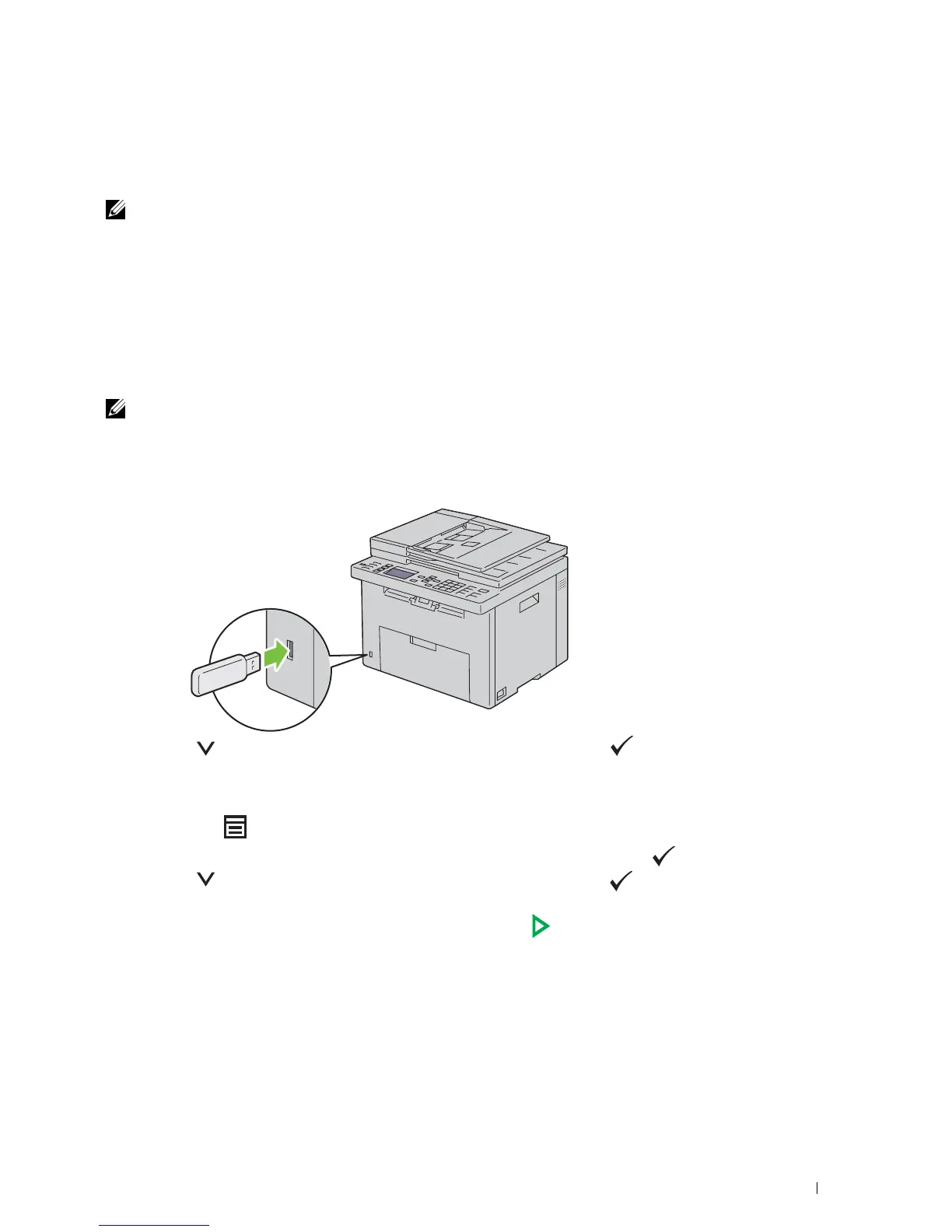
Printing a File in a USB Storage Device
1
Insert a USB storage device to the USB port of the printer.
2
Press the button until
Print From
is highlighted, and then press the
(Set)
button.
Select Document
appears.
You can also print a file by the following steps.
a
Press the button.
b
Ensure that
Print From USB Memory
is highlighted, and then press the
(Set)
button.
3
Press the button until the desired file is highlighted, and then press the
(Set)
button.
4
Select printing options as required.
5
Ensure that
Start Print
is highlighted, and then press the
(Start)
button.
Printing a Report Page
By using the Report / List menu, you can print a various of settings for your printer including printer settings,
panel settings, job history, error history, color test page, protocol monitor, Address Book, and fax activity. For details
about how to print reports or lists, see "Report / List" on page 174.



 To Next Page
 Loading...









