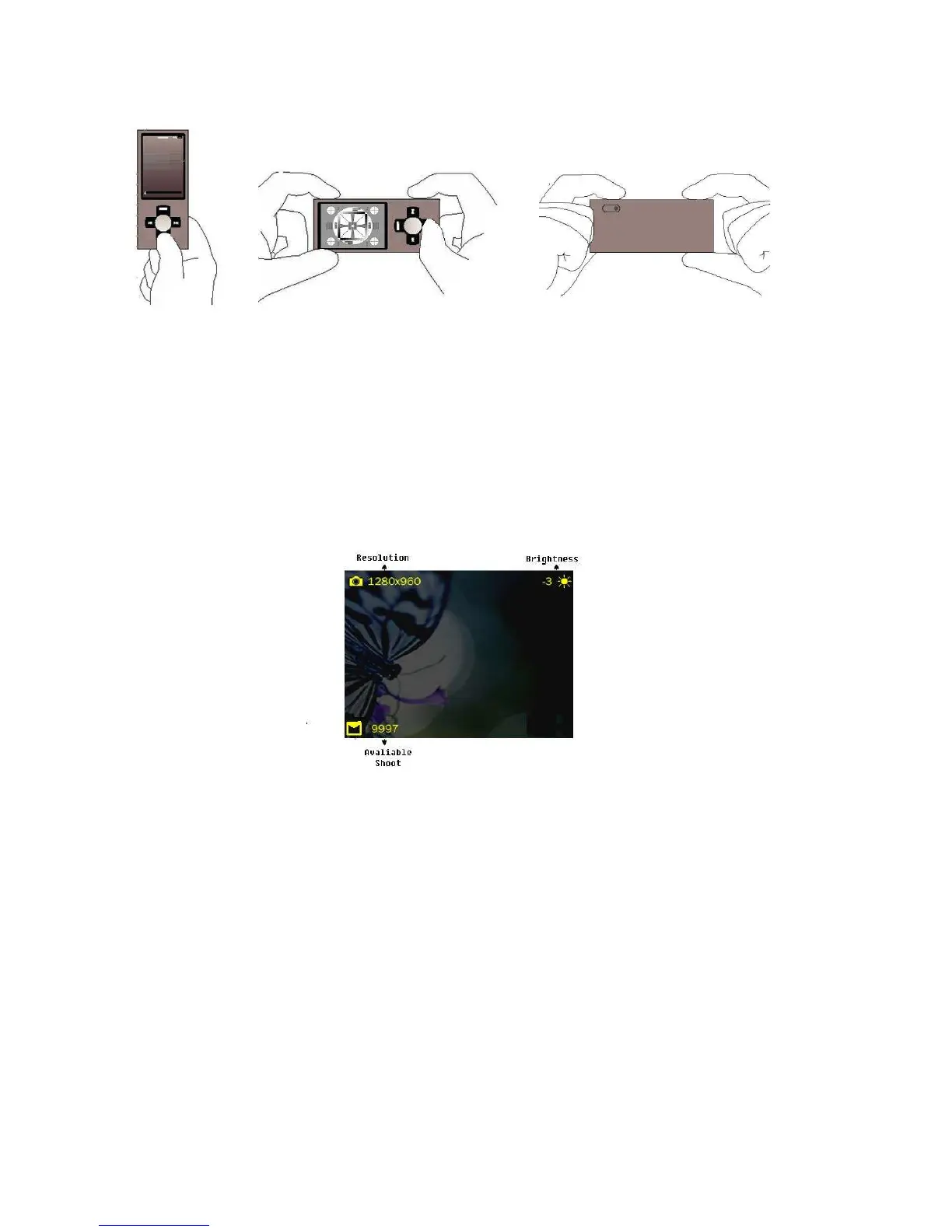
The lens is on the back, so you can use the display as viewer. Be careful not to block the lens.
To Shoot Picture:
Choose Camera from the main menu.
When you’re ready to begin shooting, press ►
▌▌
button. Press ►
▌▌
button again to shooting again.
The total number of picture could be shoot is depends on the available disk space and battery level. However, the
available number appears in the display.
To Saving Picture:
The shoot picture is saving into system defaulted folder after you press ►
▌▌
button.
Press MENU button to stop the Camera function and back to main menu.
You might to preview video or/and change camera setting as you desired. To open the camera sub menu:
Preview
In camera screen, press Center button > choose Preview.
View Parameter
You might want to view those settings of video camera.
In camera screen, press Center button > choose View Parameter.



 To Next Page